Organization and workspaces
In Magic Dashboard, your account has two levels: the organization, which is your company, and the workspaces, the spaces where data and portals live.
Organization
The organization corresponds to a Kobana account. It holds what applies to all of your portals:
- the team that signs in to the dashboard and each person's role (Members);
- the API tokens and the request limits (API and webhooks);
- the email templates and layout (Email templates);
- the platform's Consumption and the artificial intelligence usage limit.
One organization's data never shows up for another.
Workspaces
Inside the organization, data lives in workspaces. Each workspace is a separate space, with:
- its own portal: pages, brand, address, domain and sign-in methods;
- its own portal users;
- its own connectors, entities and files, where the portal's data comes from;
- its own webhooks and delivery history;
- its own artificial intelligence usage.
Events, audit and notifications show what happened in the open workspace and, along with it, what applies to the whole organization.
Use different workspaces when audiences or data should not mix — different brands, business units or products. In the Aurora demo organization, for example, Aurora Energia has the portal for energy invoices and Aurora Imóveis the tenants' portal, each with its own brand, users and entities.
Managing workspaces
Workspaces live in System › Workspaces (/dashboard/workspaces). Each card shows the workspace name, whether it is the one you have open (Active), whether you are its Owner and the API id, used in the X-Workspace-Id header.
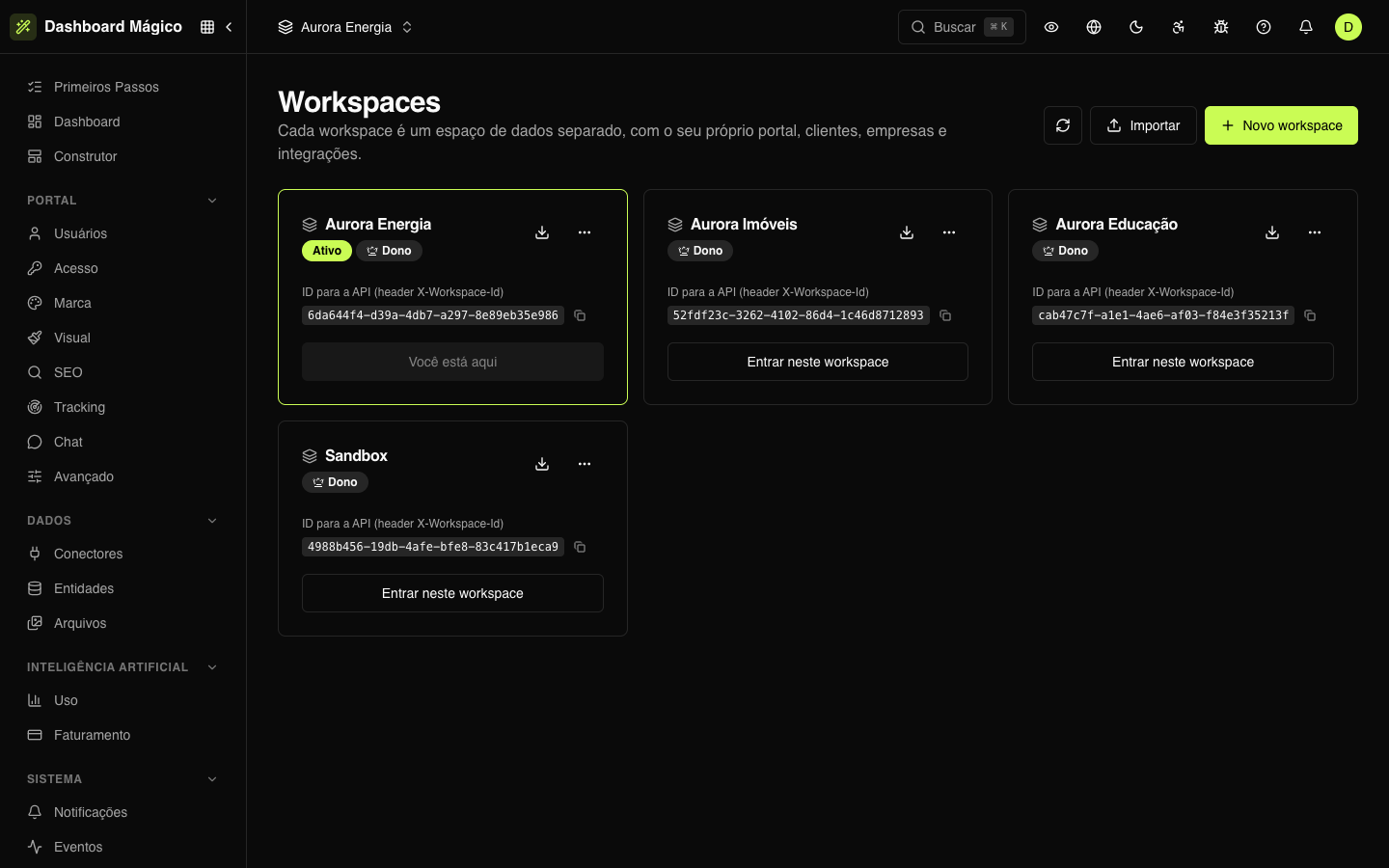
Every organization starts with one workspace. To create another, click New workspace: you become its owner and can grant access to other people on the team. Renaming, downloading the settings, importing and deleting are covered in Workspaces.
:::warning Deleting a workspace takes the portal down When you delete a workspace, its portal goes offline and the data stops showing for everyone. The organization's only workspace cannot be deleted. :::
Which workspace you are viewing
The dashboard always shows one workspace at a time. Its name appears at the top of the screen; click it to switch workspaces or to go to Manage workspaces. Everything you create — a connector, a page, a portal user — lives in the open workspace.
Anyone with access to more than one workspace chooses which one to enter right after signing in, on the Choose a workspace screen.
Who accesses each workspace
Signing in to the dashboard and opening a workspace are different things. Each team member opens only the workspaces granted to them, as an owner or as a member. Access is set in each person's profile in Members; someone with no workspace granted sees a notice asking an administrator to grant access.
Workspaces in the API
In the API, the token identifies the organization and the X-Workspace-Id header says which workspace the call acts on. While the organization has a single workspace, the header is optional.