Files
Files are the workspace's images and documents: banners for the portal pages, a PDF manual for the customer to download, a price table. They live in Data › Files (/dashboard/assets) — the same library as the Files tab of the Builder.
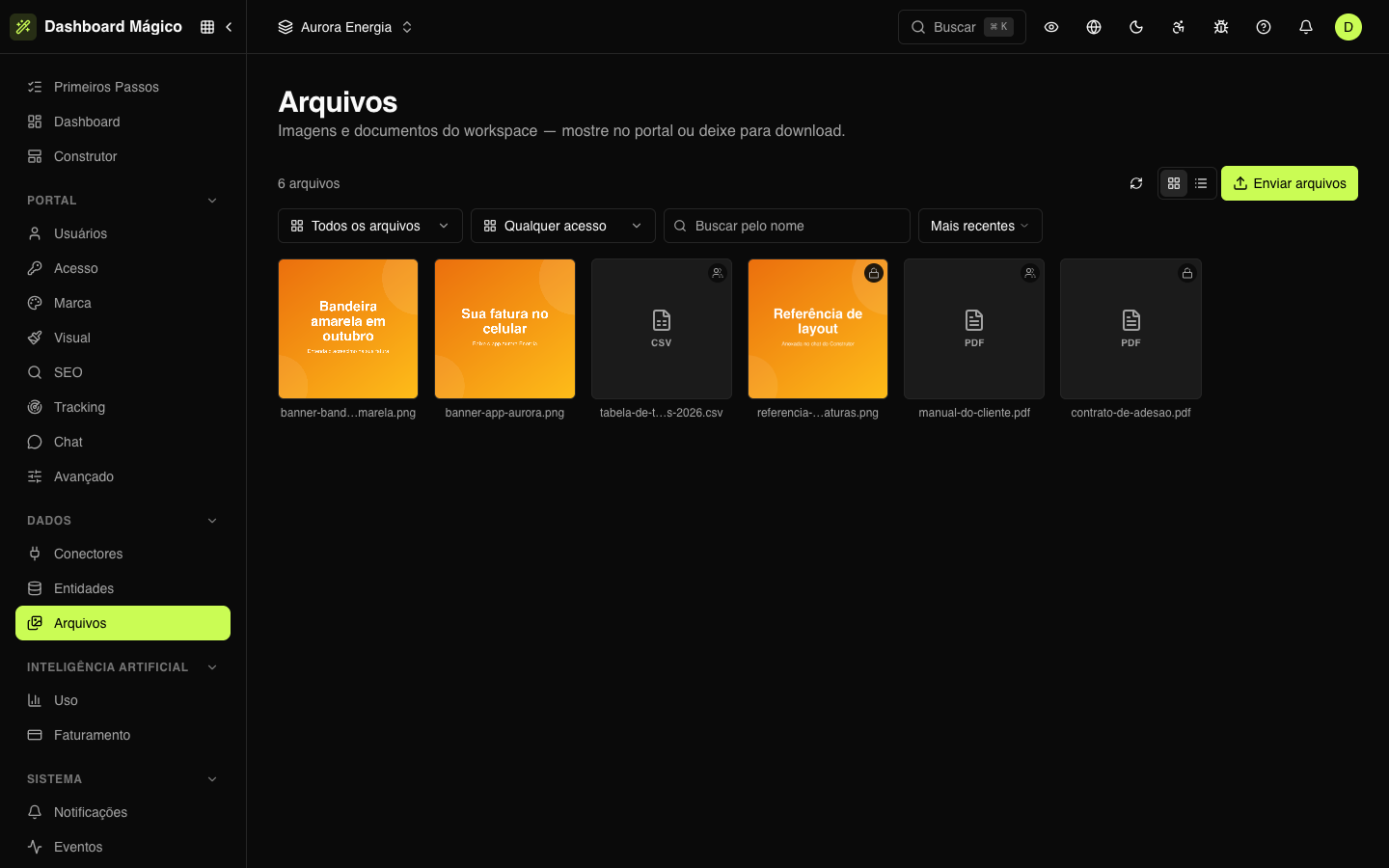
Upload files
- In Data › Files, click Upload files.
- Drag the files into the window or click to choose them. You can upload several at once.
- Click Upload.
Accepted files, up to 25 MB each:
| Type | Formats |
|---|---|
| Images | PNG, JPG, GIF, WebP, AVIF |
| Documents | PDF, TXT, CSV, Markdown, JSON, XML, Word, Excel, PowerPoint, ZIP |
SVG and HTML are not accepted: published on an open link, they could carry malicious code.
Who can download
Each file has an Access setting:
| Access | Who downloads | Use for |
|---|---|---|
| Public | Anyone with the link | Banners and images of the portal pages |
| Restricted | Only people who signed in to the portal | Documents for customers, such as the customer manual |
| Private | Only dashboard members | Internal files — don't use them in the portal |
Files are created as restricted. To change it, open the file and choose another access.
In the Aurora Energia workspace, the banners are public, manual-do-cliente.pdf and tabela-de-tarifas-2026.csv are restricted, and contrato-de-adesao.pdf is private.
Find and organize
- Grid or List: the buttons next to Upload files switch the view. The list shows name, type, size, access, origin and upload date.
- Filters: by type (Images or Documents) and by access.
- Search: by file name.
- Order: newest, oldest, name (A–Z) or largest first.
Click a file to open its details. There you can:
- change the Name;
- write the Alt text of an image — the description read by people who use a screen reader;
- change the Access;
- copy the Link, Download or Open the file.
Click Save to keep the changes.
The details also show where the file came from: uploaded by you (Upload), attached in the Builder Chat or Generated by AI.
Use a file in the portal
- Image block: in the Files tab of the Builder, click an image (or drag it onto the page) and an Image block is inserted with it and with its alt text.
- Carousel and links: copy the file's Link from the details and paste it into the image field of a Carousel slide, or into a button or text so the customer can download a document.
Use public or restricted files in the portal. A restricted file only opens for people who signed in to the portal.
Remove a file
Open the file and click Remove. It leaves the library, but the links already published in the portal keep working.