Connectors
A connector links the workspace to one of your systems — the ERP, the academic system, the rental database. It is where the records the portal shows come from.
The portal never queries the connector at the moment the customer opens the page. The connector syncs: it reads the data from the source and keeps a copy in the entities. The portal blocks read that copy, and each portal user sees only the records that are theirs (see Holder and tenant ID).
Connectors live in Data › Connectors (/dashboard/connectors).
Connector types
| Type | When to use | Page |
|---|---|---|
| API (OpenAPI) | Your system has a REST API described in an OpenAPI/Swagger file | API (OpenAPI) |
| Kobana catalog | You use a Kobana product (Financeiro Inteligente, Faturamento Automático, Régua de Cobrança, Gateway Bancário): the spec comes ready | API (OpenAPI) |
| MCP | Your system exposes an MCP server with read tools | MCP server |
| Database | You want to read straight from PostgreSQL, MySQL, MariaDB, SQL Server or MongoDB | Database |
Connect a source
- In Data › Connectors, click Connect source.
- Choose the tab for the type: Catalog, API, MCP or Database.
- Fill in the connection details. Test connection checks that everything is right before you save.
- Click Connect and sync.
When you save, the platform tests the connection and reads what the source offers: the API endpoints, the MCP server tools or the database tables. Then you create the entities from them.
The connector list
The list shows, for each connector:
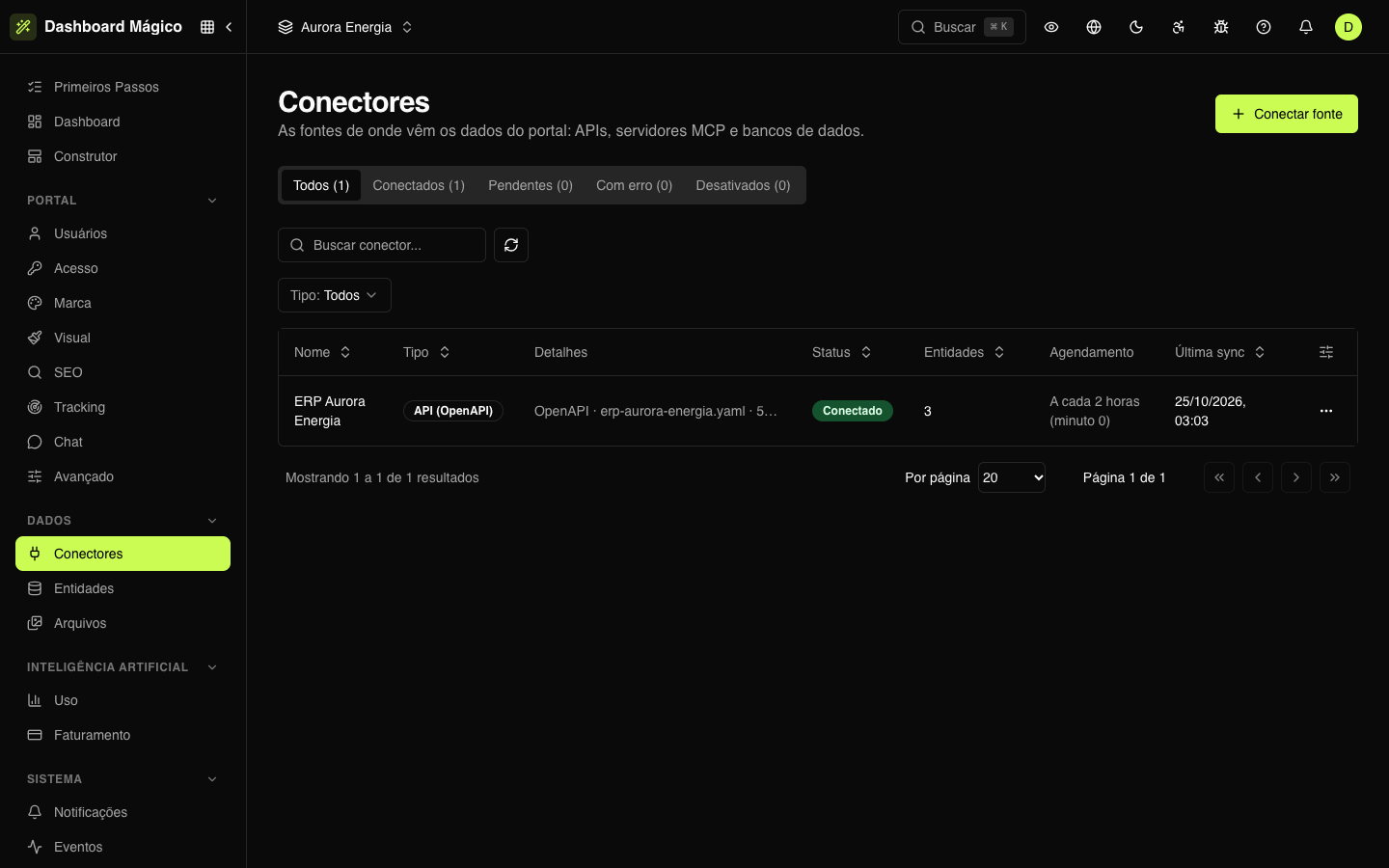
| Column | What it shows |
|---|---|
| Name | The name you gave the connector |
| Type | API (OpenAPI), Kobana catalog, MCP or Database |
| Details | A summary of the connection, such as the transport type and the number of tools |
| Status | The state of the connection (see below) |
| Entities | How many entities read from this connector |
| Schedule | How often it syncs |
| Last sync | When the last sync happened |
The tabs at the top filter by status, the search looks up the name and the Type filter shows only one type of connector. The … menu on each row has the same actions as the connector page.
Connection status
| Status | What it means |
|---|---|
| Connected | The last test succeeded and the connector is syncing |
| Pending | The connector has not been tested successfully yet — for example, an MCP server waiting for you to authorize access |
| Error | The last test or the last sync failed. Hover over the status (or open the connector) to see the Last error |
| Disabled | You disabled the connector: it is not queried and scheduled syncs stop |
The connector page
Click a connector to open its page. It has three tabs:
- Overview — the summary (type, schedule, last sync, last test, entities, created at), the last error, when there is one, and the entities that read from the connector. New entity creates an entity from it.
- Endpoints, Tools or Tables and views (the name changes with the type) — the operations the platform found in the source. Next to each read operation, Create entity already opens the entity with it chosen.
- Logs — every call the connector made to the source, with method, endpoint, status and duration. Click a call to see the request and the response.
The actions are at the top:
| Action | What it does |
|---|---|
| Edit | Changes the connection details. When you save, the connection is tested again |
| Test connection | Checks the connection now and updates the status |
| Sync and Full sync | Fetch the data again (see Sync) |
| Schedule | Sets how often the connector syncs |
| Authorize | Only for OAuth MCP servers that have not been authorized yet |
Disable a connector
In the Overview, under Danger zone, click Disable. Scheduled syncs stop and the connector is no longer queried, but the records already synced keep showing in the portal.
To bring it back, click Enable: the platform tests the connection and scheduled syncs run again.
Protected credentials
Tokens, passwords, certificates and authentication headers are encrypted before being stored and never come back to the screen. When you edit a connector, leave a credential field blank to keep the saved value.
In the Logs, authentication headers, secret parameters and tokens appear masked (***).