Database
When the data is in a database and there is no API in front of it, you connect the database directly. The platform only reads: it never writes anything to it.
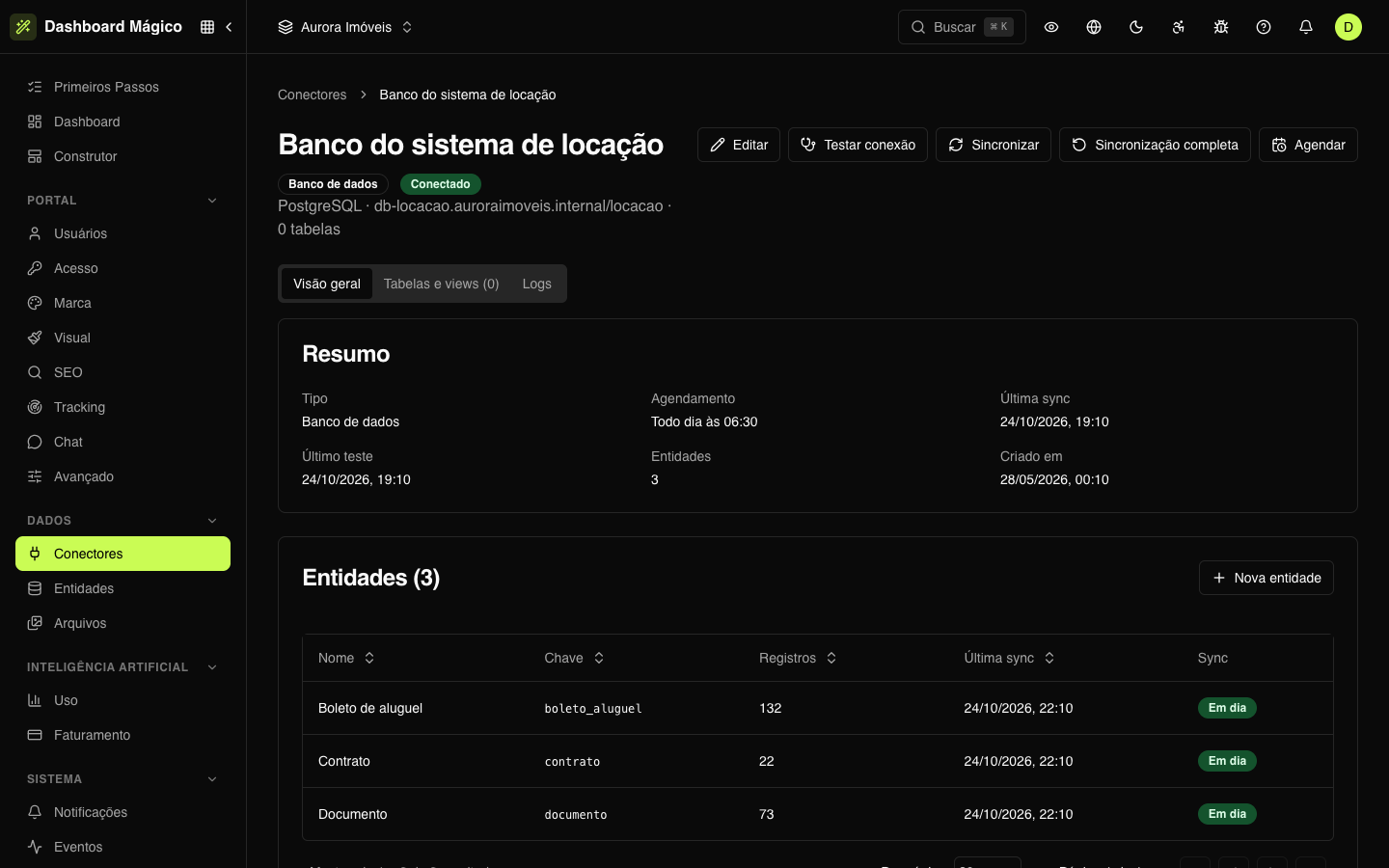
In the Aurora Imóveis workspace, the Banco do sistema de locação connector is a PostgreSQL. The contracts, the rent payment slips and each tenant's documents come from it.
Supported databases
| Type | Databases |
|---|---|
| SQL | PostgreSQL, MySQL, MariaDB, SQL Server |
| NoSQL | MongoDB |
Other databases show up in the list as coming soon.
Connect a database
- In Data › Connectors, click Connect source and open the Database tab.
- Choose the Type (SQL or NoSQL) and the Database.
- Fill in the connection:
| Field | What to enter |
|---|---|
| Host and Port | The server address, such as db.exemplo.com.br, and the port (the database default comes already filled in) |
| Database | The database name, such as locacao |
| Username and Password | The user the platform uses to read |
| Connection string | MongoDB only: the full connection string, instead of host and port |
| SSL/TLS | Connects with encryption |
| Verify certificate | Checks the server certificate (only with SSL/TLS on) |
- Click Test connection to check.
- Click Connect and sync.
The test connects to the database and lists the tables and views (or collections, in MongoDB) the user can see. They appear in the Tables and views tab of the connector page.
Always read-only
The Read-only (always) option comes checked and can't be turned off. Besides only running queries, the platform opens the session in read mode when the database allows it.
Even so, create a read-only user, with SELECT permission only on the tables the portal needs. In the Aurora Imóveis example, the user is portal_leitura.
Network
The database must accept connections from the platform over the internet:
- Allow Kobana's outbound IPs in the database firewall.
- The host must point to a public address. Internal addresses (such as
localhostor private network IPs) are refused.
Tables or SQL queries
An entity can read in two ways:
- A table, view or collection — choose it from the list, in Create entity. You can also filter which rows come in (see Entity sync).
- An SQL query — write a
SELECT, withJOINif you need it. This is what Aurora Imóveis uses to join contracts and properties. See SQL queries.
When you edit the connector, the chosen database is fixed; the rest of the connection can be changed. Leave the password (or the connection string) blank to keep the saved one.