MCP server
MCP (Model Context Protocol) is a standard way for a system to offer tools — functions another program can call, such as listar_mensalidades. If your system has an MCP server, you connect it here and use the read tools as the source of entities.
In the Aurora Educação workspace, the Sistema acadêmico (MCP) connector brings the tuition fees each guardian sees in the portal.
Connect an MCP server
-
In Data › Connectors, click Connect source and open the MCP tab.
-
Fill in the fields:
Field What to enter Type The server transport: Streamable HTTP or SSE URL The server address, such as https://mcp.auroraeducacao.com.br/mcpCustom headers Headers sent on every call, one per line, in the Name: valueformat — for example,Authorization: Bearer …OAuth Whether the server asks for a login (see below) -
Click Test connection to check.
-
Click Connect and sync.
Already have the configuration in MCP Inspector? Click Paste configuration, paste the JSON exported by the Inspector and the fields are filled in.
OAuth
| Option | When to use |
|---|---|
| No OAuth | The server is open or accepts a fixed token in the Custom headers |
| Dynamic Client Registration | The server lets the client register itself. The platform discovers the authorization server (/.well-known/oauth-authorization-server) |
| Client ID / Secret | You already have a client registered on the server: enter the Client ID and the Client Secret |
With OAuth, you can also enter the Scopes to request. When you save, you are taken to the server's login screen to authorize access; when you come back, the dashboard tells you whether it worked. Until the authorization happens, the connector stays Pending and shows the Authorize button.
Tools
When you connect, the platform asks the server which tools it has. They appear in the Tools tab of the connector page, with the access of each one: Read or Write.
Read tools become entities: click Create entity next to one of them. In the Sistema acadêmico, listar_mensalidades became the Mensalidade entity; enviar_comunicado is a write tool and doesn't become an entity.
The tool arguments are filled in when you create the entity, and one of them can receive the user's tenant ID — this is how an entity synced on access asks the server only for the records of the person who signed in to the portal.
When authentication fails
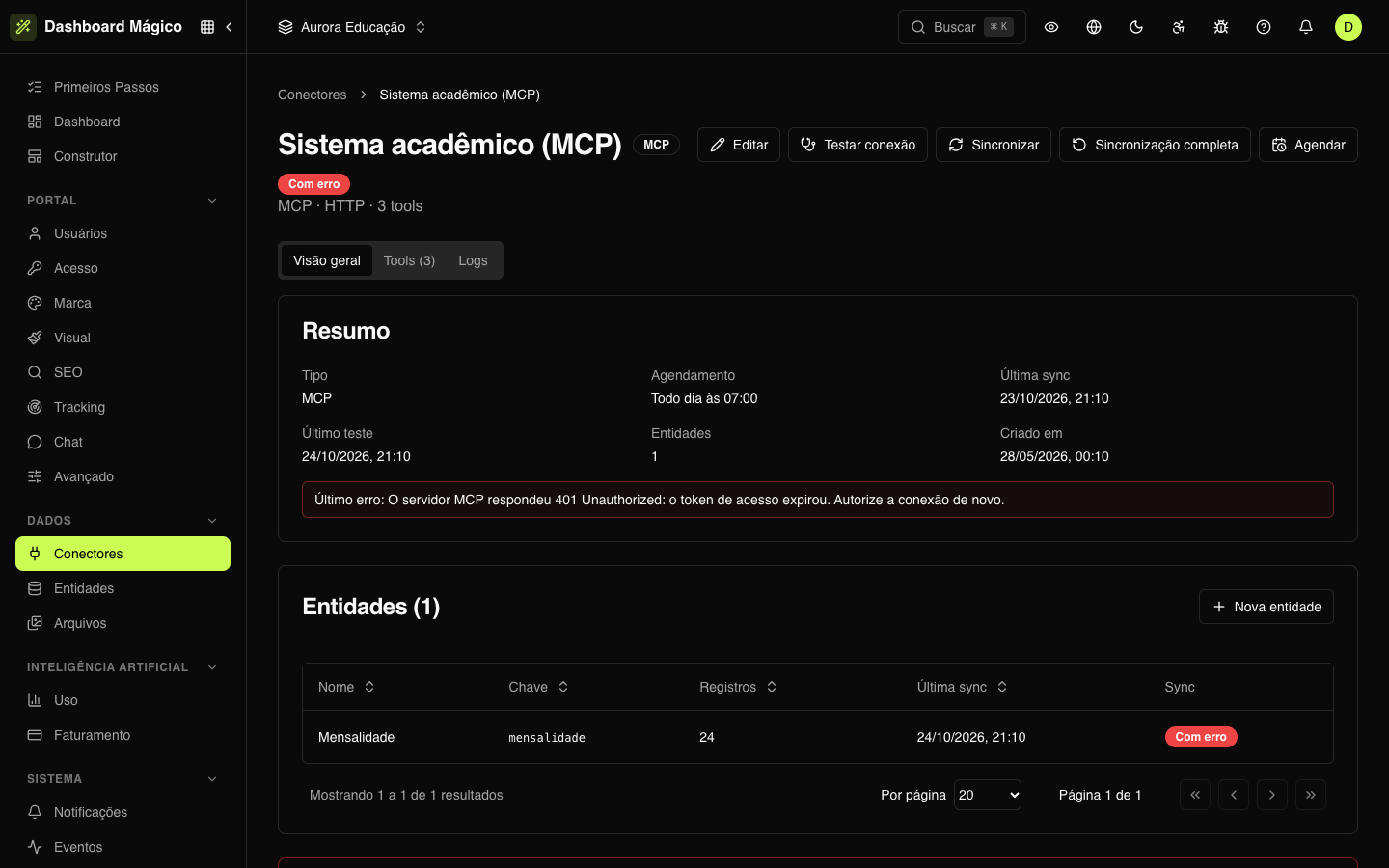
When the server refuses the credentials, the connector goes to Error and the Overview shows the Last error. In the Aurora Educação example, the server answered 401 Unauthorized because the token sent in the Authorization header had expired. The Mensalidade entity also goes to Error, and the records that had already been synced stay stored in it.
To fix it:
- Token in the Custom headers: click Edit, fill in Custom headers with the new token and click Save. Saved headers appear by name only; filling in the field replaces all of them.
- OAuth: click Authorize and sign in to the server again.
When you save or authorize, the connection is tested again. If it works, the status goes back to Connected.
Changing the URL or the OAuth configuration requires a new authorization on the server.