Entities
An entity is a type of record the portal shows: Fatura, Contrato, Boleto de aluguel, Mensalidade. It says where the records come from, which fields they have and which customer each one belongs to.
The records come from a connector: from an API endpoint, an MCP tool, a database table or an SQL query. The sync copies those records to the platform, and the portal blocks read that copy — never the source. Each portal user sees only the records whose holder equals their tenant ID (see Holder and tenant ID).
Entities live in Data › Entities (/dashboard/entities).
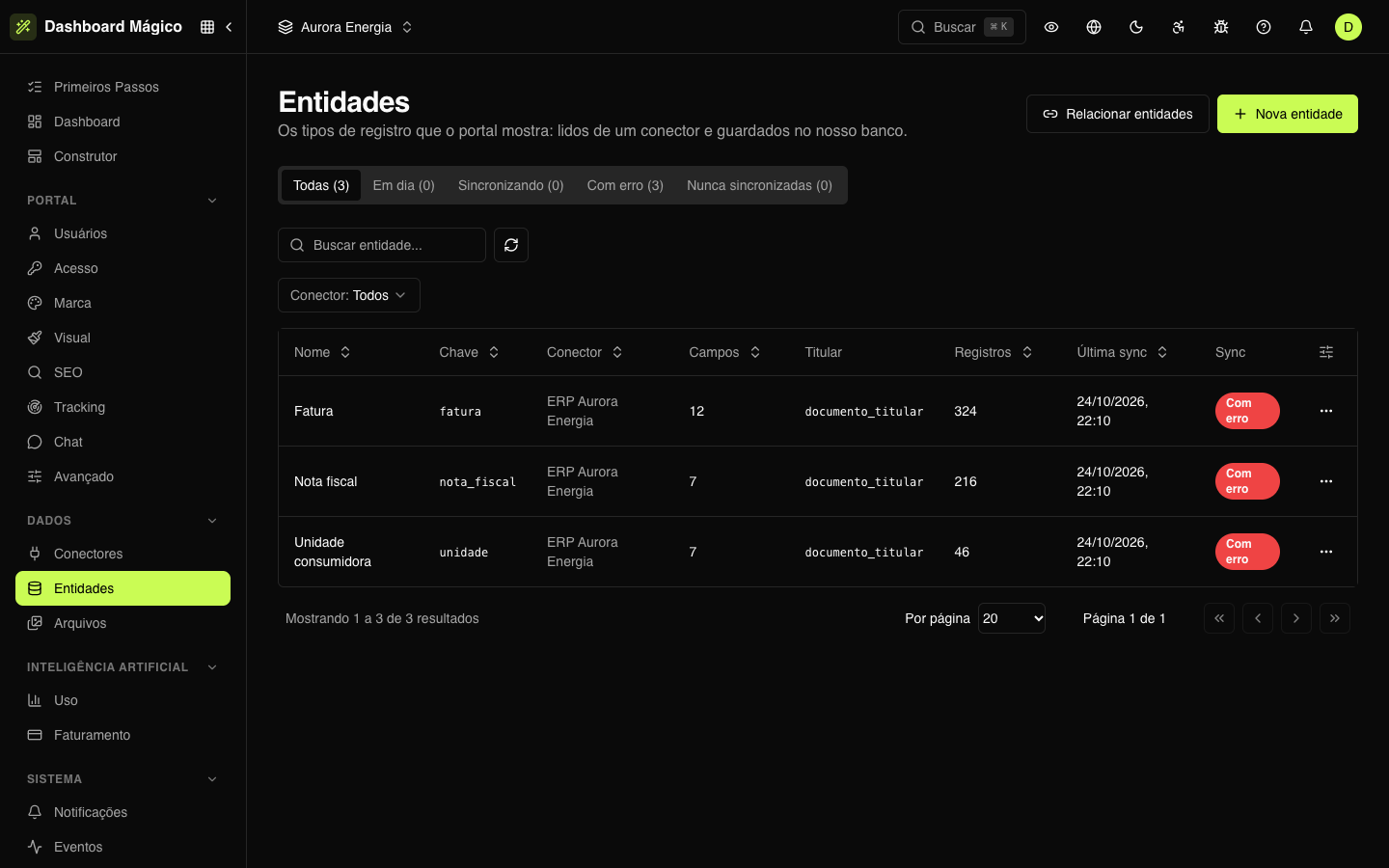
The entity list
In the Aurora Energia workspace, the three entities read from the ERP Aurora Energia connector: Fatura, Nota fiscal and Unidade consumidora.
| Column | What it shows |
|---|---|
| Name and Key | The name that shows in the dashboard and the key that blocks and the Builder chat use (fatura) |
| Connector | Where the records come from |
| Fields | How many fields the entity has |
| Owner | The field that says which customer each record belongs to. no owner means no customer sees the records in the portal |
| Records | How many records are synced |
| Last sync and Sync | When the last sync happened and how it is doing: Up to date, Queued, Syncing, Error or Never synced |
The tabs filter by sync status, the search looks up the name and the Connector filter shows only the entities of one connector. The … menu on each row syncs, edits or removes the entity.
Create an entity
You need a connector first. Then:
- In Data › Entities, click New entity. (On the connector page, Create entity next to an endpoint, tool or table already opens it with that one chosen.)
- Choose the Connection and the operation the data comes from: the endpoint, the tool or the table. In an SQL database, you can also write an SQL query.
- Fill in the Parameters the operation asks for, when there are any. In this step you also adjust the pagination, when to sync and the sync filters.
- Click Fetch data. The platform fetches a sample from the source and builds the fields from what came back.
- Review the entity:
- Name, Plural name and Key — for example, Fatura, Faturas and
fatura. - Identifier — the field that identifies each record at the source, such as
id. - Title — the field that serves as the name of each record, such as the invoice description.
- Owner ID — the field with the customer ID, and how it is compared to the tenant ID.
- The fields: which ones come in, with what name, type and role.
- Name, Plural name and Key — for example, Fatura, Faturas and
- Click Create entity with N fields.
The entity is created and the first sync goes into the queue. See the received sample, at the bottom of the screen, shows the first records as the source sent them.
Without an Owner ID, no portal user sees the entity's records. Choose the field with the customer's CPF/CNPJ or code.
Field limit
Each workspace has a field limit for a new entity (10, if nothing different was agreed). The screen shows how many you picked — for example, 8 of 10 fields — and, at the limit, you uncheck a field to pick another.
The entity page
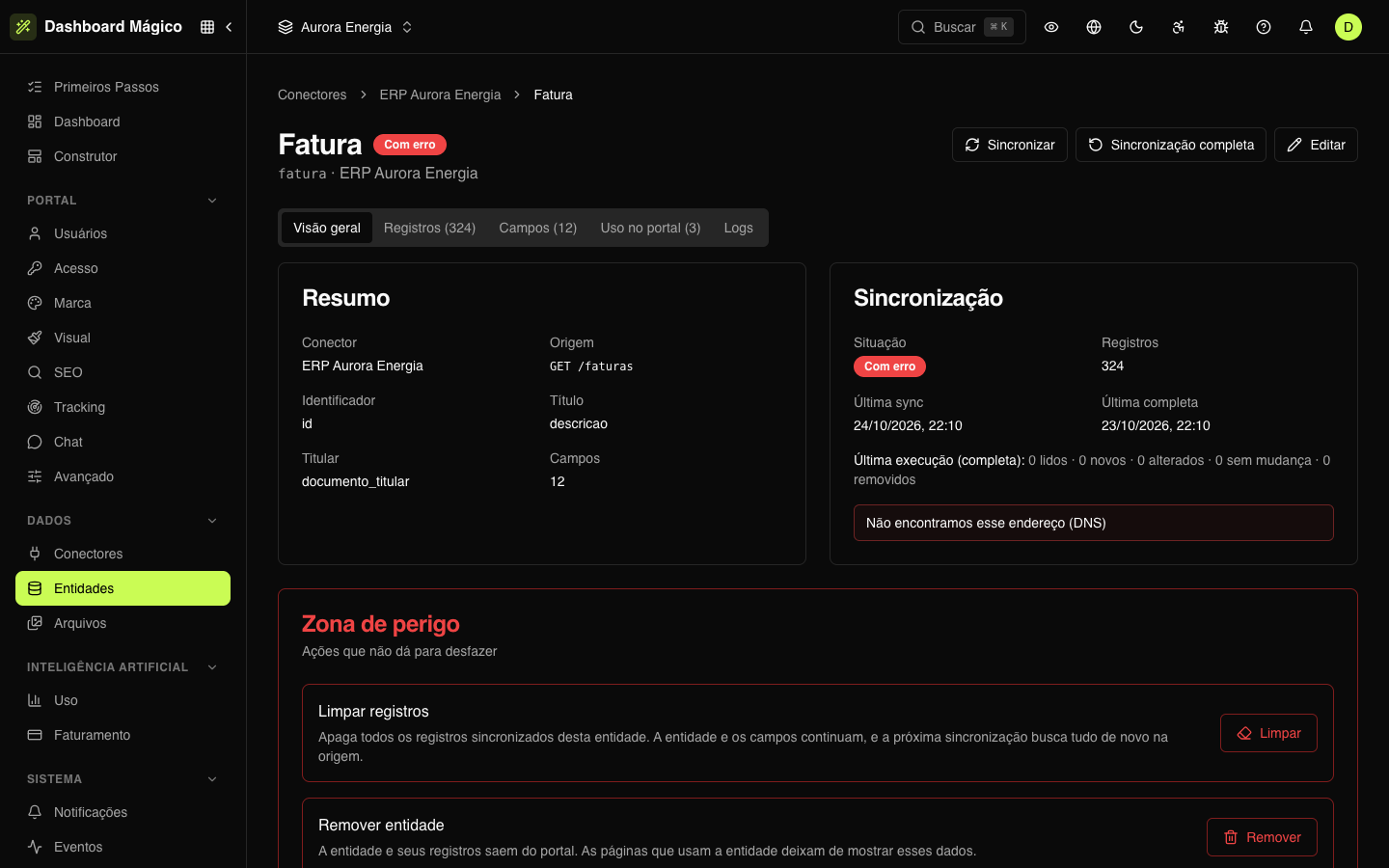
Click an entity to open its page. At the top are Sync, Full sync and Edit. The tabs:
| Tab | What it has |
|---|---|
| Overview | Where the data comes from, the identifier, the title, the owner, the sync status and the Danger zone |
| Records | The synced records (see Records) |
| Fields | The fields, with key, name, type, role, source path and whether they are visible (see Fields) |
| Portal usage | The portal pages that use the entity, marked as draft or published |
| Tenants | Only for entities that sync when the user opens the portal (see Entity sync) |
| Logs | The calls this entity's sync made to the connector |
Relate entities
Relate entities joins the records of two entities by a common field and creates a new entity, which you use in blocks like any other. For example, joining invoices with consumer units by the unit code.
- Click Relate entities.
- Choose the Main entity, the entity to Relate to and the field of each that must be equal. Check Compare digits only when the field is a CPF/CNPJ or phone number.
- Choose whether the relation keeps every record of the main entity (those without a match get the related fields empty) or only the records with a match.
- Click Check matches to see how many records matched.
- Choose the fields of the new entity, the Owner and the Title, and click Create relation.
Remove an entity
In the Overview, under Danger zone, click Remove. Before you confirm, the screen shows the portal pages that use the entity — they stop showing that data. The connector and the data at the source don't change.
To delete only the records and keep the entity, use Clear (see Records).