Fields
Fields say what each record of an entity has — reference, amount, due date, status. When the entity is created, the platform reads a sample from the source and suggests the fields, with name, type and role. You adjust whatever you want.
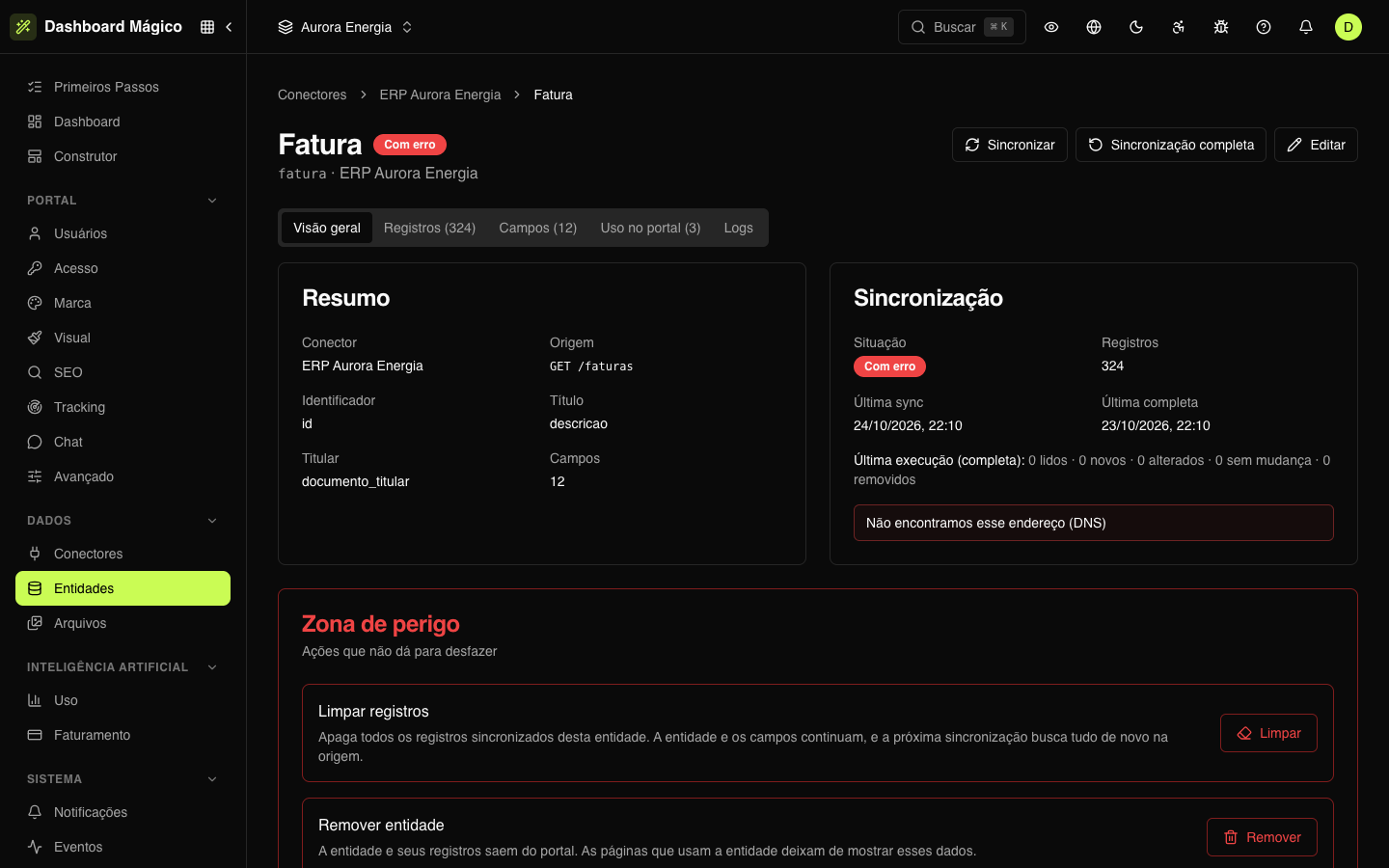
To see the fields, open the entity in Data › Entities and go to the Fields tab. To change them, click Edit.
What each field has
| Column | What it is |
|---|---|
| Key | The field's technical name, which blocks use (vencimento). Lowercase letters, numbers and _ only |
| Name | The name that shows in the dashboard and the portal (Vencimento) |
| Type | How the value is handled and shown (see below) |
| Role | What the field means for the business (see below) |
| Source path | Where the value is in the record the source sends, such as cliente.nome |
| Visible | Whether the field appears in the record lists |
On the edit screen, each field shows the source path and a few values from the sample, so you can recognize what it is. Uncheck a field to leave it out.
Types
| Type | Example |
|---|---|
| text | Conta de setembro |
| integer and decimal | 312 kWh, 12.5 |
| money | Shown as R$ 284,90 |
| yes/no | Shown as ✓ or ✗ |
| date and date and time | Shown in the Brazilian format |
| email, phone and CPF/CNPJ | cliente@exemplo.com.br, 11 98765-4321, 367.909.817-05 |
| list | One value among a few options, such as the status: em_aberto, pago, vencido |
| link | The address of the PDF payment slip |
| file | A document to download |
| list of items and object | Values with structure (a list, a JSON object) |
Roles
The role tells the portal blocks what each field is for. It is how an indicators block knows to sum the amount of open invoices, and how a calendar knows which date is the due date.
| Role | What it is for |
|---|---|
| identifier | Identifies the record at the source |
| reference | A code that links the record to another, such as the invoice's consumer unit |
| title | The record's name in lists |
| status | The record's status |
| due date | The due date |
| amount | The amount of money |
| created at and updated at | The record's dates |
| email, document, phone and link | Contact data, documents and addresses |
A field can have no role. In the Fatura entity of Aurora Energia, Referência has no role; Valor is amount, Vencimento is due date and Situação is status. Learn more in Data in blocks.
The owner field
The Owner ID is the field that says which customer each record belongs to. It is chosen when editing the entity, together with the Identifier and the Title, and appears in the Fields tab with the role owner ↔ user.
Right below, you choose how the value is compared to the portal user's tenant ID:
| Comparison | When to use |
|---|---|
| Tenant ID (exact text) | The owner is a code from your system, such as the guardian's registration number |
| Tenant ID as CPF/CNPJ (digits only) | The owner is a CPF or CNPJ. Masks don't matter: only the digits are compared |
In Fatura, the owner is the field CPF/CNPJ do titular (documento_titular), compared as CPF/CNPJ. This field is not visible: it decides who sees the record, but it doesn't need to appear. Understand the rule in Holder and tenant ID.
Calculated fields
A calculated field builds the value from the other fields of the record, without existing at the source. Use it to join texts, format a code or do a calculation.
- On the entity edit screen, click Calculated field.
- Give the field a name, key and type.
- In Expression, write the value. What is between
{{ }}is calculated; the rest is fixed text.
Examples:
| Expression | Result |
|---|---|
P-{{ $resource.numero.length }} | P-6 |
{{ $resource.valor * 0.1 }} | Ten percent of the amount |
{{ $resource.consumo_kwh }} kWh | 312 kWh |
$resource.<key> reads a field of the record. The syntax is the same as n8n expressions — the screen has a link to the reference. Right below the expression, the screen shows the result on the first record of the sample (or the error, if the expression doesn't work).
A calculated field sees the source fields and the calculated ones that come before it. When the expression fails on a record, the field is empty on that record.
Edit the fields later
In Edit you rename fields, change type and role, add or remove fields and create calculated fields. When the change affects the records (fields, types, roles, expressions, owner, filters or pagination), a sync goes into the queue to read the records again with the updated fields.
If you change the entity Key, the screen warns you which portal pages use the old key.