Records
Records are what the sync brought from the source — each invoice, each contract, each tuition fee. The portal blocks read from them. Checking the records in the dashboard is the quickest way to know whether the data arrived as you expected.
The record list
Open the entity in Data › Entities and go to the Records tab. The number next to the tab name is the total of synced records — in Aurora Energia's Fatura, 324.
- Columns — the entity's visible fields, in field order (up to 8). Fields marked as not visible, like CPF/CNPJ do titular, are left out.
- Search — looks up the entity's title field (or the identifier, if it has no title). In Fatura, the search is by Descrição.
- Sorting — click a column header.
- Pagination — choose how many records per page.
Values appear formatted by the field type: money in reais, dates in the Brazilian format, yes/no as ✓ or ✗.
If the list is empty, the entity hasn't synced yet: click Sync at the top of the page.
One record
Click the eye icon on a row (View record) to open the record (/dashboard/entities/<id>/records/<id>). The page has three panels:
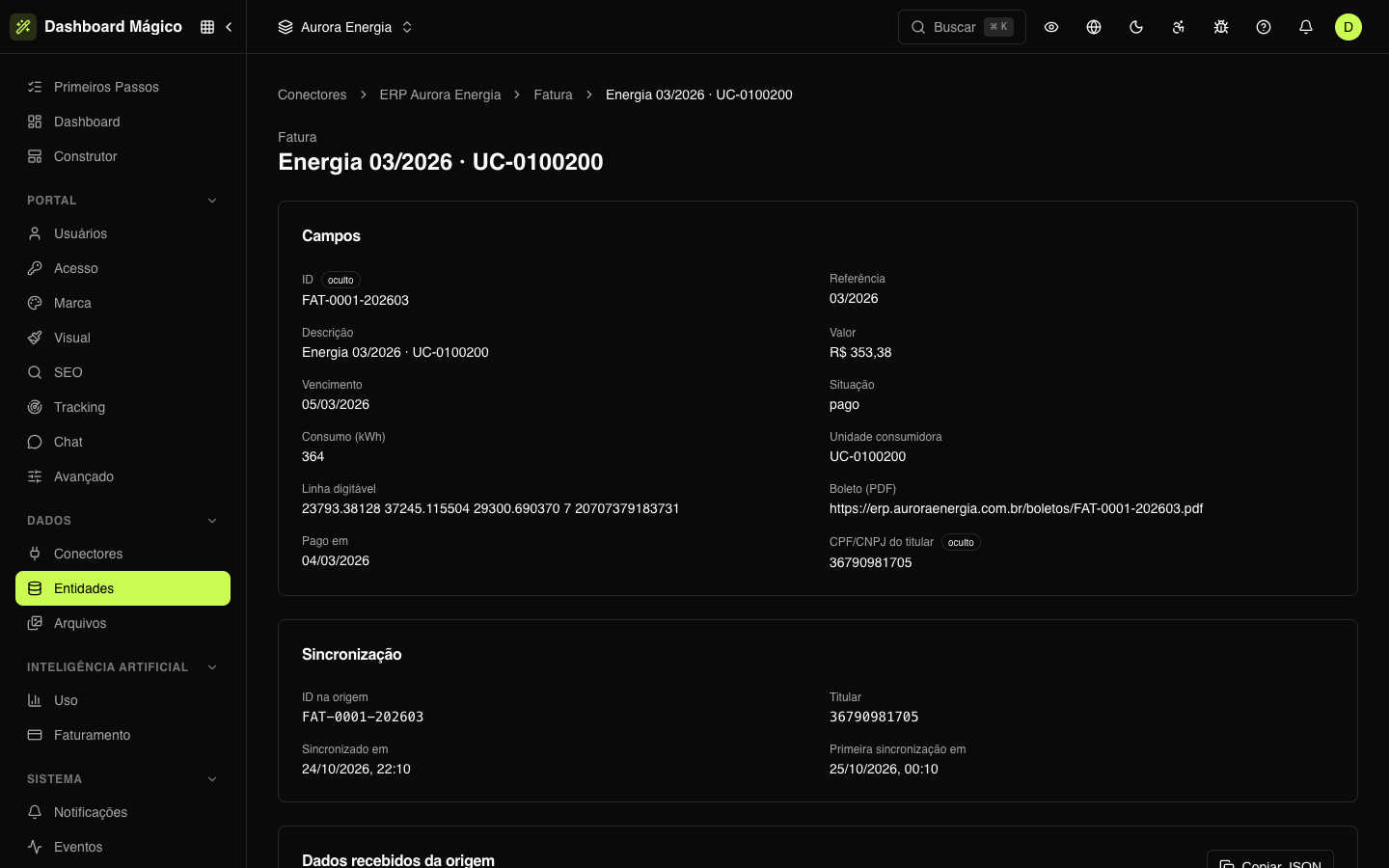
Fields — all the entity's fields with this record's value, including the non-visible ones, marked as hidden. Show empty fields turns the empty fields on and off.
Sync — where the record came from and when:
| Item | What it shows |
|---|---|
| Source ID | How the source identifies the record |
| Owner | The record's owner ID — the value that is compared to the portal users' tenant ID |
| Changed at the source on | When the source says the record last changed, if it reports it |
| Synced on | When the platform last stored the record |
| First synced on | When the record first arrived |
Data received from the source — the record as the source sent it, before the field mapping, in JSON. Copy JSON copies everything.
Compare the two sides when a value looks wrong: if it is right in the received data and wrong in the fields, adjust the field's path or type; if it already came wrong from the source, the problem is in the source system.
A portal user doesn't see a record they should? Open the record and compare the Owner with the user's tenant ID in Portal users. See Holder and tenant ID.
Clear the records
In the entity Overview, under Danger zone, Clear deletes all the synced records. The entity and the fields stay.
Use it when you want to start from scratch — for example, after changing the filters a lot. The portal pages that use the entity stay empty until the next sync, which reads everything again from the source.