Signing in to the portal
This page shows what the portal user — your customer — sees when signing in. The available sign-in methods are the ones you turn on in Access.
The portal address
Each portal has its own address, through any of these paths:
| Address | Example (Aurora Energia) |
|---|---|
| The platform address | /portal/aurora-energia/login |
| The address on the shared domain you chose | aurora-energia.kpanel.io/login |
| Your own domain, when one is active | portal.auroraenergia.com.br/login |
The ready-to-copy addresses are in Access, under Portal URLs, along with the custom domain. The sign-in screen uses the portal's brand and colors.
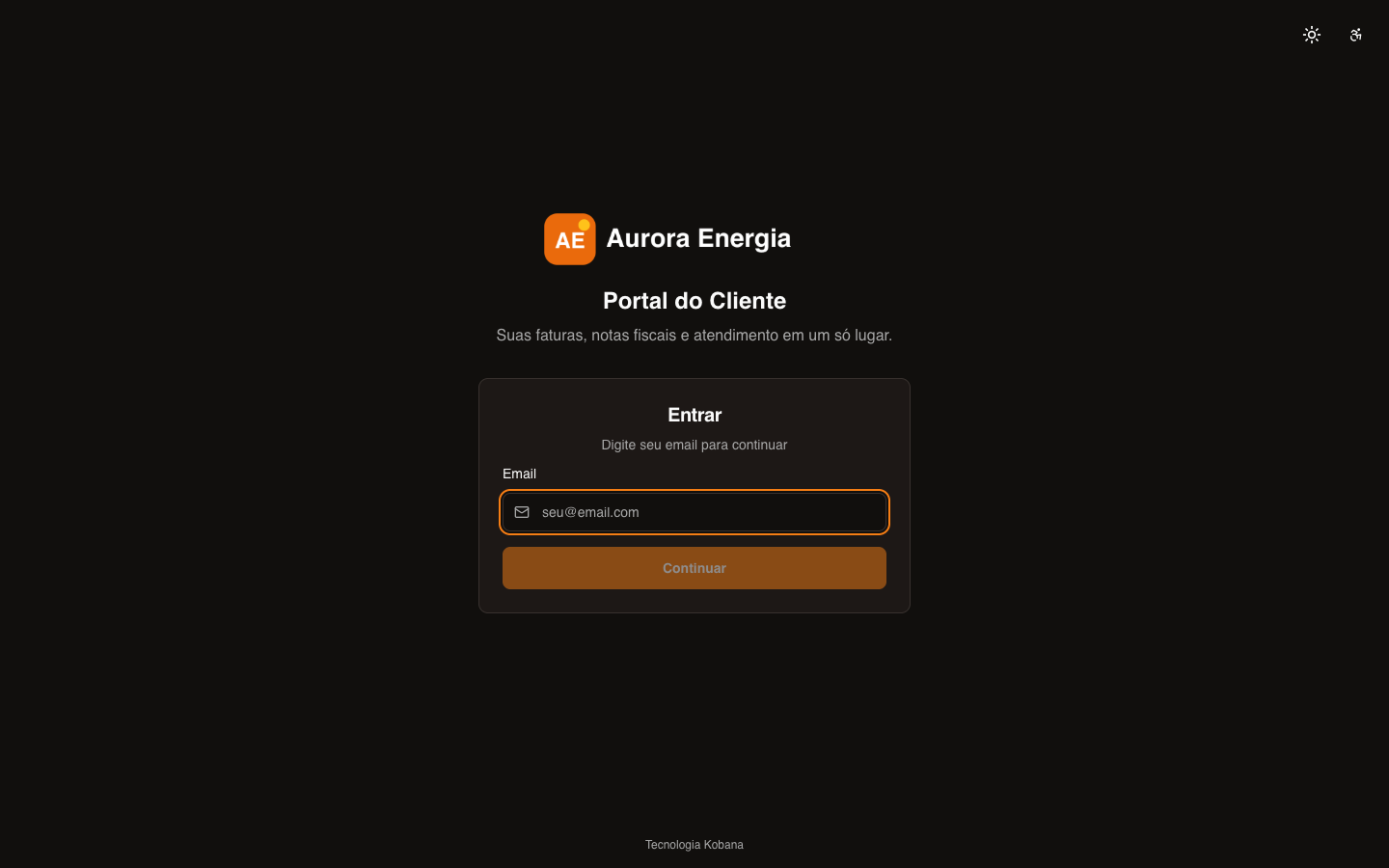
In the top corner of the screen, the user switches the theme (light or dark) and opens the Accessibility panel, with settings such as text size, contrast and a dyslexia-friendly font. The screen speaks the portal's language, set in Advanced.
Signing in with email
- The user types their email and clicks Continue.
- On the next screen, they type their password and click Sign in.
The password screen has two shortcuts:
- Sign in with magic link — the portal sends an access link to the email. By clicking the link, the person signs in without typing a password. The link is valid for 15 minutes and works only once.
- Forgot password? — the portal sends a link to create a new password. The link is valid for 1 hour. The new password must have at least 8 characters, with an uppercase letter, a lowercase letter and a number.
If the portal uses only the magic link (no password), the email goes straight to sending the link.
:::info For security, the portal doesn't say whether the email exists The answer is the same for any email: "Link sent!" or "Invalid email or password". That way no one can find out who is registered in the portal. If the user doesn't receive the link, check that their email is registered in Portal users and that they are not an SSO only user — those sign in only through your system. :::
Lockout after failed attempts
After 5 wrong passwords in a row, the account is locked for 15 minutes. During the lockout, even the right password is refused, with the same incorrect-password message. Once the time is up, the user signs in normally. To avoid waiting, they can use the magic link or Forgot password?.
Signing in with Google, Microsoft and others
If you registered sign-in providers (OIDC) in Access, the sign-in screen starts with the question Choose how to sign in: a button for each provider (Continue with Google, for example) and the Sign in with email button.
The user must already be registered in the portal with the same email as the provider account. If not, they see the Access not authorized screen, asking them to contact the company responsible for the portal. The provider must also share the person's email: if they deny any requested permission, the portal explains that all of them must be authorized.
Signing in through your system (SSO)
With SSO, the user doesn't go through the sign-in screen: they click a link inside your system and arrive at the portal already authenticated. While the portal checks the access, Authenticating… appears. If the link has expired or was already used, the portal shows the error and a button to go back to sign-in.
First access
By invitation
When you invite a user in Portal users, they receive an email with the invitation link:
- The person clicks the link and lands on the Create your password screen.
- They set a password of at least 8 characters and confirm it.
- They click Create account and are taken to sign-in.
The invitation is valid for 7 days. After that, send a new invitation from the dashboard.
By email verification
A user who is waiting for email verification receives a verification link, valid for 24 hours. By clicking it, they complete their registration — full name, mobile phone and password — and sign in to the portal right away. Until they verify, password sign-in shows "Please verify your email before signing in."
Messages the user may see
| Message | What it means |
|---|---|
| Invalid email or password | The password doesn't match, the email isn't registered in this portal or the account is locked from failed attempts. |
| Your account has been suspended | The user was suspended in Portal users. |
| Login unavailable | Portal sign-in is turned off in Access. Only SSO keeps working. |
| Your session has expired | The session ended. Just sign in again. |
How long the person stays signed in
After signing in, the user stays signed in for up to 14 days in that browser. They can sign out at any time from the account menu — see Using the portal. Changing the password or the email ends the sessions open elsewhere.