Using the portal
This page shows the portal from the portal user's point of view, after they sign in. Everything they see is what you built and published in the Builder: the pages, the blocks and the menu order.
The home page
After signing in, the user lands on the published portal's home page. At Aurora Energia, it greets the customer by name and shows a summary of invoices, a chart of amounts per month, the due-date calendar and their consumer units.
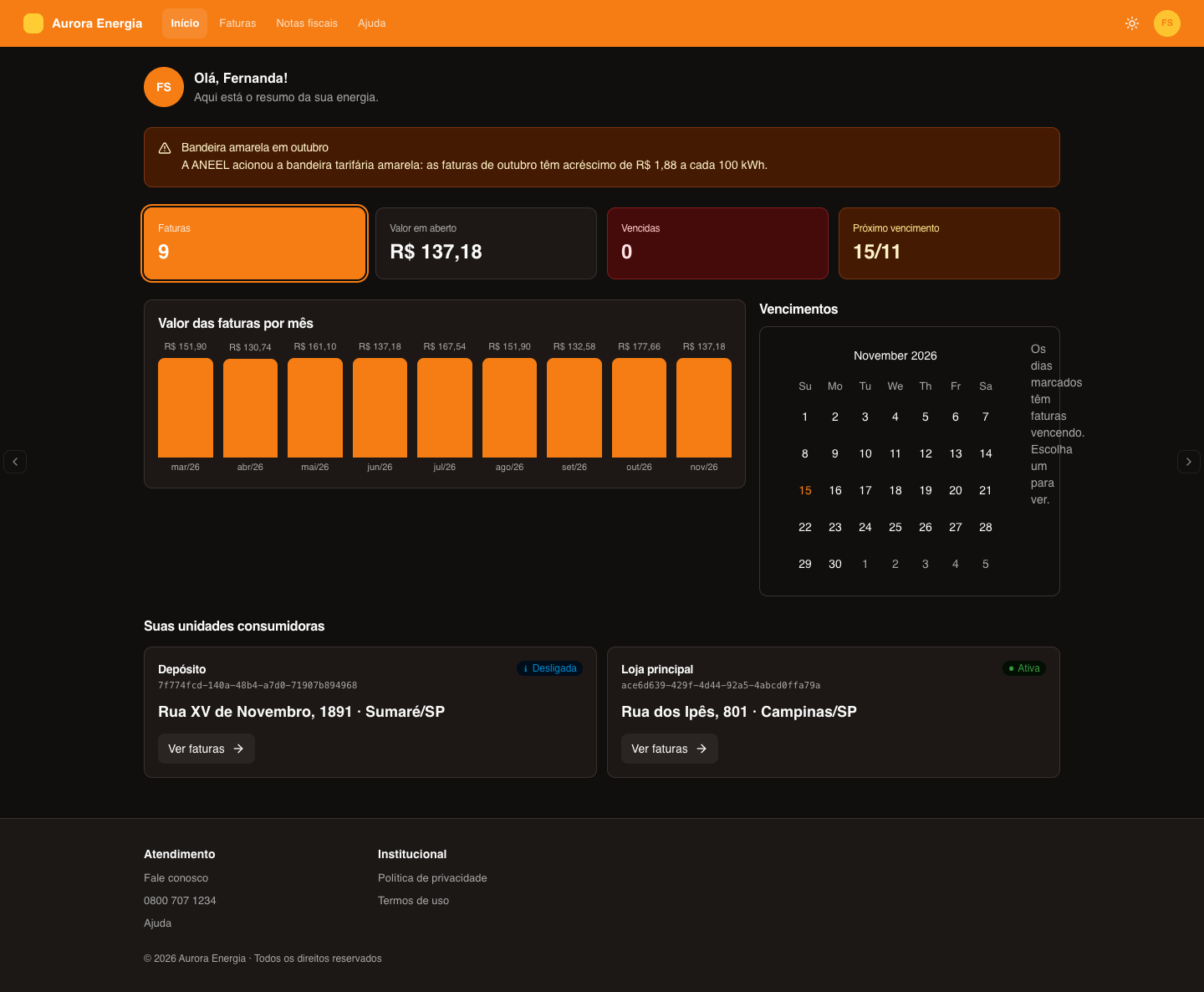
While the workspace hasn't published any version of the portal, the home page shows only a greeting (Hello, name!) and the user's Tenant ID.
Only each user's data
Each user sees only the records that are theirs: those whose holder equals their tenant ID. Two customers opening the same Invoices page see different lists, each with their own invoices. An address pointing to someone else's record shows nothing. See Holder and tenant ID.
The header
The portal header brings together:
- the portal's brand;
- the menu, with the published pages you marked to appear in the menu (or the links you defined in the Builder). On mobile, the menu opens with the three-line button;
- the theme button, with the sun or the moon, to switch between light and dark mode;
- the account menu, opened by the user's initials, with the name, the email and the Change password and Sign out options.
What appears in the header depends on how you configured the Header block in the Builder.
Tables
Lists of records — invoices, orders, contracts — appear in tables.
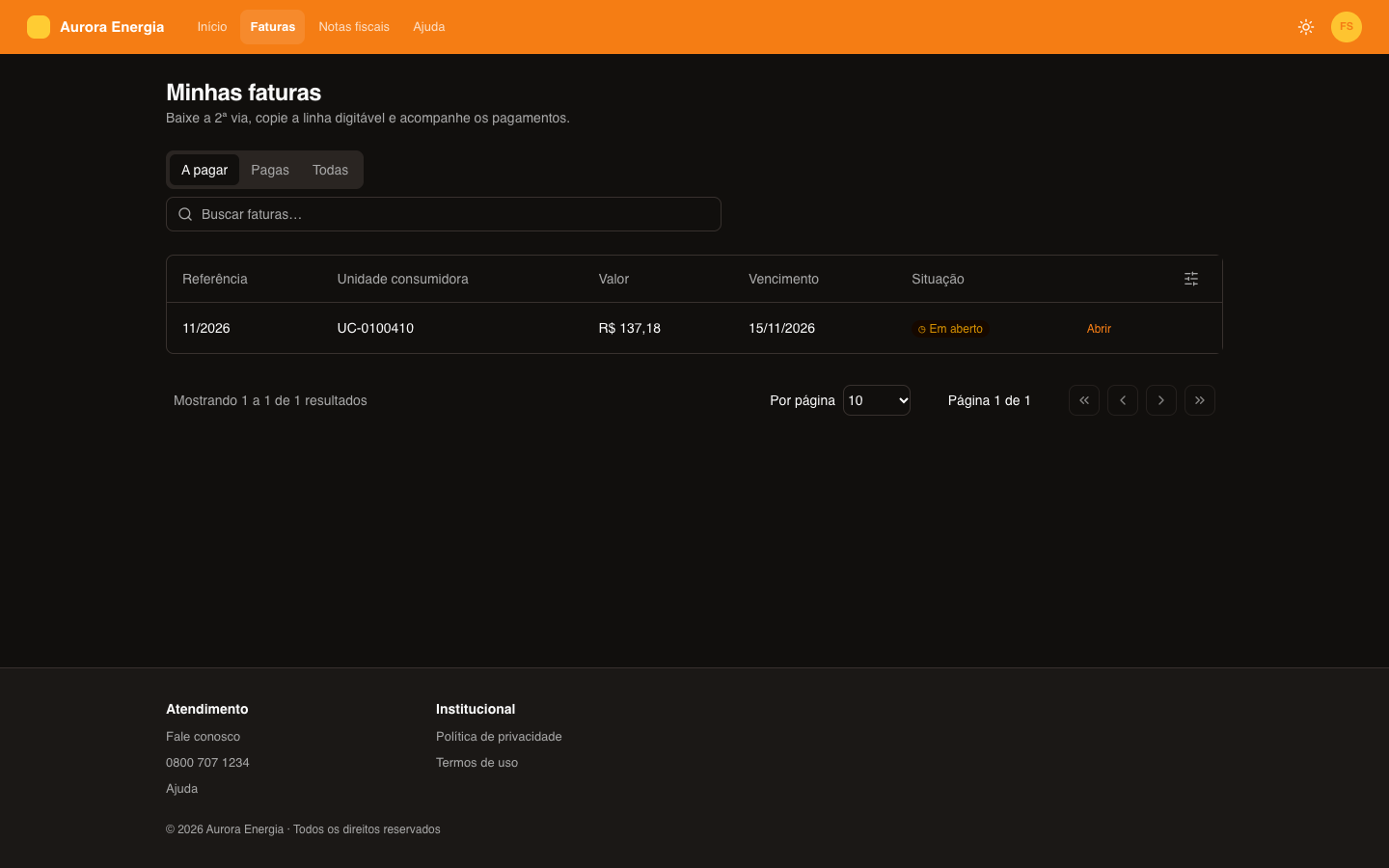
- Search — the Search… field looks for the text in all fields of the records.
- Tabs — when the page has tabs, each one filters the records. At Aurora Energia, the Invoices page has To pay, Paid and All.
- Pagination — tables show a fixed number of rows at a time, with buttons for the next pages.
- Open — the link at the end of the row leads to that record's detail page, when the page has one.
With no records, the table says there is nothing linked to the user's document yet.
Record detail
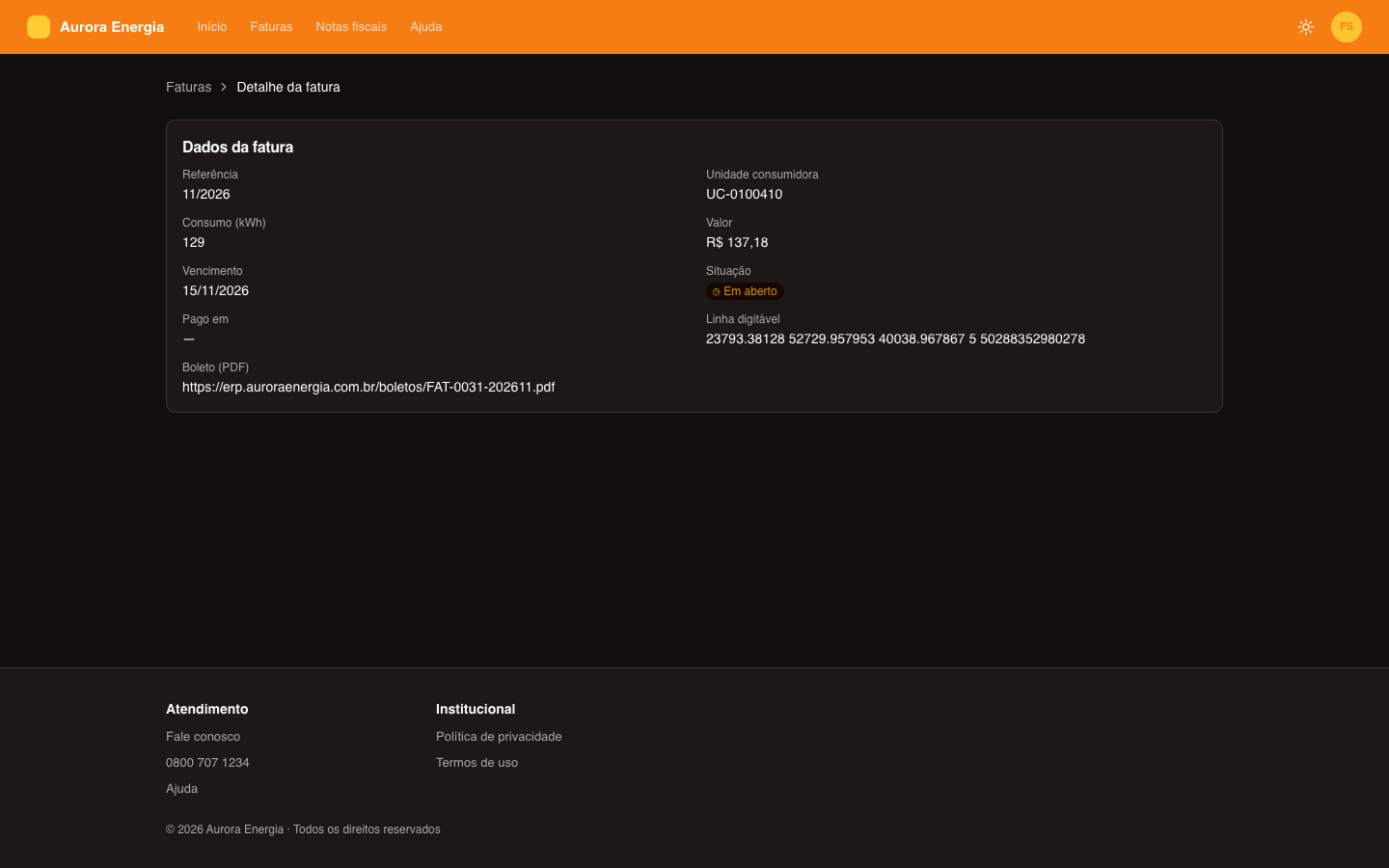
The detail page shows a record's fields, such as an invoice's amount, due date and payment line.
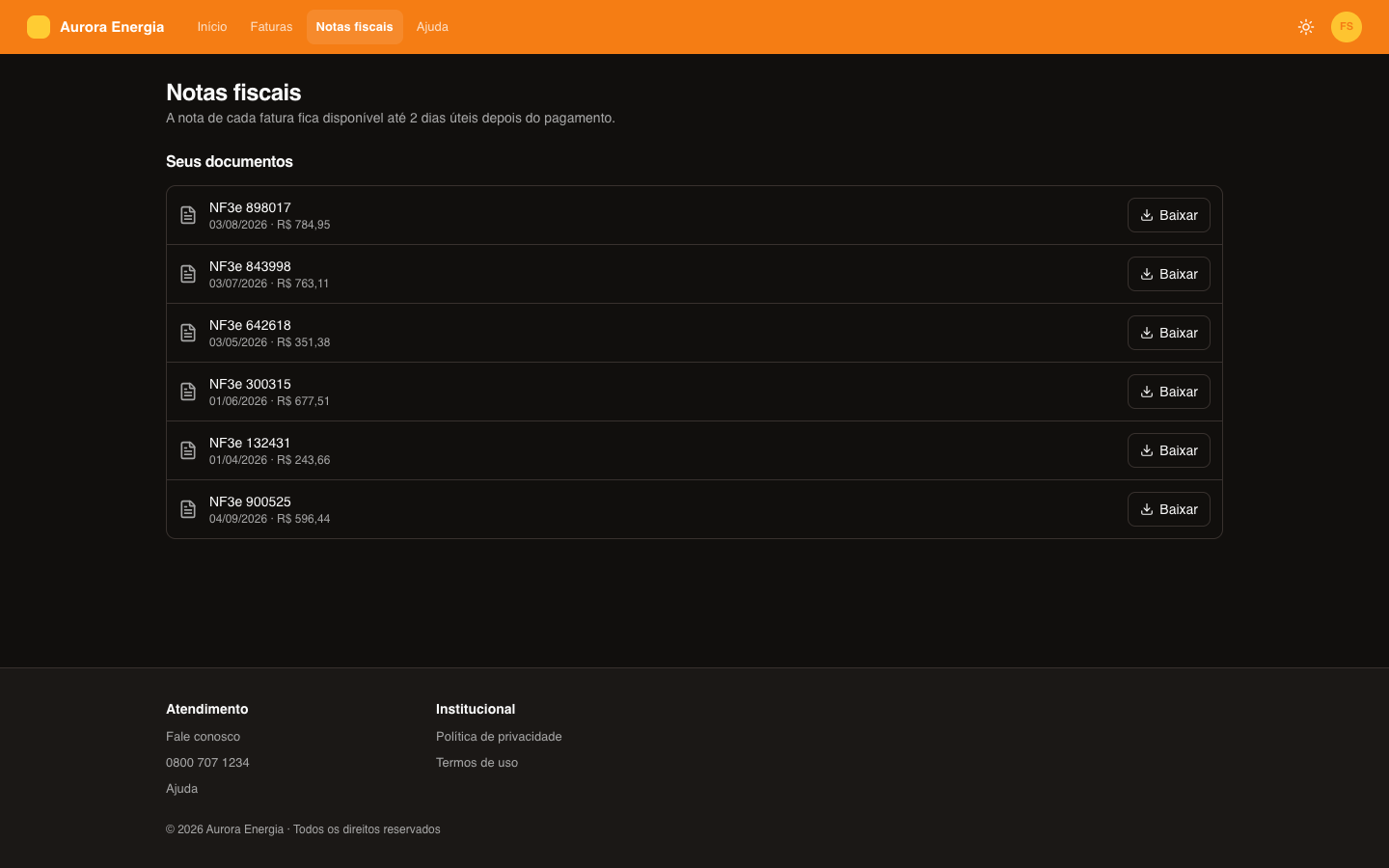
Documents to download
File lists — payment slips, tax documents, contracts — have a Download button on each row. The file opens in another browser tab.
Forms and action buttons
A page can have forms — a support request, for example — and buttons that trigger an action. The user fills in the fields and submits; some fields come pre-filled with their name and email. Some actions ask for confirmation before going ahead. If submitting fails, the portal says so and the user can try again.
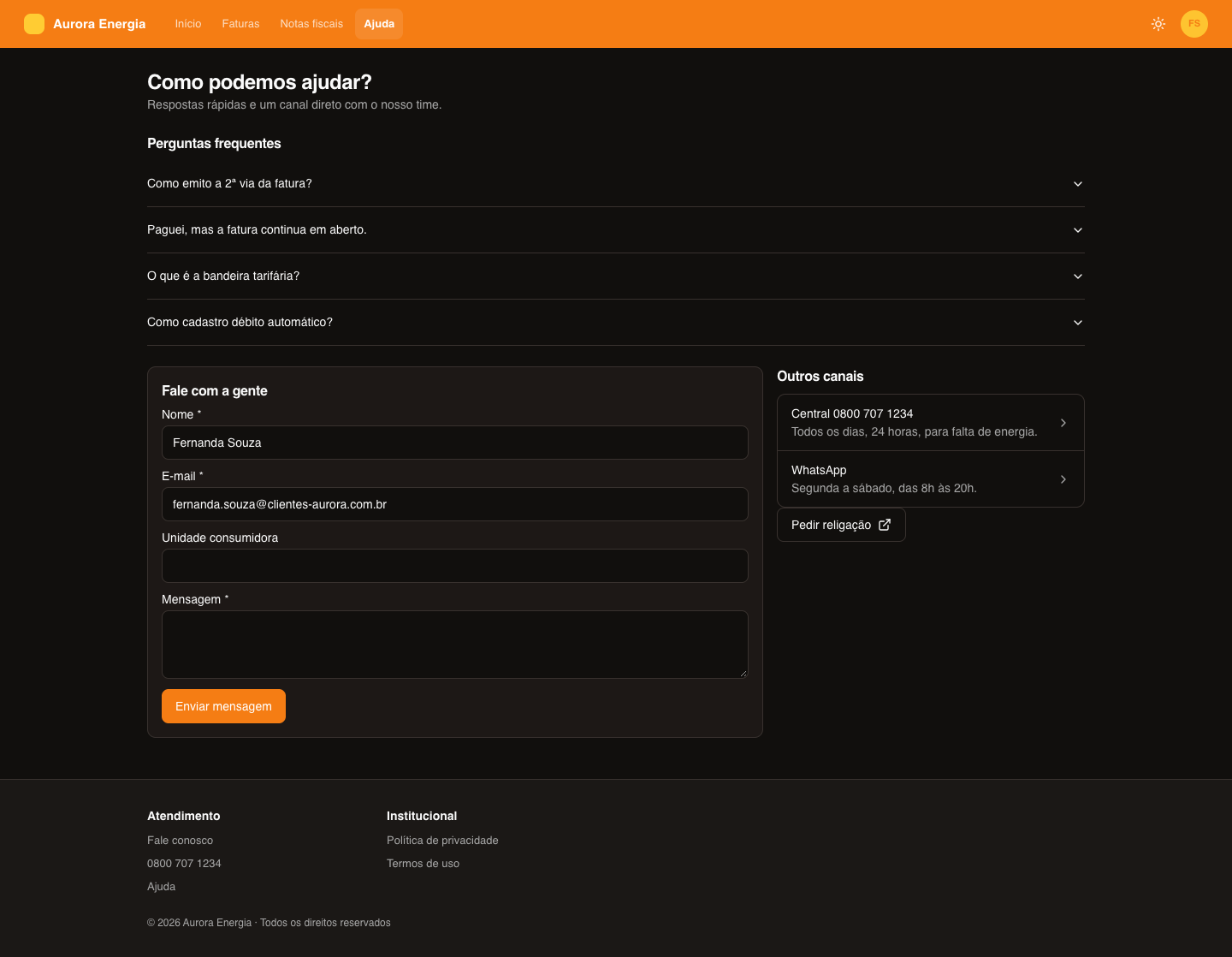
See Forms and actions to learn how to configure what happens with the submission.
Other blocks
Besides tables and details, pages can have summary cards, charts, a calendar, a timeline, frequently asked questions, images and texts. Each portal is built its own way: the Aurora Imóveis portal, for example, has a different brand, different pages and different entities.
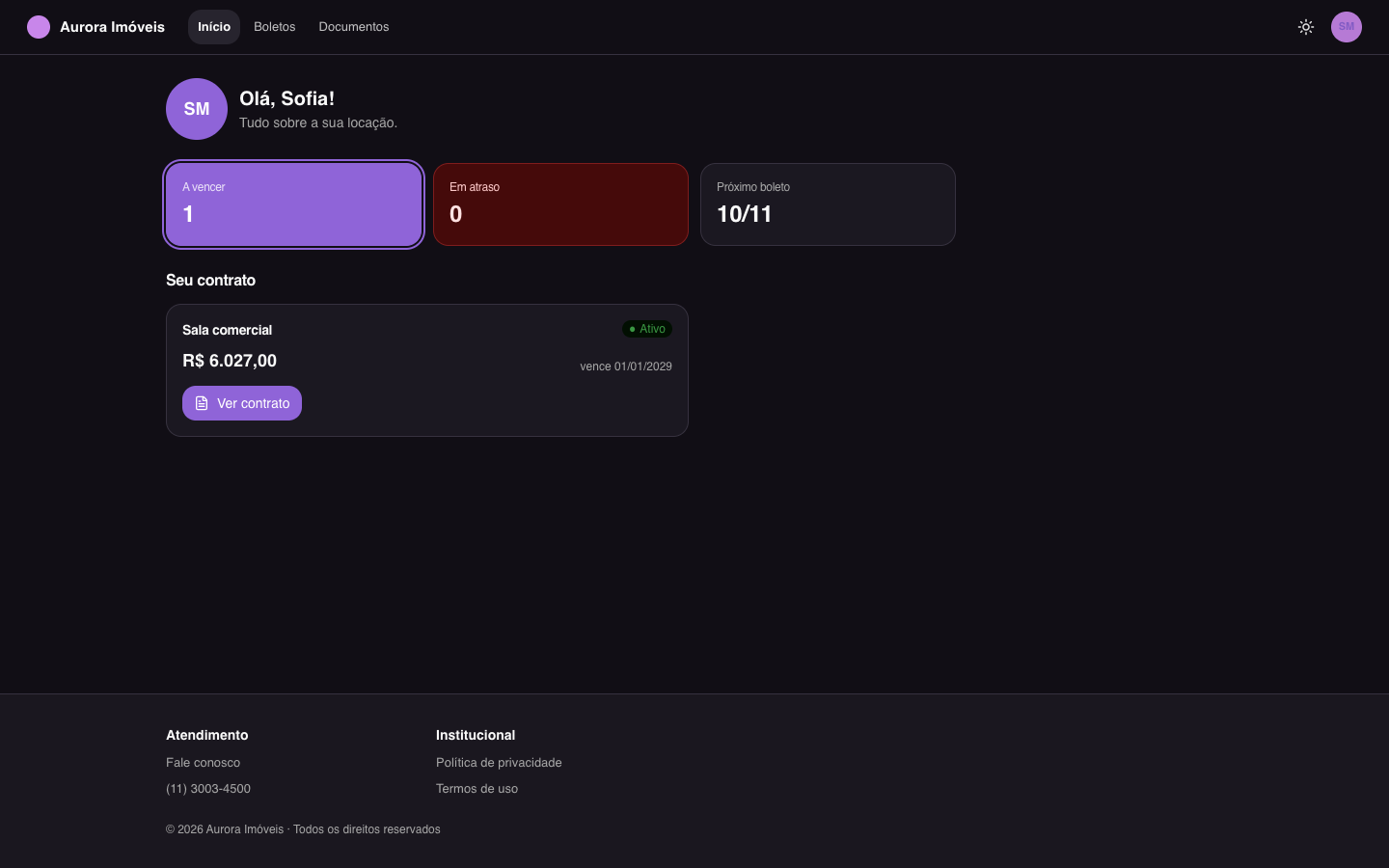
The available blocks are in Blocks.
When the data is still arriving
If an entity fetches data at the moment of access, the block may show Fetching your data… for a few moments. If the fetch fails, "We couldn't fetch your data right now. Try again in a few minutes." appears. See From data to the portal.
Theme, accessibility and language
- Theme — the portal starts in the system mode (light or dark) and the user switches with the header button. The choice is kept in that browser.
- Accessibility — on the sign-in screens, the Accessibility panel adjusts text size, contrast, spacing, cursor and other items.
- Language — the portal speaks the language you set in Advanced. The user doesn't switch the language.
Changing the password
In Change password, in the account menu, the user enters the current password and the new one. The new password must have at least 8 characters, with an uppercase letter, a lowercase letter and a number.
The option only appears when the portal allows the change and the user signs in with their own password. Whoever signs in through SSO doesn't see the option.
Signing out and expired session
- Sign out, in the account menu, ends the session and goes back to the portal's sign-in screen.
- The session lasts up to 14 days in that browser. When it ends, the next click leads to the sign-in screen; after signing in again, the user continues where they left off.