Access
In Portal › Access (/dashboard/portal/access) you decide where the workspace portal lives and how users sign in to it. The screen has four tabs:
| Tab | What you configure |
|---|---|
| Overview | The portal address and the sign-in methods |
| Domain | A domain of your company, such as portal.yourcompany.com |
| SSO | Single sign-on: the user arrives from your system already authenticated |
| OAuth/OIDC | Buttons such as Sign in with Google on the sign-in screen |
Each workspace has its own portal, and each portal has its own access configuration.
Overview
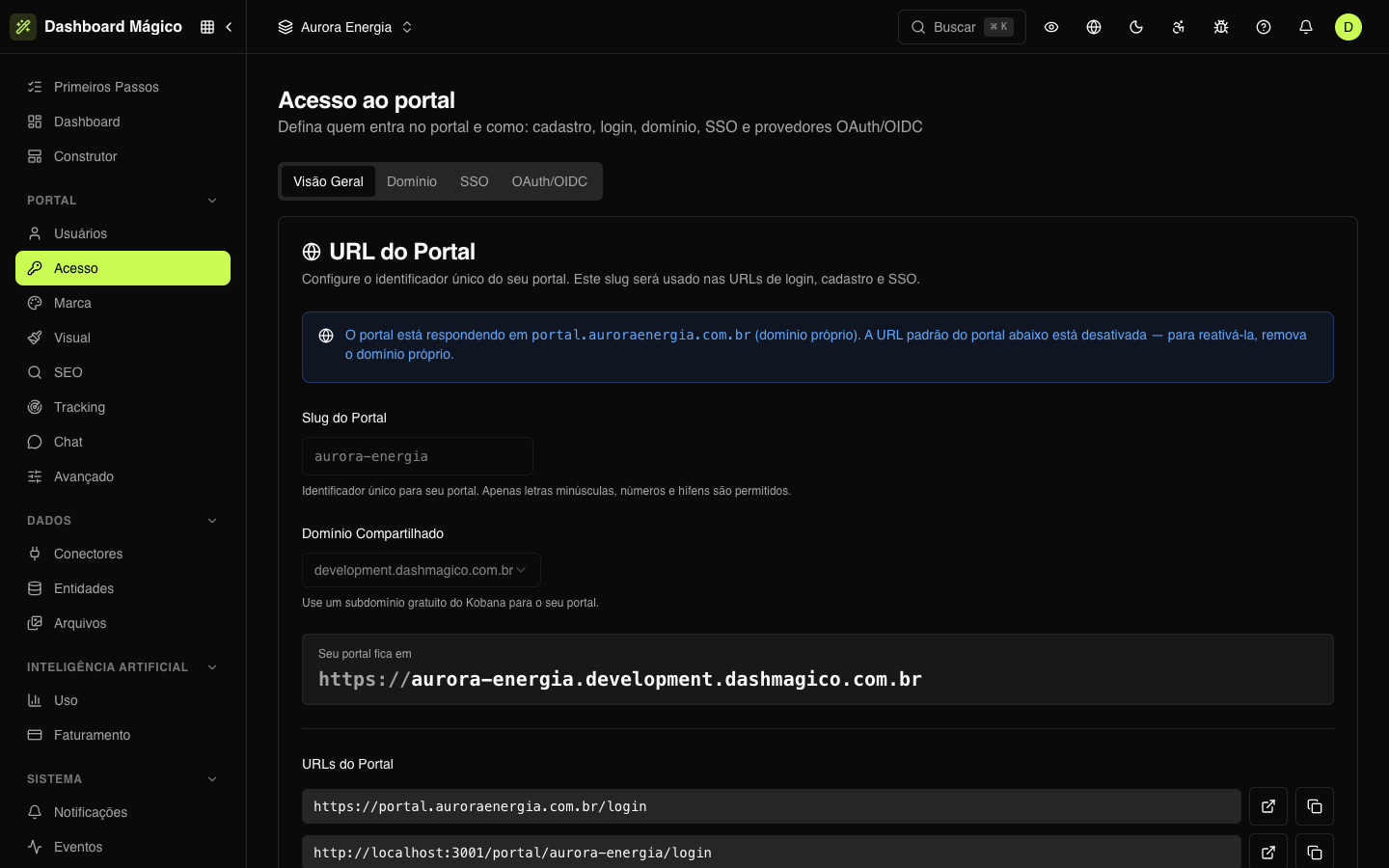
Portal URL
The Portal Slug is the portal's identifier in the addresses — at Aurora Energia, aurora-energia. Use only lowercase letters, numbers and hyphens, up to 30 characters. If the field is empty, the Suggest button creates a slug from the company name (set in Brand).
Without a slug, the portal has no sign-in address. The screen warns you while it is empty.
Under Shared Domain, choose one of the platform's free domains. The portal then answers at https://<slug>.<shared domain>, and the screen shows the full address right below.
Under Portal URLs, you can copy or open the ready-made addresses:
- the sign-in screen on the portal address (
.../login); - the sign-in screen on the platform address (
/portal/<slug>/login); - with SSO turned on, the SSO entry addresses (
.../sso?token=...).
When a custom domain is active, the portal answers on it, and the slug and the shared domain are locked. To go back to the shared address, remove the custom domain.
Sign-in
| Option | What it does |
|---|---|
| Enable Login | The master switch of the sign-in screen. When off, the screen shows that sign-in is disabled — and hides e-mail, password, magic link and the OIDC buttons. SSO keeps working |
| Password Login | The user signs in with e-mail and password, with the Forgot password option |
| Magic Link Login | The user receives by e-mail a link that signs them in without a password. The link is valid for 15 minutes |
| Allow Changing Password | Shows Change password in the portal's account menu, for those who sign in with a password |
Password Login and Magic Link Login only apply with Enable Login turned on. With both turned off and no OIDC provider, the sign-in screen warns that sign-in is disabled.
Changes on this tab are saved automatically, a moment after the last change.
Domain
With a custom domain, the portal lives at an address of your company — at Aurora Energia, portal.auroraenergia.com.br. The HTTPS certificate is issued and renewed by the platform.
Registering a domain
- On the Domain tab, click Add Domain.
- Type the full domain, such as
portal.yourcompany.com, and click Add and see DNS records. - The domain screen shows two CNAME records: one for Routing (takes the address to the portal) and one for SSL (proves the domain is yours, so the certificate can be issued). Copy the Host and the Value of each one.
- Publish both records at your domain's DNS provider (Registro.br, Cloudflare, Route 53...).
- Done. The platform checks the DNS every 5 minutes and, when both records are live, it issues the certificate and activates the domain on its own.
Don't want to wait? On the domain screen, Refresh DNS status checks the records right away (the screen also checks every 15 seconds while it is open) and Validate and issue SSL starts the certificate issuance. DNS propagation can take a few minutes.
:::warning Domain with www
A domain starting with www. is usually the company's main website. Pointing it to the portal takes the website offline. The screen asks for confirmation before registering it.
:::
Domain status
| Status | What it means |
|---|---|
| Verifying DNS | The platform is waiting for the CNAME records. If the last check failed, the domain screen shows the reason — for example, "The CNAME doesn't point to the portal yet" |
| DNS Verified | The records are correct; the certificate will be issued |
| Waiting for SSL / Generating Certificate | The certificate is being issued. It takes 1 to 5 minutes |
| Active | The portal already answers on the domain |
| Certificate Failed | The certificate couldn't be issued. The platform tries again |
| Verification Failed | The DNS check failed. Check the records; the platform keeps trying |
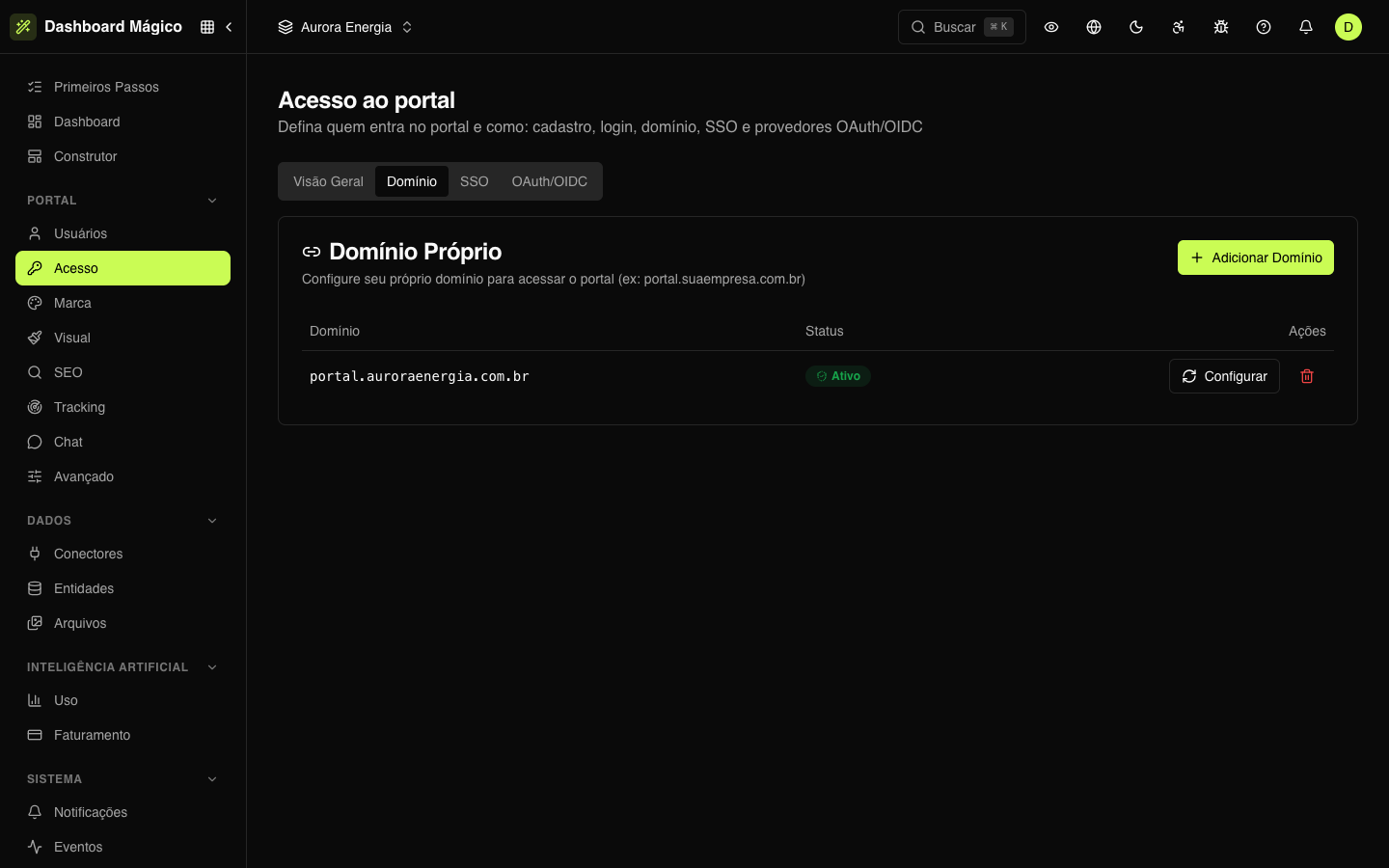
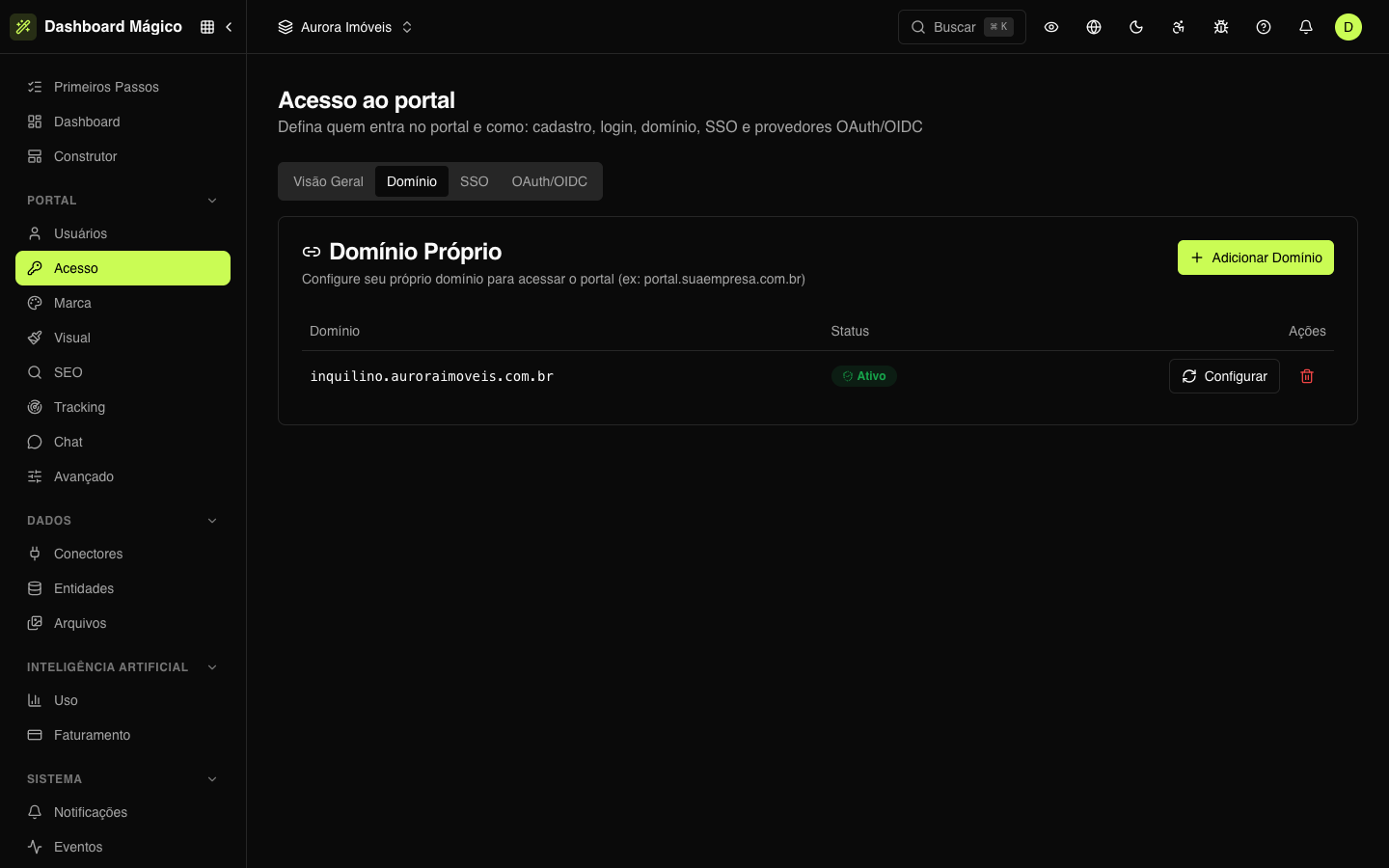
In the Aurora Imóveis workspace, the domain inquilino.auroraimoveis.com.br is in Verifying DNS: the CNAME doesn't point to the portal yet.
With the domain Active, its screen shows the SSL Certificate. It renews itself before it expires — you don't need to do anything.
To remove a domain, use the trash icon in the list or Remove domain on its screen. The portal stops answering at that address.
In some environments (such as the sandbox), the custom domain is not available and the Domain tab doesn't appear.
SSO (Single Sign-On)
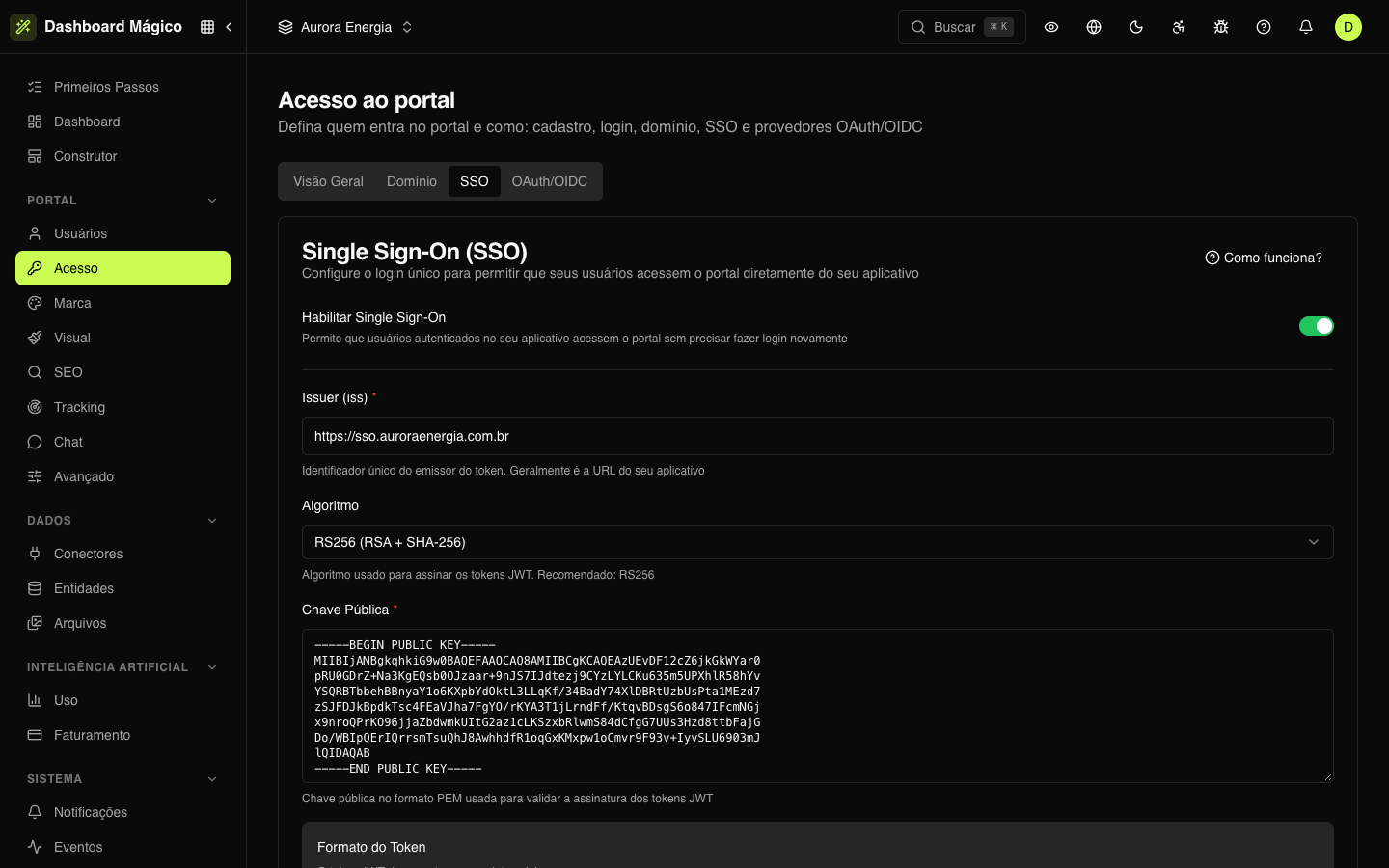
With SSO, anyone already signed in to your system enters the portal without typing a password. Your system generates a signed token (a JWT), and the portal checks the signature with the public key you register.
Setting it up
-
Generate a key pair (private and public). The How does it work? button, on the tab, brings the OpenSSL commands for RSA and ECDSA.
-
Turn on Enable Single Sign-On.
-
Fill in:
Field What it is Issuer (iss) Who issues the token — usually your system's URL. Required Algorithm How the token is signed: RS256 (recommended), RS384, RS512, ES256, ES384, ES512, PS256, PS384 or PS512 Public Key The public key in PEM format, with the BEGIN PUBLIC KEYandEND PUBLIC KEYlines. Required -
Click Save SSO configuration.
The private key stays only on your server. Never paste it into the dashboard.
How the user signs in
Your system signs a token and sends the user to:
https://<portal address>/sso?token=<JWT>— on the custom or shared domain; or/portal/<slug>/sso?token=<JWT>— on the platform address.
The ready-made addresses appear in Overview › Portal URLs.
What goes in the token
| Claim | Required | What it is |
|---|---|---|
iss | Yes | The same Issuer you registered |
aud | Yes | dashboards/prd in production |
sub | Yes | The user's tenant ID |
user_id | Yes | A UUID that identifies the user in your system. It becomes the portal user's public ID |
jti | Yes | A unique identifier. Each token can only be used once |
iat / exp | Yes | Issued-at and expiration. The token can be valid for 5 minutes at most |
tenant_id | No | The tenant ID, when sub carries something else |
name / email | No | Name and e-mail, used to create or update the user |
upsert | No | true creates the user if they don't exist yet |
workspace_id / portal_slug | No | Ties the token to this portal. Recommended |
The portal looks for the user by user_id and, if it finds none, by e-mail. With upsert, a user who doesn't exist is created already Active and marked as SSO only (no password). Without upsert, they must be registered beforehand in Portal users.
A user without a tenant ID gets the one in the token. An existing tenant ID is never replaced by SSO. Suspended or Locked users can't sign in, even with a valid token.
SSO works even with Enable Login turned off — so you can leave SSO as the portal's only door.
OAuth/OIDC
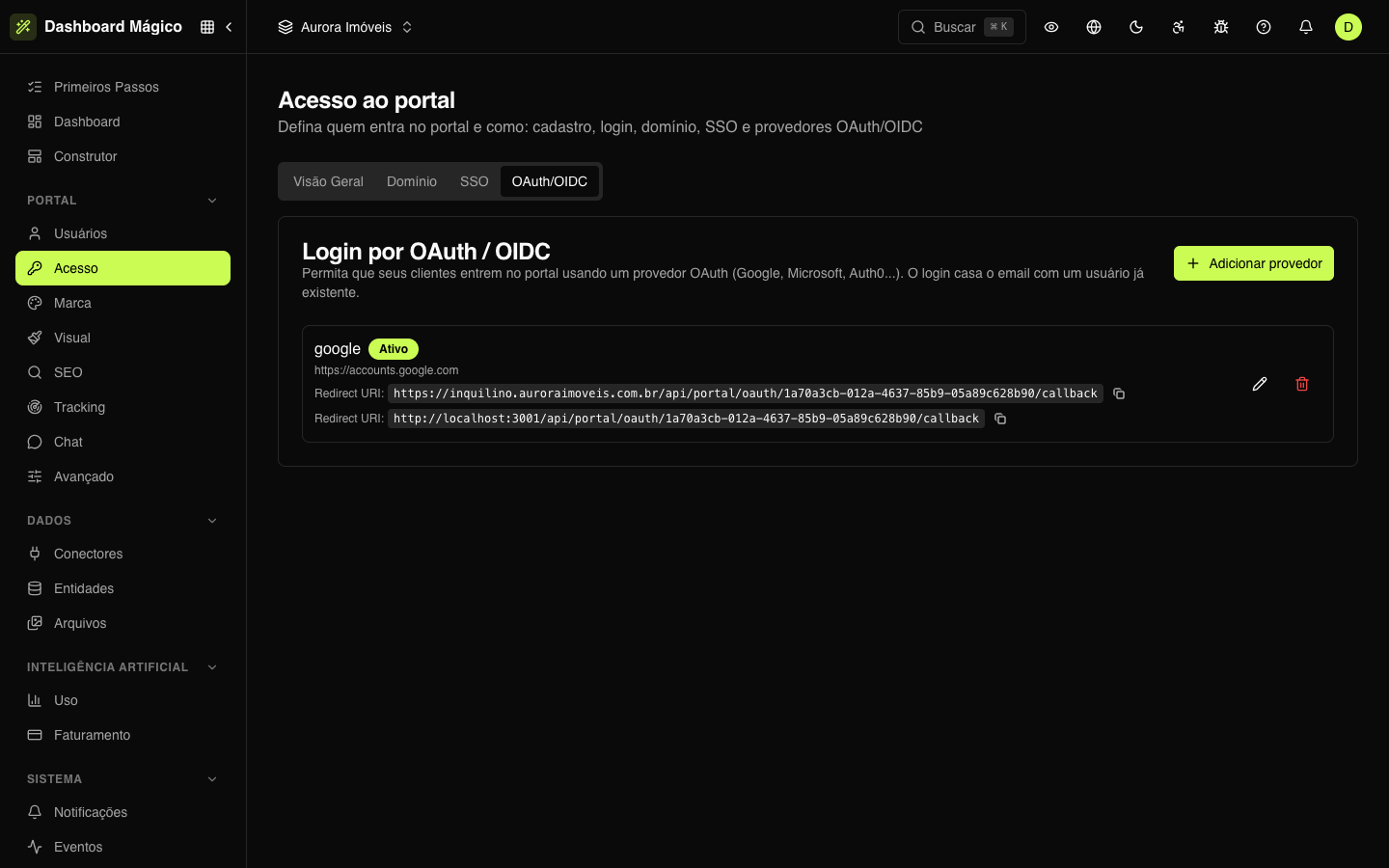
With an OIDC provider, the sign-in screen gets buttons such as Sign in with Google. In the Aurora Imóveis workspace, the portal has the Sign in with Google button.
Adding a provider
-
On the OAuth/OIDC tab, click Add provider.
-
Under Provider, choose a known one — Google, Microsoft, Apple, Auth0, Okta, Keycloak or Amazon Cognito — to fill in the fields, or Custom.
-
Fill in the fields:
Field What it is Enabled Shows or hides the button on the sign-in screen Name An internal name, such as googleButton label What appears on the button, such as "Sign in with Google" Issuer URL The provider's base address, without /.well-known. E.g.:https://accounts.google.comClient ID and Client Secret The credentials of the app created at the provider. The secret is stored encrypted; when editing, leave it empty to keep the current one Scopes Usually openid email profileEmail claim The provider field that carries the e-mail. Usually email -
Click Test connection to check the Issuer URL and then Save.
-
Copy the Redirect URI that appears and register it in the provider's app (the name may be "Redirect URI" or "Callback URL").
The Redirect URI uses the portal address: the active custom domain or, without one, the shared domain. Set up the portal address first.
Who can sign in
OIDC sign-in doesn't create users. The e-mail the provider returns must belong to a user already registered in Portal users. If it doesn't, the person sees an access denied screen.
Security
- After 5 wrong passwords in a row, password sign-in is blocked for 15 minutes.
- E-mail verification links are valid for 24 hours; invitations, for 7 days; the magic link, for 15 minutes.
- Changing the password or e-mail ends the user's open sessions.
- Passwords are stored hashed, never as plain text.