Advanced
In Portal › Advanced (/dashboard/portal/settings/advanced) there are three technical settings for the portal: the portal language, the security headers and free JavaScript code.
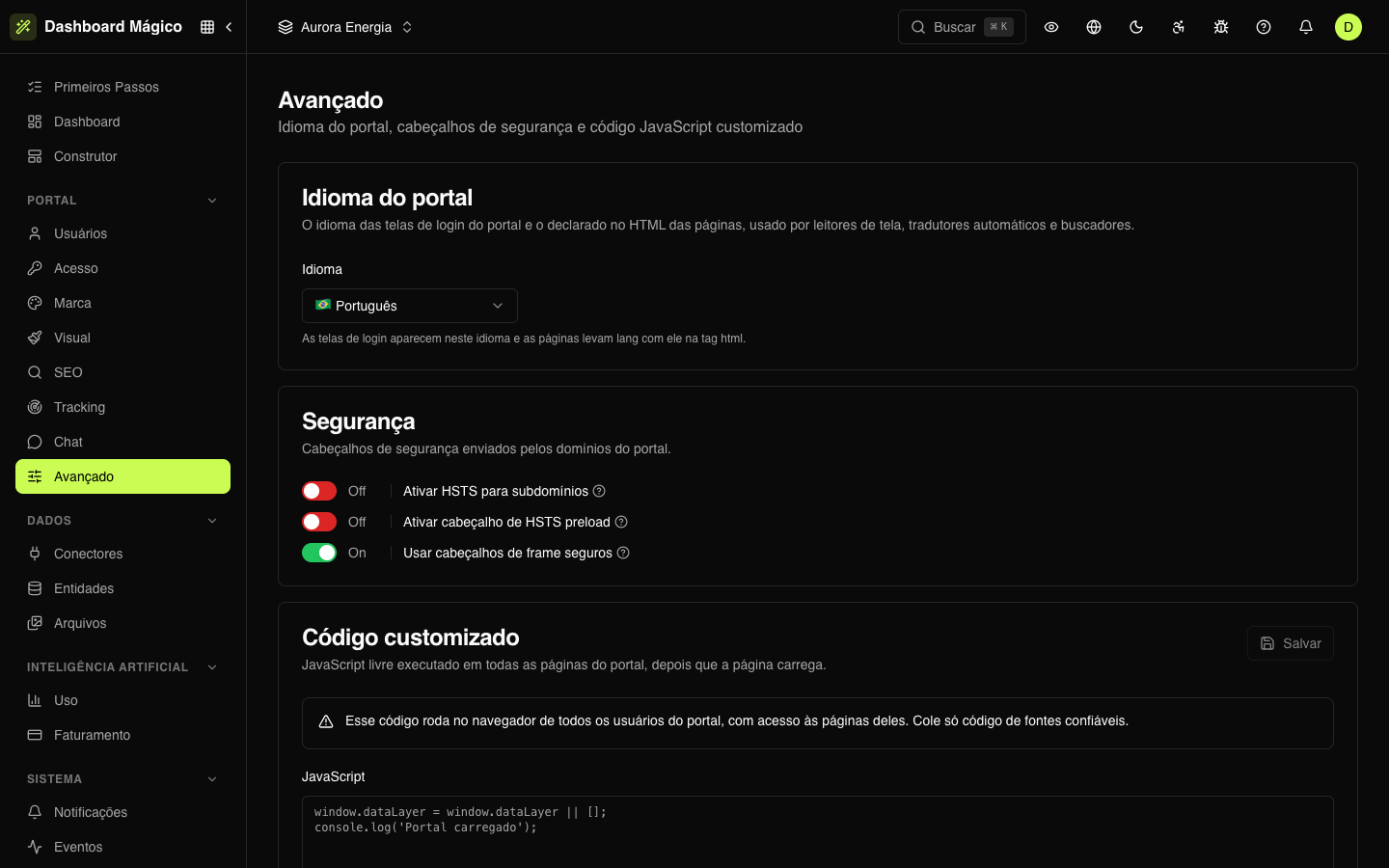
Portal language
Under Language, choose the portal language: Português, English or Español. The default is Português. Your choice is saved as soon as you select it.
The language applies to two things:
- Entry screens (sign-in, password recovery, access link): they appear in this language for everyone, whatever the visitor's browser language. They have no language selector.
- The pages'
langattribute: screen readers use the language to pronounce the text, automatic translators to know what to translate from, and search engines to know who to show the portal to.
The page content is not translated: it stays as you wrote it in the Builder.
Security
Headers that the portal address (custom or shared domain) sends to the browser to protect your customers. Each switch is saved as soon as you change it.
| Option | What it does | Default |
|---|---|---|
| Enable HSTS for subdomains | The browser starts requiring HTTPS on all subdomains of the portal domain as well. Only turn it on if all of them have HTTPS | Off |
| Enable HSTS preload header | A requirement to join browsers' HSTS preload list. It is hard to undo: use it only if you are sure | Off |
| Use secure frame headers | Prevents other sites from showing the portal inside an iframe, which protects against clickjacking (when a fake site hides the portal under its own buttons). Turn it off only if you need to embed the portal in another site | On |
Both HSTS options only apply on a custom domain. Without an active custom domain, they are locked, and the screen shows the Set up your own domain shortcut.
Custom code
Free JavaScript that runs on every portal page and on the entry screens, after the page loads. It is for what the Tracking and Chat pages don't cover — for example, a measurement tool that isn't on the list.
- Paste the code into JavaScript — only the code, without the surrounding
<script>tag. Up to 100 thousand characters. - Click Save.
To remove it, delete the content and save.
:::warning Be careful with the code you paste This code runs in all your customers' browsers, with access to the pages they see — including their data. Malicious or faulty code can leak data or break the portal. Paste only code from trusted sources and test after saving. :::
Like the Tracking and Chat codes, the custom code doesn't run when a member of your team is impersonating a user.
What about changing the password?
The option that lets the user change their own password is in Access: Allow Changing Password.