Chat
In Portal › Chat (/dashboard/portal/settings/chat) you put on the portal the support chat your company already uses. The chat bubble appears on the portal pages, and your customers talk to your team without leaving it.
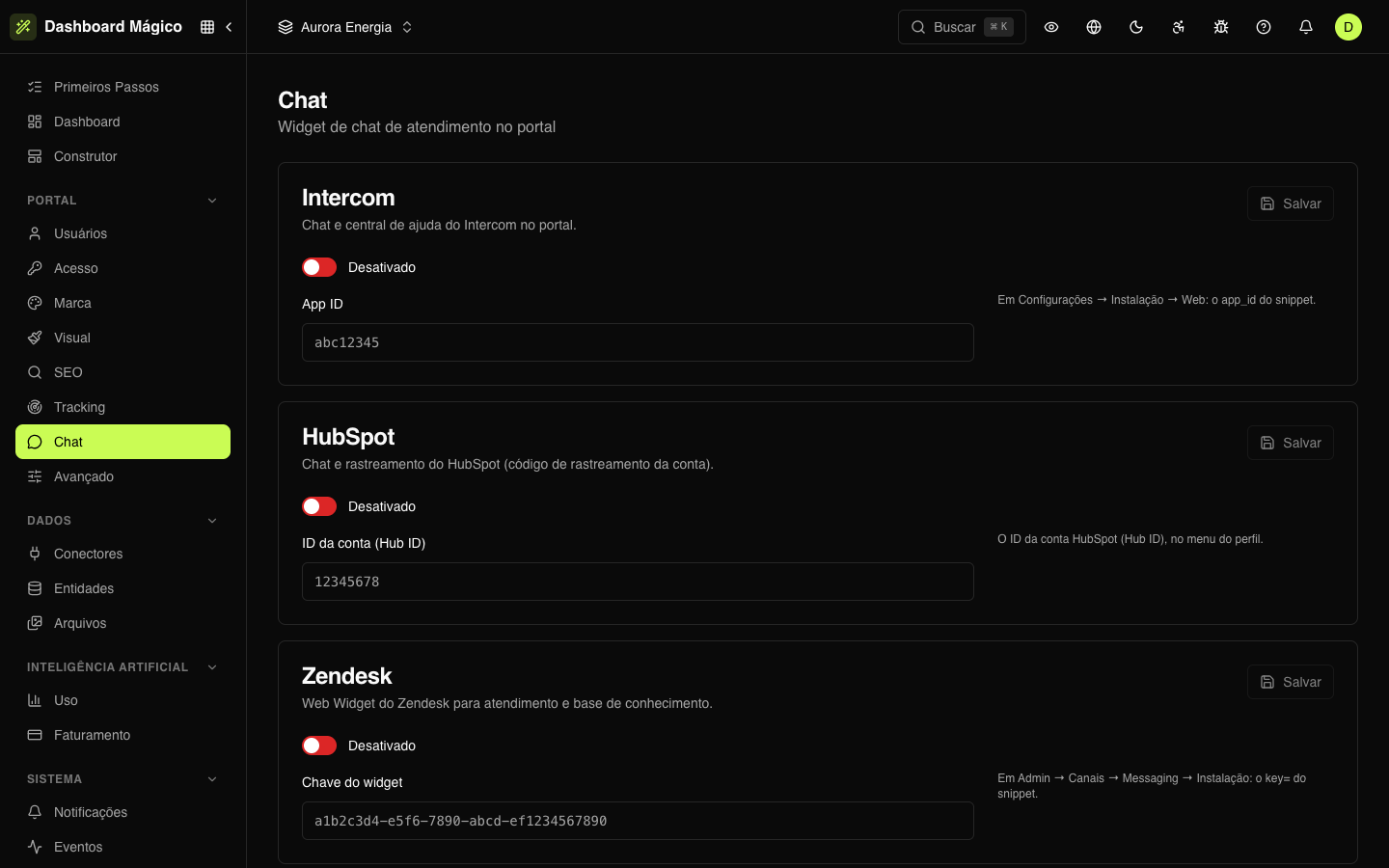
Available tools
| Tool | What you enter | Where to find it |
|---|---|---|
| Intercom | App ID | Settings › Installation › Web: the app_id in the code |
| HubSpot | Account ID (Hub ID) | In your profile menu in HubSpot |
| Zendesk | Widget key | Admin › Channels › Messaging › Installation: the value of key= in the code |
| Drift | Embed ID | Settings › App Settings › Widget: the ID inside drift.load() |
| Crisp | Website ID | Settings › Website settings › Installation |
| JivoChat | Widget ID | Settings › Channels › Website: the ID at the end of the widget link |
HubSpot loads the account's tracking code, which includes the chat and also visitor tracking.
How to turn on the chat
- Find the tool's card.
- Turn on the switch (Enabled).
- Paste the ID in the field.
- Click Save.
The portal checks the ID format before saving. To remove the chat, turn the switch off and save; the ID stays stored.
Turn on only one chat tool at a time: with two, two bubbles appear.
Where the chat appears
The chat runs on every portal page and on the entry screens (sign-in, forgot password, invitation...). It doesn't appear when a member of your team is impersonating a user.
The widget uses the look configured in the chat tool itself — colors, support hours and messages are adjusted there.
Need another tool? Use the custom code in Advanced.