Builder
The Builder is where you put together the portal your customers access: the pages, the blocks on each page, the data they show and the colors. You see the result right away, with the workspace's real data, and you only publish when you are ready.
Open it from the Builder menu (/dashboard/builder). The screen takes up the whole window; the arrow in the top left corner takes you back to the dashboard.
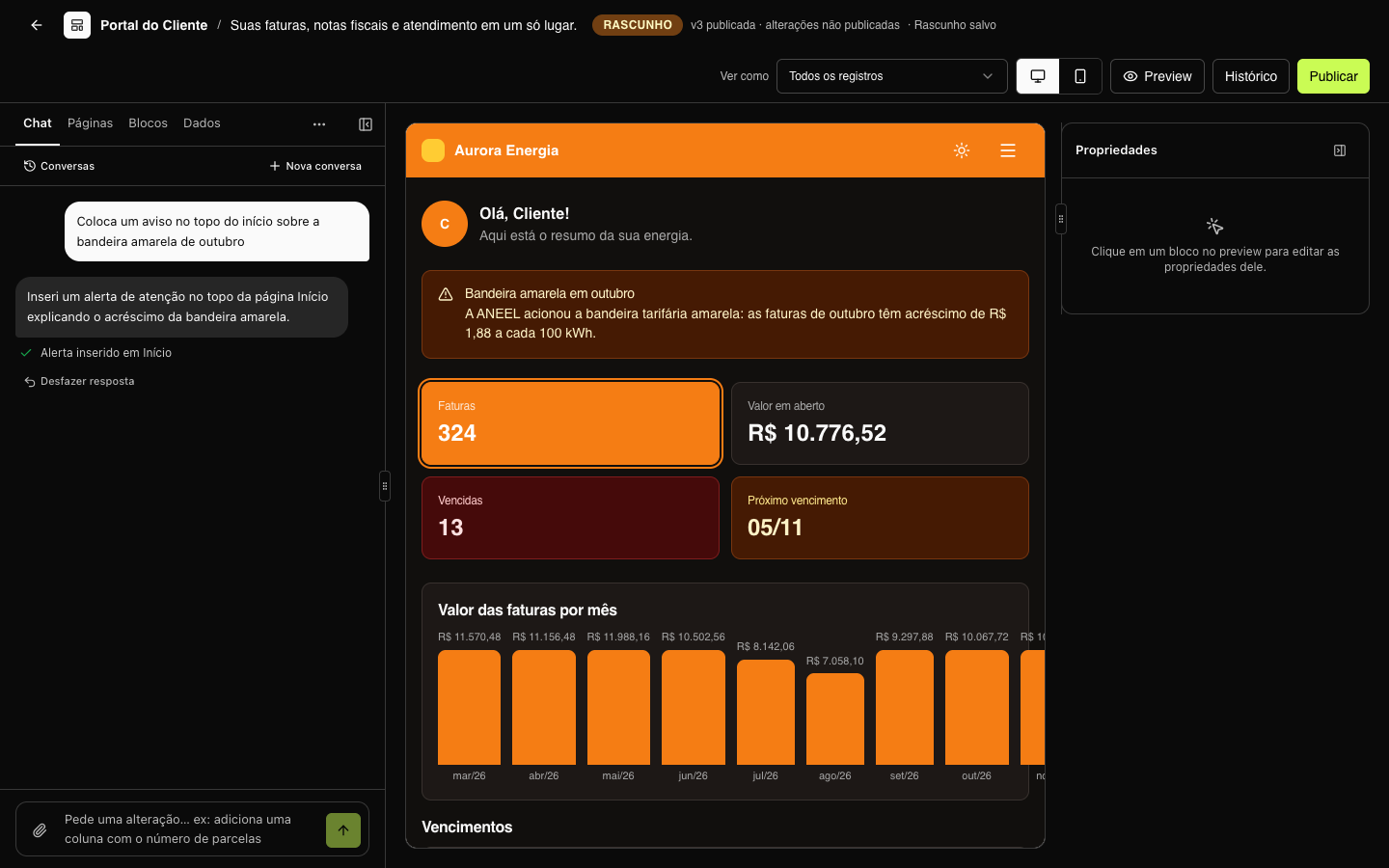
The parts of the screen
| Area | What it has |
|---|---|
| Left panel | Six tabs: Chat (ask the AI for changes), Pages (portal menu and structure of the open page), Blocks (library to drag from), Data (connected sources and entities), Files (workspace images and documents) and Visual (portal colors). |
| Preview, in the middle | The open page as the customer will see it. Click a block to select it; drag to change the order. |
| Properties, on the right | The fields of the selected block: title, data source, columns, texts, actions… Everything you change shows up in the preview right away. |
Both side panels can be collapsed and resized (drag the edge), leaving more room for the preview.
The top bar
- Portal name — the title and subtitle set in Portal › Brand.
- Status — LIVE when the draft is the same as the published version; DRAFT when there are changes that have not been published yet. Next to it you see the live version (for example, v3 published · unpublished changes) and the saving progress.
- View as — shows the preview with the data of a portal user, as they would see it. All records shows everything, without the holder filter. See Data in blocks.
- Desktop / mobile — switches the preview width.
- Preview — opens the page in full screen, without the editor. Links and buttons navigate between the draft pages. Esc closes it.
- History — the published versions. See Publishing and versions.
- Publish — puts the draft live.
Draft and saving
Everything you do in the Builder goes into a draft, saved automatically a few seconds after each change (the top bar shows Saving… and Draft saved). Your customers keep seeing the published version until you click Publish.
If two people (or two tabs) edit the same draft, the Builder merges the changes. When both changed the same part, it asks which one to keep: Reload keeps the other tab's version; Overwrite keeps yours.
New portal
The first time you open the Builder in a workspace, the portal already comes with three starter pages — Home, Records and Documents — with blocks that have no data source yet. Just pick the entity for each block (or ask the chat) and adjust the texts. If you delete all the pages, the Builder shows the Create the first page button.
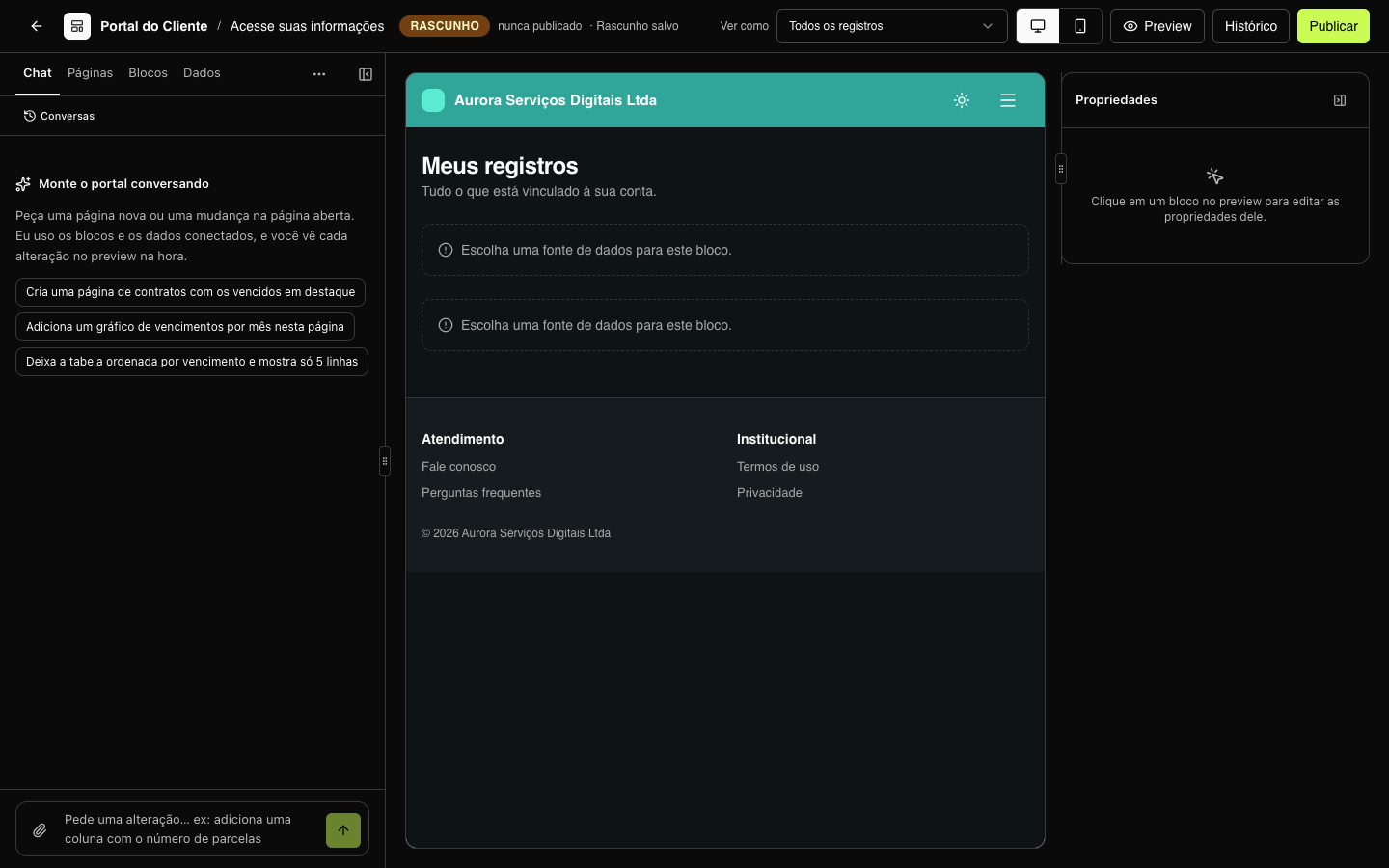
:::tip Data before blocks Data blocks show records from the workspace entities. If there are none yet, connect a source and register the entities in Data › Connectors and Data › Entities — or from the Data tab of the Builder itself. :::
In this section
- Pages — create, order and configure the portal pages.
- Blocks — what each block shows.
- Data in blocks — connect blocks to entities, filter with tabs and indicators, detail pages.
- Forms and actions — contact forms and buttons with a link or webhook.
- AI chat — ask the assistant for pages and changes.
- Portal look — the light and dark mode colors.
- Publishing and versions — go live and go back to a previous version.