Blocks
Each portal page is a stack of blocks: a title, an invoice table, a chart, a form. The library is in the Blocks tab of the Builder, with search and a filter by category (Data, Actions, Layout and Content).
Add, move and edit
- Add — drag the block from the library to the spot on the page where it should go, or click + Add to place it at the end of the page.
- Move — drag the block in the preview, or in the Structure of the Pages tab.
- Edit — click the block in the preview. Its fields appear in Properties, on the right, and each change shows up in the preview right away.
- Images — in the Files tab, click an image (or drag it) to insert an Image block with it. See Files.
Data blocks have the Data source field, where you choose the entity whose records they show. How this works is in Data in blocks.
Example: the Aurora Energia Home
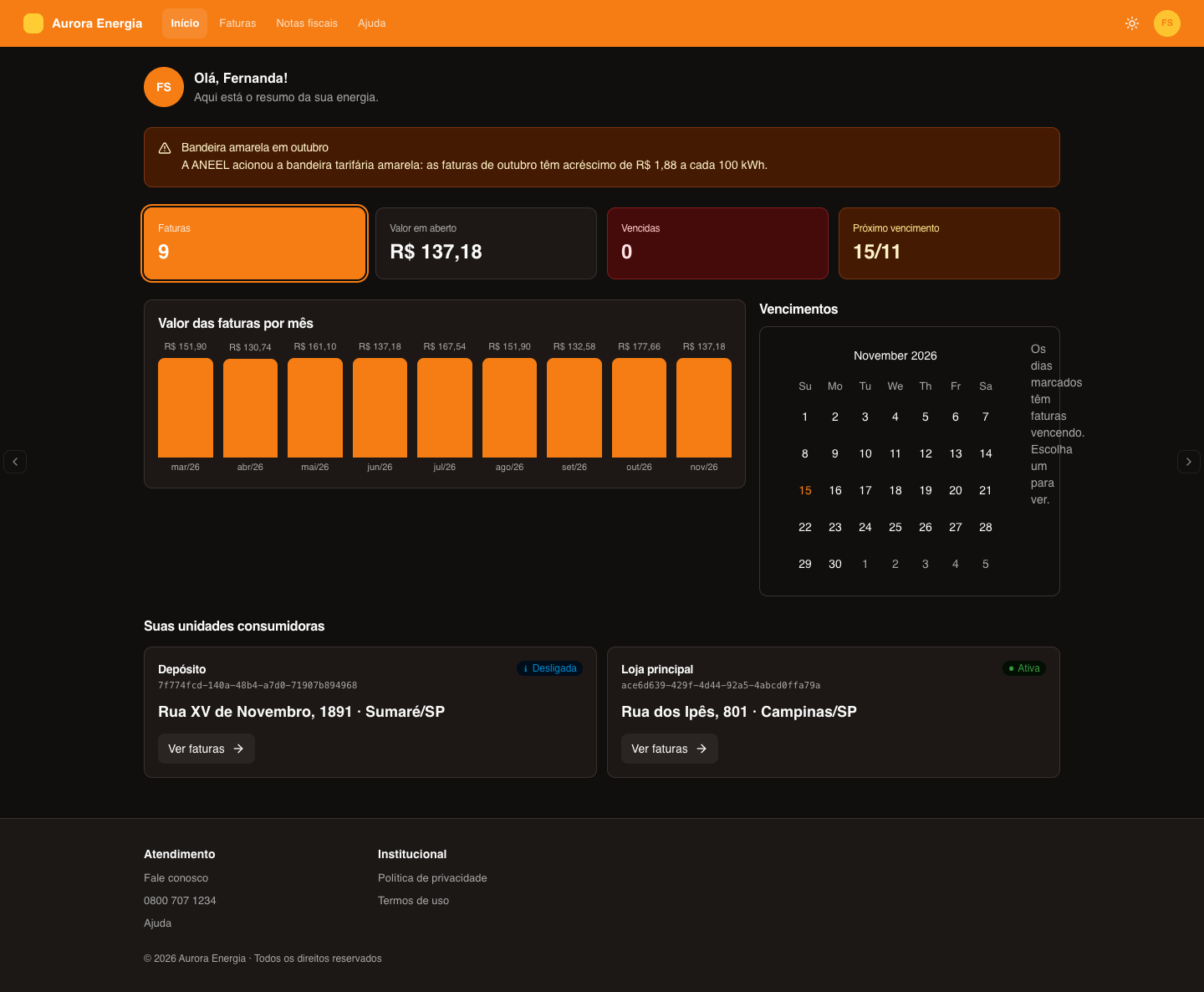
The Home page of the Aurora Energia portal uses, from top to bottom:
- Logged-in customer — the greeting
Olá, {{nome}}!with the customer's initials. - Notice — a heads-up about October's yellow tariff flag.
- KPIs — invoices, open amount, overdue and next due date.
- Columns (wide + narrow) — a Chart of invoice amounts by month next to a due-date Calendar.
- Cards — the customer's consumer units, each with the View invoices button.
Data
Blocks that show records of an entity.
| Block | What it shows | Main properties |
|---|---|---|
| Table | The records in rows, with search, sorting and pagination. | Data source, Columns, Rows per page, Search, Sort by due date, Open detail on page. |
| KPIs | Up to 4 indicators side by side: count, sum of the amount or next due date. Each card filters the page when clicked. | Data source; per indicator: Label, Calculation, Only with status, Highlight, Filters. |
| Chart | Bars grouping the records by due month. | Title, Data source, Measure (Quantity or Amount). |
| Cards | Records as cards, for short lists. | Card title, Value below the title, Maximum cards (up to 12), Columns (2 or 3), Buttons. |
| Detail | A record's sheet, with the chosen fields. | Displayed fields, Columns (1 or 2), No record in the URL. |
| Documents | The customer's files, one per record, with download. | Field with the file URL, Field with the name, Date, Extra information, Allow download. |
| Progress | A progress bar: a fixed percentage or the share of records with a status ("8 of 12 paid"). | Label, Data source, Counts as completed (or Percentage, with no source). |
| Calendar | The month with due dates marked; the chosen day lists what is due on it. | Title, Data source. |
| Timeline | Events in chronological order, from newest to oldest. Reads the records of the entity with key evento (fields titulo, data and descricao). | Title, Maximum events (up to 20). |
In the Aurora Imóveis portal, the Contract page uses a contract Detail and a Progress with the year's boletos already paid.
Actions
| Block | What it does | Main properties |
|---|---|---|
| Action button | Opens a portal page or a URL, or triggers a webhook. | Button text, Type (Link or Webhook), Style, Icon, Alignment, Ask for confirmation. |
| Form | Collects data from the customer and sends it by email or to a webhook. | Title, Fields, Button text, Success message, Action on submit. |
Both are detailed in Forms and actions.
Layout
| Block | What it does | Main properties |
|---|---|---|
| Columns | Places blocks side by side. Drag the blocks into each column. | Distribution: 2 equal columns, Wide + narrow, Narrow + wide or 3 columns. |
| Tabs | Tabs that filter the page blocks — for example, To pay, Paid and All. | Tabs: name, Filtered data source and the filters of each tab. |
| Breadcrumb | "Home › current page", following the portal pages. | First item, Links to. |
| Divider | A line between sections, with an optional label. | Label in the middle, Spacing. |
Columns do not accept other Columns inside, and Tabs do not accept other Tabs.
Portal structure
The Header and the Footer apply to all pages: changing one changes all. They always stay at the top and at the end and cannot be dragged.
| Block | Main properties |
|---|---|
| Header | Displayed name (empty = the company name), Show brand, Menu (Portal pages, Custom links or No menu), Show logged-in customer, Light/dark button, Style (Brand color or Light). |
| Footer | Columns of links, each with sublinks; Final line (empty = "© year company"); Style (Light or Brand color). |
Content
| Block | What it shows | Main properties |
|---|---|---|
| Page title | The page title and subtitle. | Title, Subtitle. |
| Text | A paragraph of free text. | Text, Alignment, Size. |
| Notice | A highlighted message. | Title, Text, Type (Information, Success, Warning or Error). |
| FAQ | Questions that expand to show the answer. | Title, Questions (up to 30), Open several at once. |
| Image | An image in a fixed ratio, with an optional caption and link. | Image address, Description (for screen readers), Ratio, Caption, Link. |
| Carousel | Banners that pass one at a time, with arrows and dots. | Slides (up to 8: image, title, text and link), Ratio. |
| List | Items with a title, description and optional link. | Title, Items (up to 30). |
| Logged-in customer | The customer's initials in a circle and a greeting. | Greeting ({{nome}} = the customer's first name), Line below, Size. |
| Badge | A short highlighted label (new, coming soon, beta…). | Text, Color, Alignment. |
| Empty state | A "nothing here yet" panel, with an icon, text and optional button. | Icon, Title, Text, Button text and link. |
In the Aurora Educação portal, the Announcements page uses an Empty state ("Coming soon") while the school does not publish announcements.
In the link fields of content blocks, use the path of a portal page (/faturas) or a full address (https://…).