Data in blocks
Data blocks — Table, KPIs, Chart, Cards, Detail, Documents, Progress and Calendar — show records of a workspace entity, like the Aurora Energia invoices. Each customer sees only their own records: the portal compares the user's tenant ID with the holder of each record (see Holder and tenant ID).
Entities are registered in Data › Entities or in the Data tab of the Builder.
Choose the data source
- Select the block in the preview.
- In Properties, choose the entity in Data source.
- Adjust the block fields. In the Table, choose the Columns and their order (none chosen = all fields); in the Detail, the Displayed fields.
When you change a block's entity, the column and field choices go back to automatic, because the other entity has other fields.
Field roles
Many blocks know on their own which field to use, by the role the field has in the entity (see Fields):
| Role | Used by | Example in the Aurora Energia Invoice |
|---|---|---|
Amount (amount) | Sum of the amount in KPIs, Chart by amount, Cards amount | Valor |
Due date (due_date) | Next due date in KPIs, Chart, Calendar, Table sorted by due date | Vencimento |
Status (status) | "Only with status" in KPIs, Progress, status badges in the table | Situação (open, paid, overdue, canceled) |
Label (label) | Cards title | Descrição |
URL (url) | File of the Documents block | Boleto (PDF) |
If the entity has no field with the role the block needs, the result is empty — for example, a Sum of the amount KPI on an entity with no amount field.
Indicators (KPIs)
The KPIs block shows up to four cards. For each one, you define:
| Field | What it does |
|---|---|
| Label | The card text. |
| Calculation | Count of records, Sum of the amount or Next due date (the nearest date, from today on). |
| Only with status | Counts only the records with that status. |
| Highlight | The card color: Primary, Secondary, Warning, Success or Failure. |
| Filters | Extra conditions on the entity fields. |
The cards also filter the page: when you click a card, the other blocks of the same entity start showing only the records it counts. Clicking again turns the filter off. The first card starts out selected, so the page opens filtered by it.
That is why, on the Aurora Energia Home, the first card is Invoices (count, no status or filter): with it selected, the chart and the calendar show all months. The other cards — Open amount, Overdue and Next due date — filter the page when the customer clicks them.
Keep the indicator that shows everything in the first card. If the first card counts only overdue invoices, the page opens showing only those.
Tabs that filter the page
The Tabs block filters the page blocks by the chosen tab. For each tab, you define the name, the Filtered data source and the filters. The blocks placed inside the Tabs — and any other block of the same entity on the page — show only the records of the active tab.
On the Aurora Energia Invoices page, the tabs filter the invoice table:
| Tab | Filter |
|---|---|
| To pay | Status is one of em_aberto,vencido |
| Paid | Status equals pago |
| All | None |
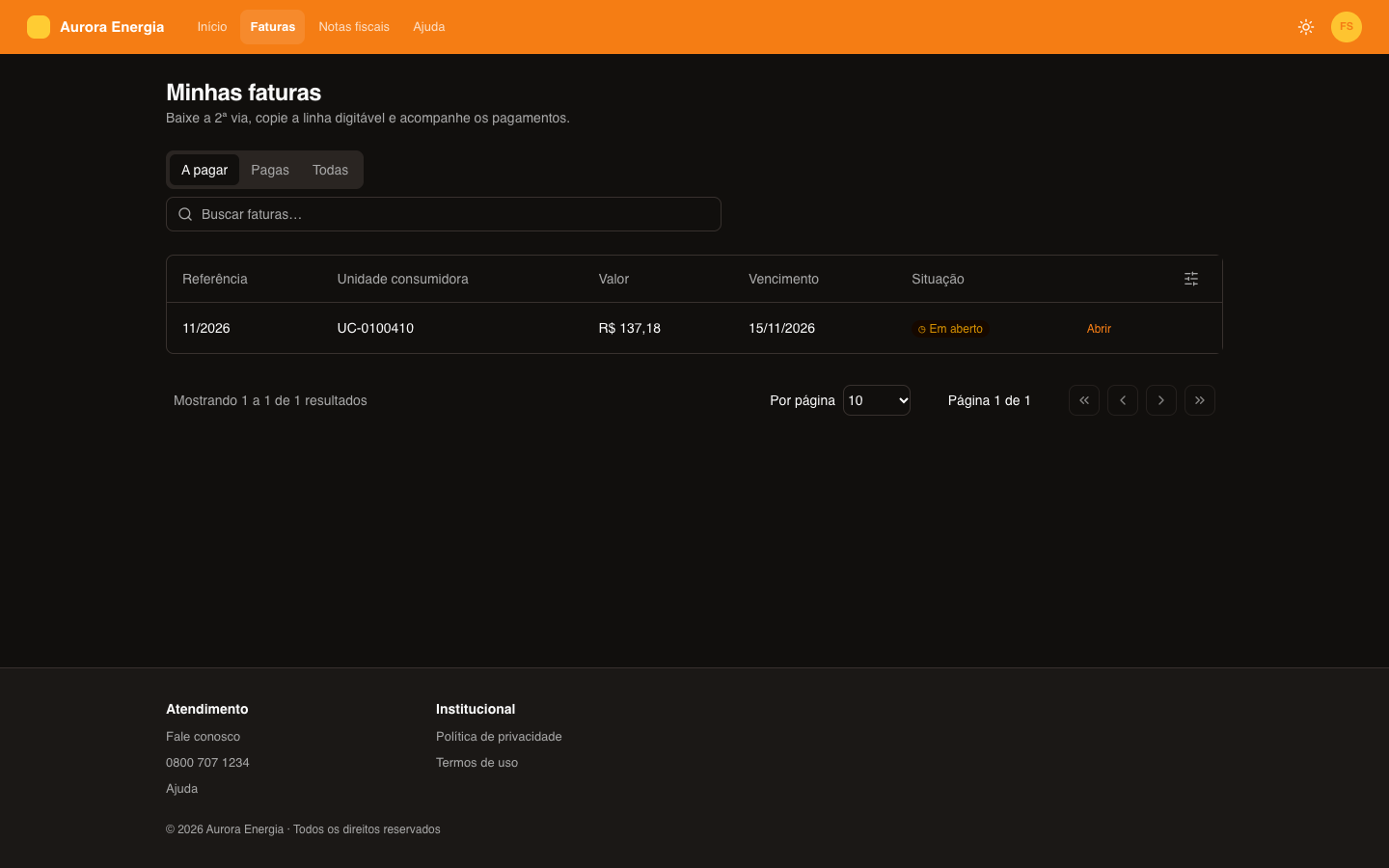
The conditions available in filters (of tabs and KPIs) are: equals, is different from, is one of (separate with commas), contains, is greater than, is less than, is empty, is filled in, is a date before today and is a date from today on. For status and yes/no fields, the value is chosen from a list.
A tab with no name does not appear.
Detail pages
For the customer to open a record and see all of its data:
- Create a page with a Detail block of the same entity — the Detail template of + New page already comes with it. Turn off Show in menu in the page settings.
- In the Table, choose that page in Open detail on page.
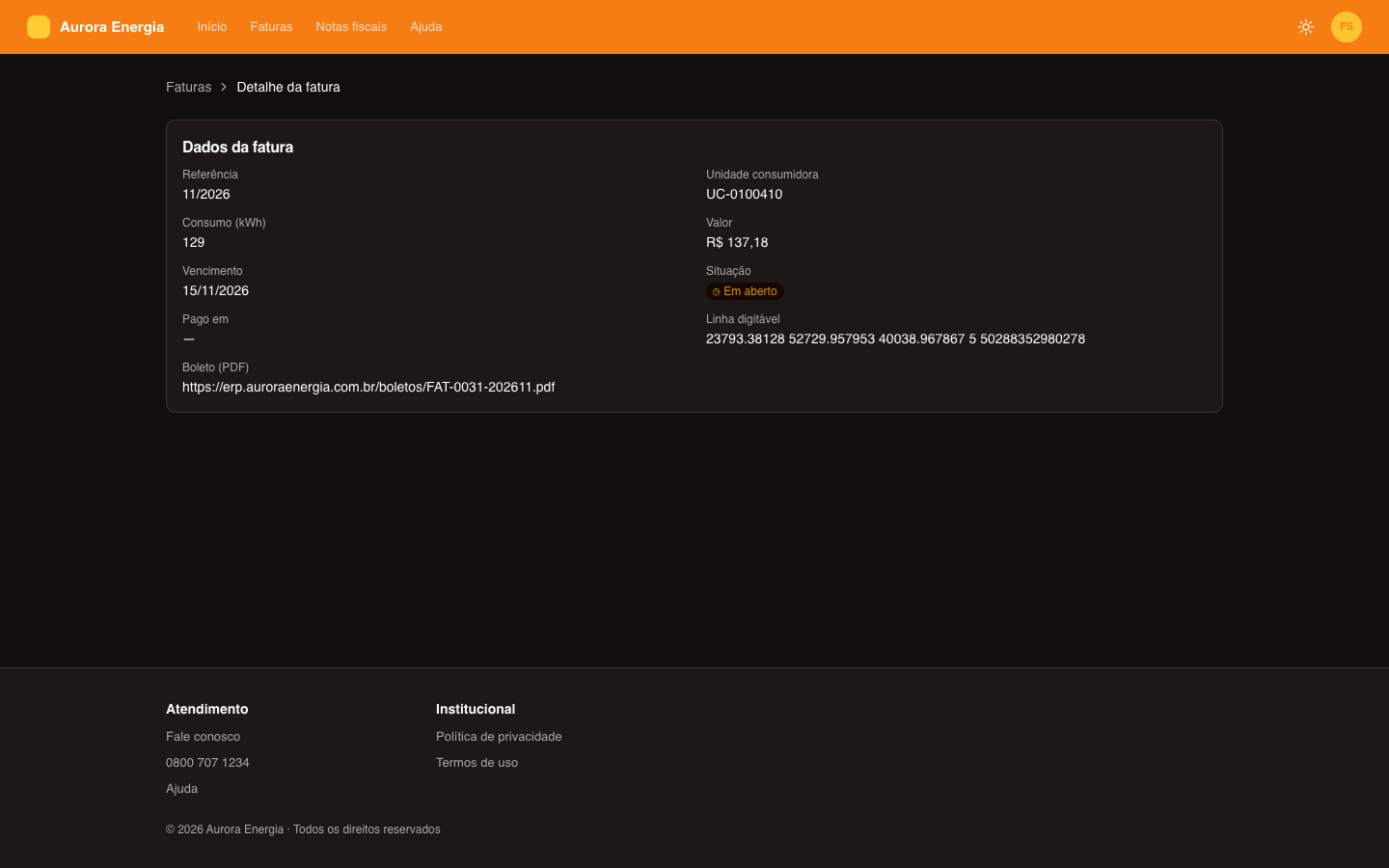
Each table row now opens the detail page with the record in the address: /fatura?resource=FAT-0001-202609. Cards do the same with a button that leads to a portal page.
In the Detail, No record in the URL defines what happens when the page is opened without ?resource=: Show the first record of the customer or Ask to choose. The customer can only open records that are theirs, even by editing the address.
In Aurora Energia, the Invoices table opens the Invoice detail page (/fatura, outside the menu), with a Breadcrumb back to Invoices and the Detail with reference, unit, consumption, amount, due date, status, payment date, payment line and boleto.
When there are no records
Every data block has the Show only if there is data option. When on, a customer who has no records of that entity does not see the block. In the Builder it stays visible, dimmed and marked Hidden from the customer: no data, so you can select it.
With the option on, the Empty state content field appears: a text (with formatting and links) shown in place of the block while there are no records. In Aurora Educação, the Tuition table shows "No tuition here yet." for those who do not have any tuition yet.
Tab and KPI filters do not hide the block: what counts are the customer's records, before any page filter.
View as
In the top bar, View as changes whose data the preview shows:
- All records — all records of the entity, without the holder filter. Good for building the page.
- A portal user — the records that user sees in the portal, by their tenant ID. The list shows the workspace's active users, with the tenant ID next to the name.
Use View as to check that a customer sees only what is theirs and how the page looks for those with few (or no) records. The greeting of the Logged-in customer block and the initial values of forms also use the chosen user.