Forms and actions
Two Builder blocks let the customer do something in the portal: the Form, which sends what they filled in by email or to a webhook, and the Action button, which opens a link or triggers a webhook.
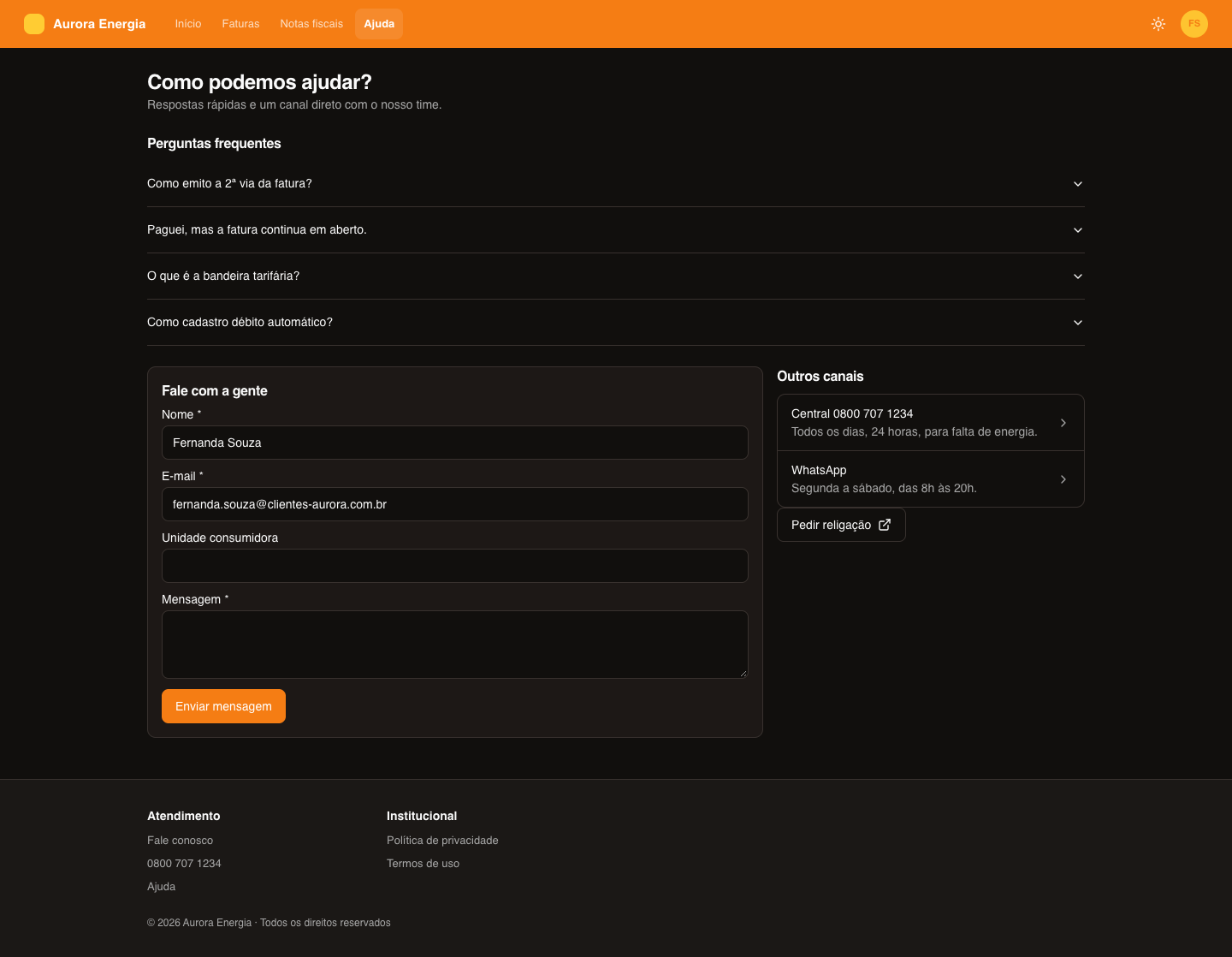
On the Aurora Energia Help page, the Talk to us form sends the customer's message to atendimento@auroraenergia.com.br, and the Request reconnection button opens the company website in a new tab.
Form
Fields
In Fields, add one item for each form field:
| Property | What it is for |
|---|---|
| Label | The field name for the customer, like Consumer unit. |
| Variable name | How the value is used in the email or webhook ({{unidade}}). When empty, it is created from the label. |
| Type | The accepted format (see below). |
| Initial value | What the field already comes filled in with. Accepts expressions, like {{ $user.email }}. |
| Required | Whether the customer must fill it in. |
The types validate and format what the customer types:
| Type | Accepts |
|---|---|
| Text, Long text | Any text |
| A valid email | |
| Phone | (00) 0000-0000 or a mobile number with 9 digits |
| URL | http:// or https:// |
| Numbers | Only numbers |
| Currency BRL / Currency other | Values like R$ 999.999,99 |
| CPF, CNPJ, CPF or CNPJ | Valid documents, with the mask applied |
| Regexp | Text that matches the Regular expression you provide, like [A-Z]{3}-\d{4} |
Initial values
To spare the customer from typing what the portal already knows, use in the Initial value:
| Expression | Value |
|---|---|
{{ $user.name }} | Name of the logged-in user |
{{ $user.first_name }} | First name |
{{ $user.email }} | |
{{ $user.id }} | Portal user id |
{{ $tenant.id }} | The user's tenant ID |
You can combine them with text and methods, like {{ $user.name.toUpperCase() }}. In the Builder, the value appears with the data of the user chosen in View as.
In the Aurora Imóveis inspection request form, Name starts with {{ $user.name }}, and CPF and Phone are required, with the CPF and Phone types.
What happens on submit
In Action on submit, choose:
| Field | What it is for |
|---|---|
| To | The recipients, separated by commas (up to 10). |
| Subject | The email subject. |
| Message | The email body. |
In all three fields you can use {{variables}}: those of each form field and those of the submission — {{form_title}}, {{page_path}}, {{submitted_at}}, {{customer_name}}, {{customer_email}}, {{organization_name}} and {{all_fields}} (all fields, one per line). Click a variable in the panel list to copy it. Expressions like {{ $now.toFormat('dd/MM/yyyy') }} also work.
The email goes out with the sender, reply-to address, blind copy and layout defined in Notifications, and stays in the notification history.
Webhook
Choose one of the workspace's active webhooks, registered in API and webhooks › Webhooks. The delivery goes through the same queue as the other webhooks — with the same signature, retries and the record in Deliveries. No URL or credential stays on the page.
Also set the Button text and the Success message, which the customer sees after submitting.
Action button
| Property | What it is for |
|---|---|
| Button text | What appears on the button. |
| Type | Link or Webhook. |
| Style | Filled or Outline. |
| Icon and Icon position | An icon before or after the text. |
| Alignment | Left, center or right. |
| Ask for confirmation | Shows the Confirmation message before proceeding. |
Link
In Open, choose Portal page (and the page) or URL — an https://…, mailto: or tel: address, with the Open in new tab option. A link only takes the customer somewhere else; nothing is sent.
Webhook
The button sends a server request to the address you define:
| Field | What it is for |
|---|---|
| Method | POST, PUT or PATCH. |
| URL | The address called. Accepts {{variables}}. |
| Headers | Key and value pairs (up to 20), like Authorization. |
| Body | The request body. It already comes with a JSON with the click data. |
| Success message | What the customer sees when the call succeeds. |
Variables available in the URL, headers and body: {{button_label}}, {{page_path}}, {{triggered_at}}, {{customer_name}}, {{customer_email}}, {{tenant_id}}, {{portal_user_id}} and {{organization_name}}. In a JSON body, write the variable between quotes ("{{customer_name}}") — the value is escaped. Without a Content-Type header, the request goes out as application/json.
:::warning Tokens and API keys To store a token, click Secret next to the header value, type the value and click Save. It is stored encrypted: neither the page, nor the AI, nor whoever opens the Builder can read it back — the panel shows only Secret value saved (encrypted), with the Replace option. Never write a secret directly in the value field or in the body. :::
If the call fails, the customer sees only a generic warning.
Test in the Builder
The Builder preview runs the actions for real: the form email is sent, the webhook is called and the button shows how the address responded (status and time). Use test recipients and addresses while you build the page.
Where to see submissions
| What | Where |
|---|---|
| Each form submission | portal_form.submitted event in Events |
| Each click on a webhook button | portal_action.triggered event in Events |
| The emails sent by forms | Notifications history |
| Deliveries to the workspace webhooks | Deliveries |