Brand
In Portal › Brand (/dashboard/portal/settings/branding) you give the portal your company's look: the name, the sign-in screen texts, the logos and the browser tab icon.
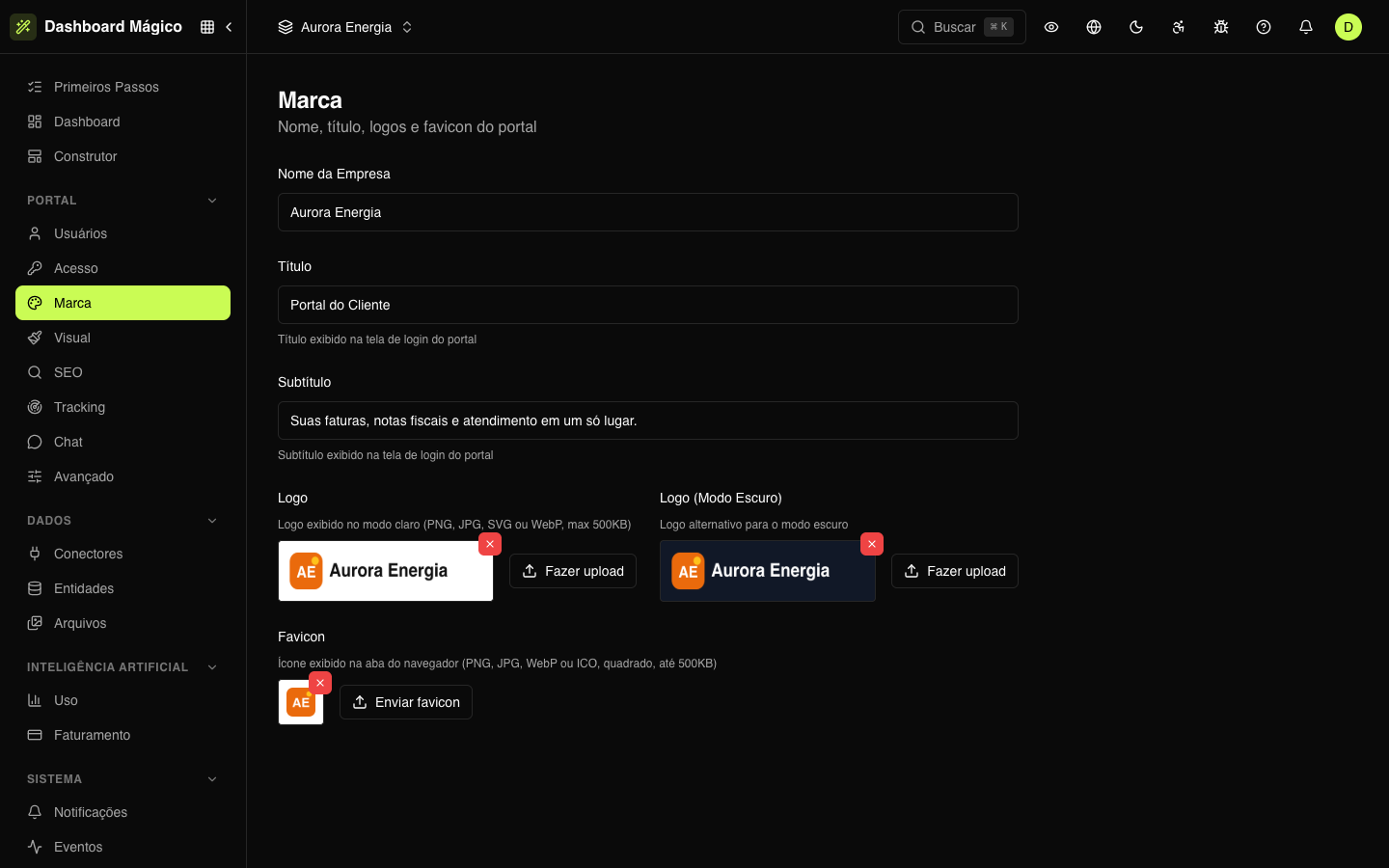
The fields
| Field | What it is | Where it appears |
|---|---|---|
| Company Name | The portal's name | In the page header (when the Header block has no title of its own), in the default footer text (© 2026 Aurora Energia) and in the signature of e-mails sent to users |
| Title | The sign-in screen title | Above the sign-in form |
| Subtitle | A short sentence under the title | Below the title, on the sign-in screen |
| Logo | The logo for light mode | On the sign-in screen |
| Logo (Dark Mode) | A version of the logo for dark backgrounds | On the sign-in screen, in dark mode |
| Favicon | The browser tab icon | On the tab, on every portal page |
Title, subtitle and logos also appear on the portal's other entry screens: forgot password, magic link, invitation and e-mail verification.
In the Aurora Energia workspace:
- Company Name: Aurora Energia
- Title: Customer Portal
- Subtitle: Your invoices, tax documents and support in one place.
Without a title and subtitle, the sign-in screen uses default texts.
The texts are saved automatically, a moment after you stop typing.
Logos and favicon
To upload an image, click Upload (or Upload favicon) and choose the file. To remove it, click the X over the image.
| Image | Formats | Maximum size |
|---|---|---|
| Logo and Logo (Dark Mode) | PNG, JPG, SVG or WebP | 500 KB |
| Favicon | PNG, JPG, WebP or ICO, square | 500 KB |
Each visitor sees the portal in their system's light or dark mode and can switch with the header button. The sign-in screen shows the logo for the mode in use. If you upload only one of the logos, it is used in both modes.
Use a logo with a transparent background (PNG or SVG). In dark mode, prefer a light version of the logo, so it doesn't disappear into the background.
The Header block on the pages shows the company name and a symbol in the accent color — not the logo. The logo appears on the sign-in screen. Colors are in Visual.