Portal users
Portal users are the people who sign in to the workspace portal — your customers. Each one has their own login and sees only the records for their tenant ID.
Don't confuse them with members: members are your team and sign in to the dashboard; portal users sign in to the portal.
You manage users in Portal › Users (/dashboard/users).
The tenant ID
The tenant ID decides what the user sees: the portal shows the records whose holder ID equals the user's tenant ID. A user without a tenant ID can sign in to the portal but sees no records.
Several users can share the same tenant ID — a company's partners, the finance team, the accountant. They all see the same records. The details are in Holder and tenant ID.
At Aurora Energia, the tenant ID is the customer's CPF or CNPJ, such as 89995232000130.
The list
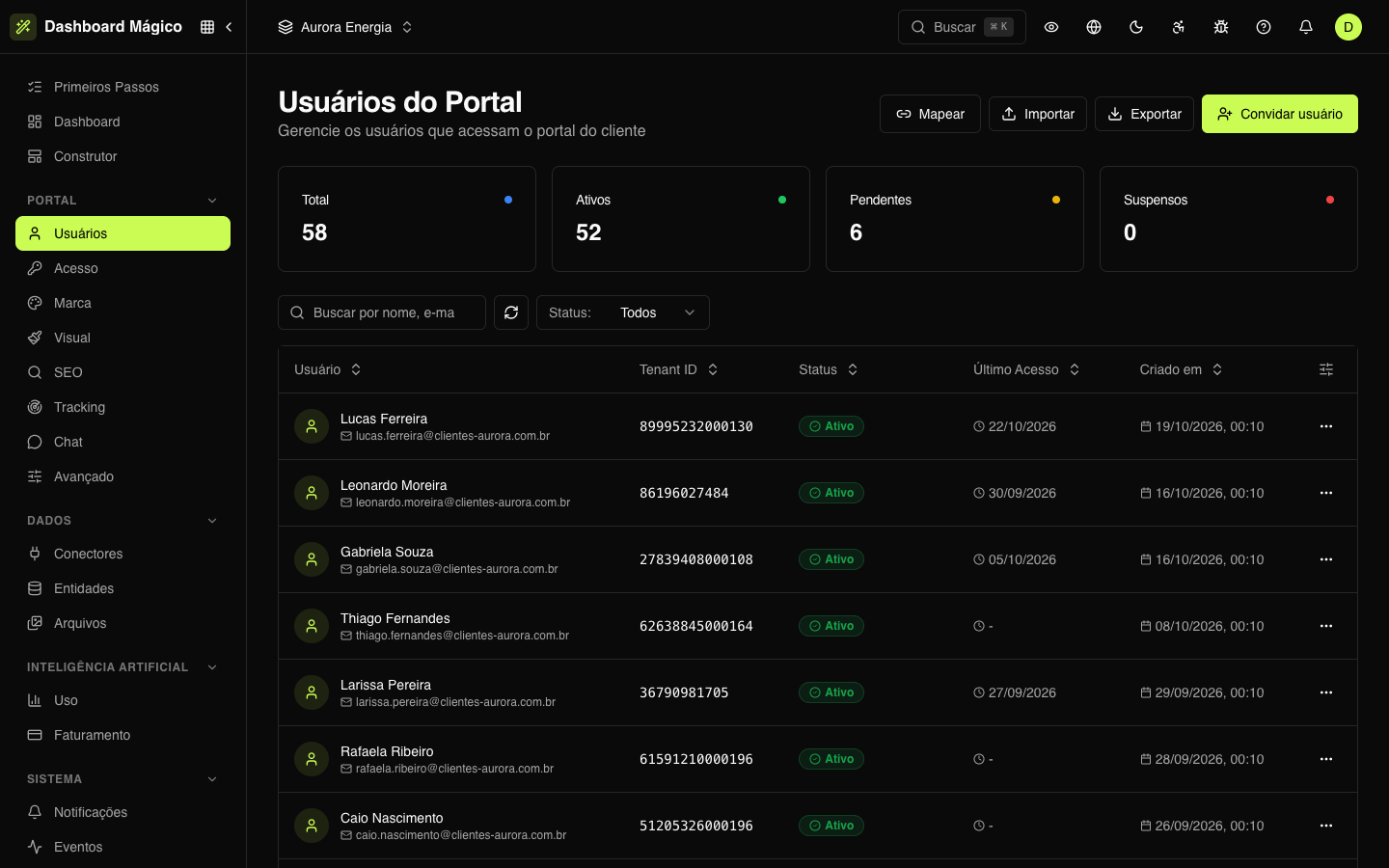
At the top, four counters: Total, Active, Pending (verification or invitation still open) and Suspended.
The table shows:
| Column | What it is |
|---|---|
| User | Name and e-mail |
| Tenant ID | The value that links the user to the records; "No Tenant ID" when it is missing |
| Status | See the table below |
| Last Login | The last sign-in to the portal |
| Created at | When the user was registered |
You can search by name, e-mail or tenant ID, filter by status, sort by clicking a column title and choose which columns are visible.
Status
| Status | What it means | Can sign in to the portal? |
|---|---|---|
| Active | Access granted | Yes |
| Pending | Hasn't confirmed the e-mail yet | Yes — the first sign-in activates the user |
| Invitation Sent | Received an invitation and hasn't accepted it yet | Yes — the first sign-in activates the user |
| Suspended | Access was blocked | No |
| Locked | Access was blocked | No |
The dashboard has no button to suspend or reactivate a user: that is done through the API or through the import (status column).
After 5 wrong passwords in a row, password sign-in is locked for 15 minutes. The status doesn't change; the user detail shows the failed attempts and until when the user is locked.
Adding users
There are four ways:
- Invite user — one at a time, from the dashboard (see below).
- Map — creates the users from the records of an entity (see below).
- Import — many at once, from a CSV spreadsheet.
- SSO — your system creates the user on first access. See Access.
Inviting and importing depend on the Allow creating users in the dashboard option, in System › Settings › Records. With it turned off, the Invite user button disappears and the import is refused; new users arrive through the API, the mapping or SSO. See Settings.
Inviting a user
- Click Invite user.
- Enter the E-mail and, if you already know it, the Tenant ID.
- Click Send invitation.
The user receives an e-mail with a link to activate their access. The link is valid for 7 days. Until then, they appear as Invitation Sent.
Mapping from an entity
If your customers are already in an entity (for example, a customer list coming from your ERP), the portal creates the users for you:
- Click Map.
- Choose the Entity.
- Choose the Tenant ID field and the User e-mail field. The User name is optional.
- Click Map and sync.
Each e-mail becomes a user with the record's tenant ID, with the Pending status — no e-mail is sent; the user signs in through the portal (with a magic link, for example) and the first sign-in activates them. An e-mail that already has a user is not registered again; if that user has no tenant ID, they get the record's.
The sync runs right away and again on every sync of the entity. It only adds: a record that disappears from the source doesn't remove anyone. To take someone's access away, do it in the dashboard. To undo the mapping, use Remove mapping — the users already created stay.
The user detail
Click a user (or View details, in the row menu) to open the detail.
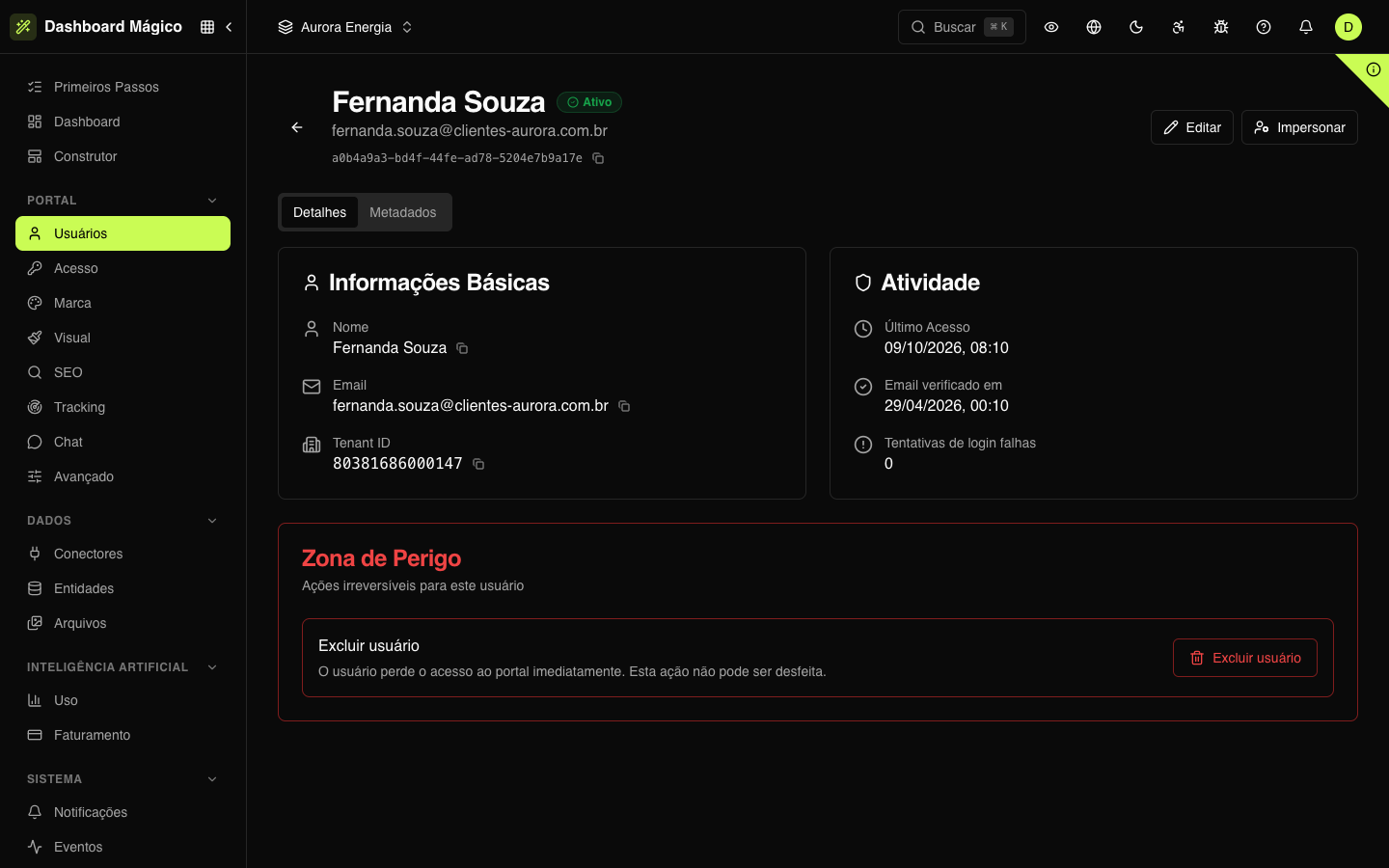
- Basic Information — name, e-mail and tenant ID.
- Activity — last sign-in, e-mail verification date, failed login attempts and, if any, until when the login is locked.
- Metadata — the tab with the technical data of the record: where it came from and who created or changed it.
Actions
| Action | Where | What it does |
|---|---|---|
| Copy ID / Copy Public ID | Row menu | Copies the internal identifier or the public ID (the one the API and SSO use) |
| Resend email | Row menu, for Pending or Invitation Sent | Shows a preview of the e-mail and resends it. For an invitation, generates a new link, valid for another 7 days |
| Copy validation link | Row menu, for Invitation Sent | Copies the invitation link so you can send it through another channel |
| Edit | Detail | Changes name, tenant ID and public ID. The e-mail can only be changed if Allow editing the user's email in the dashboard is turned on in Settings |
| Impersonate | Detail, for Active or Invitation Sent | Opens the portal signed in as the user, to give support |
| Delete user | Detail, under Danger Zone | Deletes the user. They lose access immediately |
Changing a user's e-mail ends their open sessions.
:::warning Impersonating Everything you do in the portal while impersonating a user is recorded as if it were them. Use it only for support. The start of the impersonation is recorded in the Audit log. :::
:::warning Deleting is permanent Deletion can't be undone. The entry in the Audit log remains, but the user is gone. To bring them back, they need to be registered again. :::