Visual
In Portal › Visual (/dashboard/portal/settings/visual) you choose the portal colors, one palette for light mode and another for dark mode. Next to it, a preview shows the colors on a header, a card, buttons and a field.
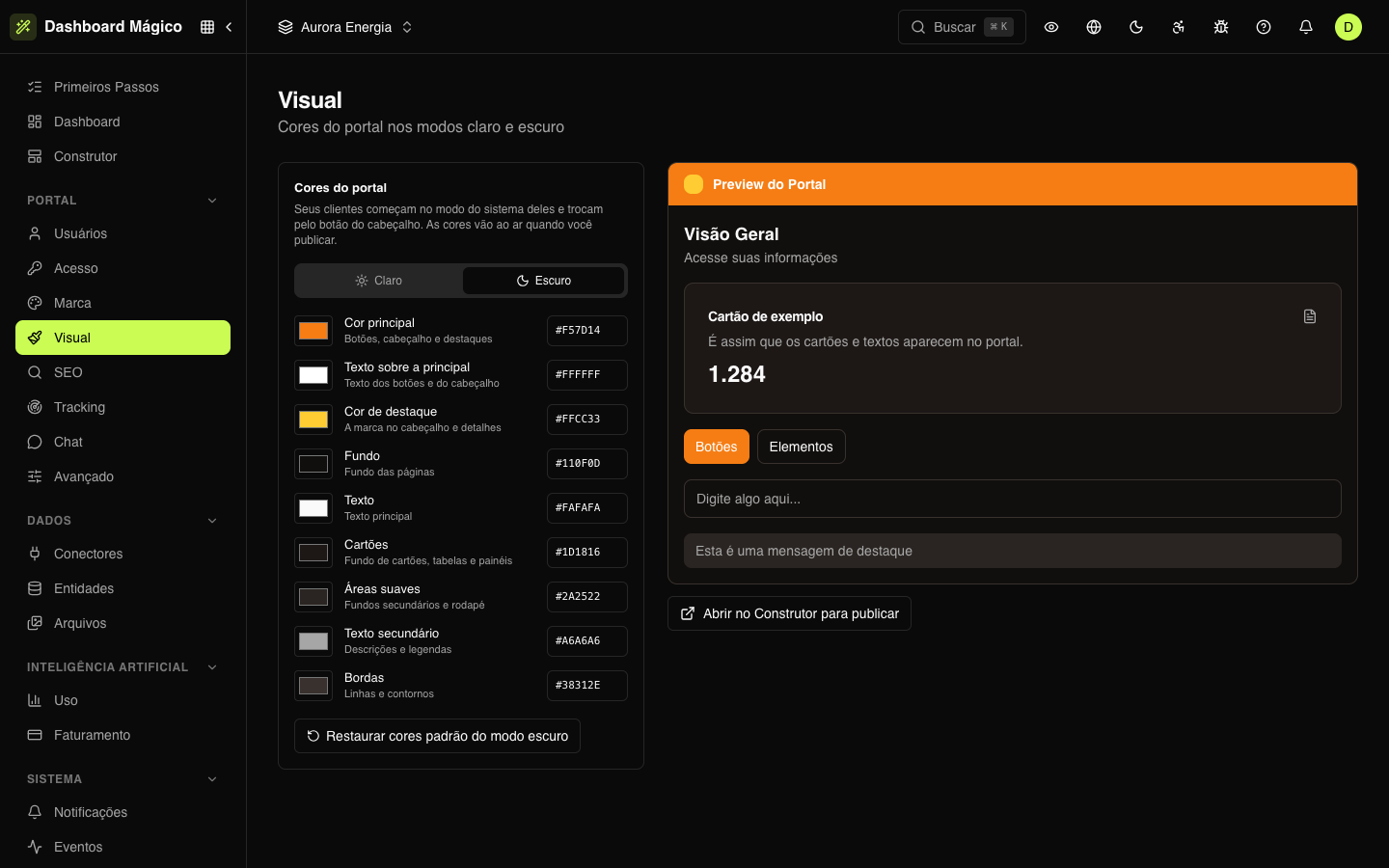
They are the same colors as the Visual panel of the Builder: changing them here or there is the same thing.
The colors
| Color | Where it appears |
|---|---|
| Primary color | Buttons, header and highlights |
| Text on primary | Text of buttons and header |
| Accent color | The mark in the header and details |
| Background | Page background |
| Text | Main text |
| Cards | Background of cards, tables and panels |
| Soft areas | Secondary backgrounds and footer |
| Secondary text | Descriptions and captions |
| Borders | Lines and outlines |
At Aurora Energia, the primary color is orange and the accent color is yellow.
How to change them
- Choose the mode: Light or Dark. The preview follows the chosen mode.
- Click the color square to open the picker, or type the hexadecimal code (such as
#EA6A0C) in the field next to it. - Repeat in the other mode.
Colors are saved automatically, a moment after the last change. Restore default colors takes the open mode back to the initial palette.
When the colors go live
The colors are part of the portal's draft. Your customers only see the new colors after you publish the portal in the Builder — use Open in the Builder to publish. See Publishing and versions.
The published colors apply to the portal pages and to the entry screens (sign-in, forgot password, invitation...).
Each visitor starts in their system's mode (light or dark) and can switch with the header button. That's why it's worth taking care of both palettes.
Check the contrast: the Text on primary must be very readable on top of the Primary color, and the Text on top of the Background.