Webhooks
A webhook is a notice that Magic Dashboard sends to your system when something happens — for example, when an API token is revoked. Instead of your system asking from time to time, it receives a POST with the event data as soon as the event happens. The address that receives this POST is the endpoint.
Endpoints live in the Webhooks tab of System › API (/dashboard/api?tab=webhooks).
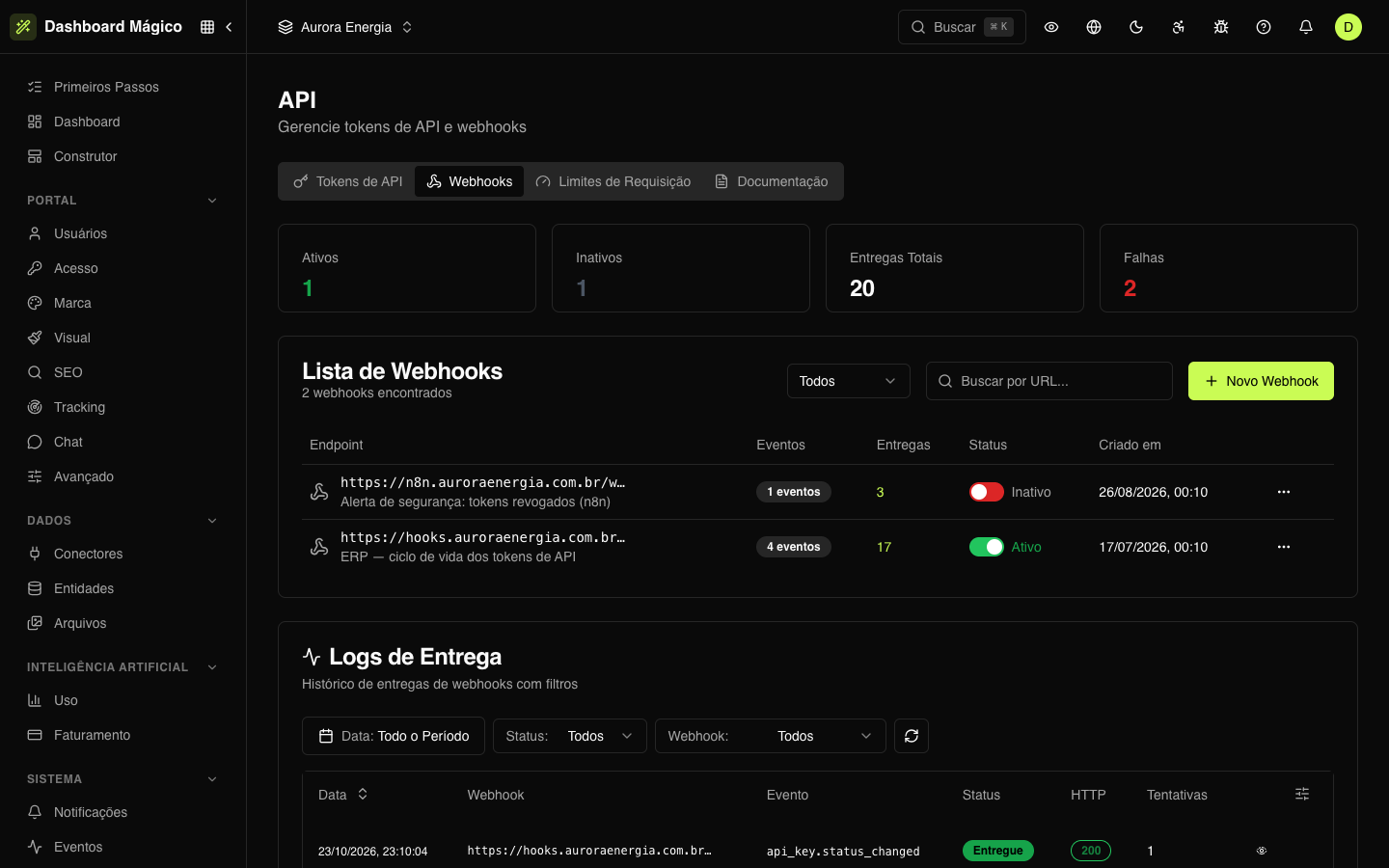
At the top, four numbers summarize the workspace: Active and Inactive endpoints, Total Deliveries and Failed. Below comes the Webhooks List, with a status filter and URL search, and then the Delivery Logs.
Endpoints and workspaces
Each endpoint belongs to the workspace where it was created, and the list shows only those of the active workspace. A workspace's events reach only its own endpoints; events of the organization as a whole reach the endpoints of every workspace.
Create an endpoint
-
In the Webhooks List, click New Webhook.
-
Fill in the fields:
Field What it is Endpoint URL The address that receives the events. It must be https://and public: internal or private addresses (such aslocalhost) are refused.Authentication A credential that Magic Dashboard sends on every request, if your endpoint requires one: None, Basic Auth (username and password), Bearer Token or Custom Header (name and value). It is stored encrypted. Description (optional) To remember who uses the endpoint — for example, ERP — portal and user updates. Events The events the endpoint wants to receive. Select all selects those of a category at once. See Webhook events. -
Click Create Webhook.
-
Magic Dashboard shows the endpoint's secret. Copy it and keep it somewhere safe: it won't be shown again. Click Saved.
Select at least one event: the endpoint receives only the selected events.
What you can do with an endpoint
| Where | Action | What happens |
|---|---|---|
| Status column | On/off switch | When off, the endpoint stops receiving events. Turn it on again whenever you want. |
| Deliveries column | Click the number | Opens that endpoint's delivery history. |
| ⋯ menu | View | Shows the URL, the authentication and the events. |
| ⋯ menu | Edit | Changes the authentication, the description and the events. The URL doesn't change: for another address, create another endpoint. To change a credential, fill it in again. |
| ⋯ menu | Test Webhook | Sends a test event (test.webhook), signed like the real ones, and shows whether the endpoint responded successfully. The test appears in the delivery logs. |
| ⋯ menu | Rotate Secret | Generates a new secret, shown only once. The old one stops being valid immediately: update your system right after. |
| ⋯ menu | Delete | Removes the endpoint and its delivery history. There is no undo. |
How your system confirms the notice is from Magic Dashboard
Each delivery is signed with the endpoint's secret. Your system recalculates the signature with the same secret and compares: if it matches, the notice really came from Magic Dashboard and wasn't altered along the way.
The signature follows the Standard Webhooks standard and goes in the webhook-signature and X-Kobana-Signature headers. In short, your system should:
- Read the
webhook-id,webhook-timestampandwebhook-signatureheaders. - Refuse the delivery if the timestamp is more than 5 minutes from the current clock.
- Calculate the HMAC-SHA256 of
webhook-id+.+webhook-timestamp+.+ the body exactly as received, using the secret as the key. - Compare the result with the received signature.
The step-by-step, with Node.js and Python examples and the full list of headers, is in the API webhooks reference.
Automatic deactivation
If an endpoint fails 10 times in a row, Magic Dashboard turns the endpoint off by itself, so it doesn't keep insisting. Fix the problem in your system, use Test Webhook to check and turn the Status column switch on again. A successful delivery resets the failure count.
Every creation, change, test, secret rotation and deletion of an endpoint is recorded in the Audit log.