Settings
The System › Settings screen (/dashboard/settings) gathers what applies to the whole organization, in four tabs: General, Records, Maintenance and Backup. Changes in the General and Records tabs are saved automatically.
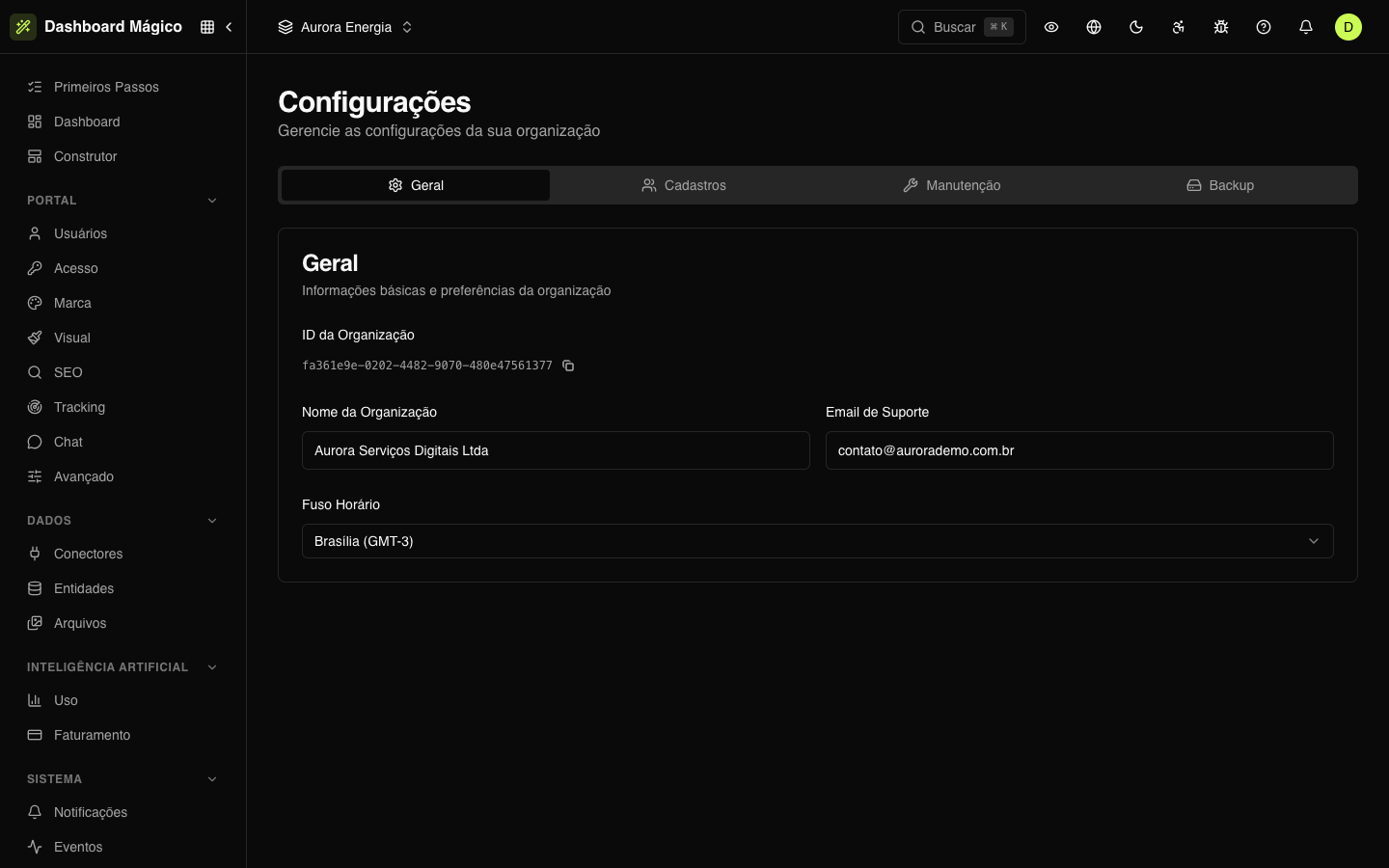
General
| Field | What it is |
|---|---|
| Organization ID | The organization's identifier. Use the button next to it to copy. |
| Organization Name | Your company's name — in Aurora, "Aurora Serviços Digitais Ltda". |
| Support Email | The organization's contact email. |
| Timezone | The organization's timezone — for example, Brasília (GMT-3). |
Records
Rules for records created through the dashboard:
| Option | When turned on |
|---|---|
| Save names in UPPERCASE | A customer's name is converted to uppercase when saved. |
| Allow editing the Public ID in the dashboard | The public ID can be edited in the dashboard forms. When off, it is read-only. |
| Allow creating customers in the dashboard | Customers can be created through the dashboard. When off, only through the API. |
| Allow editing customers' CPF/CNPJ | The CPF/CNPJ can be edited. When off, it is read-only. |
| Allow creating users in the dashboard | Portal users can be created through the dashboard. When off, only through the API or the portal itself. |
| Allow editing the user's email in the dashboard | A portal user's email can be edited. When off, it is read-only. |
See also Portal users.
Maintenance
The Danger Zone has bulk actions. Read carefully before confirming.
Update names to UPPERCASE
Converts the names of all the organization's customers and portal users to uppercase in one go. Useful after turning on Save names in UPPERCASE, to standardize what already existed.
Clear data
Permanently deletes the data you choose:
- Portal users;
- People (customers and contacts);
- Usage History (the daily numbers in Consumption).
The screen shows how many records exist of each type. To confirm, the platform sends a 6-digit code to your email. Clearing can't be undone and is recorded in the Audit.
Only people with the Owner role can clear data.
Backup
Create a backup
- Click Create Backup and confirm.
- Follow the progress in the list. When the status reaches Completed, click Download.
The backup is a ZIP file with the customers and portal users of all workspaces. It is available for download for 7 days, and you need to wait 12 hours between one backup and the next. By default, only the Owner role can download backups, because the file contains personal data.
Restore a backup
- Click Restore Backup.
- Drag the ZIP file or click Select File.
- Click Restore and follow the progress in the list.
The restore adds or updates records with the backup data; updates can't be undone. A restore in progress can be canceled — what was already imported stays in the system.
To restore, you need to be an Owner or have access to all of the organization's workspaces.
| Status | What it means |
|---|---|
| Pending | In the queue. |
| Processing | In progress. |
| Completed | Finished. |
| Failed | It didn't work. Try again. |
| Canceled | Stopped by you. |