Members and roles
Members are the people on your team who sign in to the dashboard. Each one has one or more roles, which define what they can see and change, and accesses only the workspaces granted to them. All of this lives in System › Members (/dashboard/members).
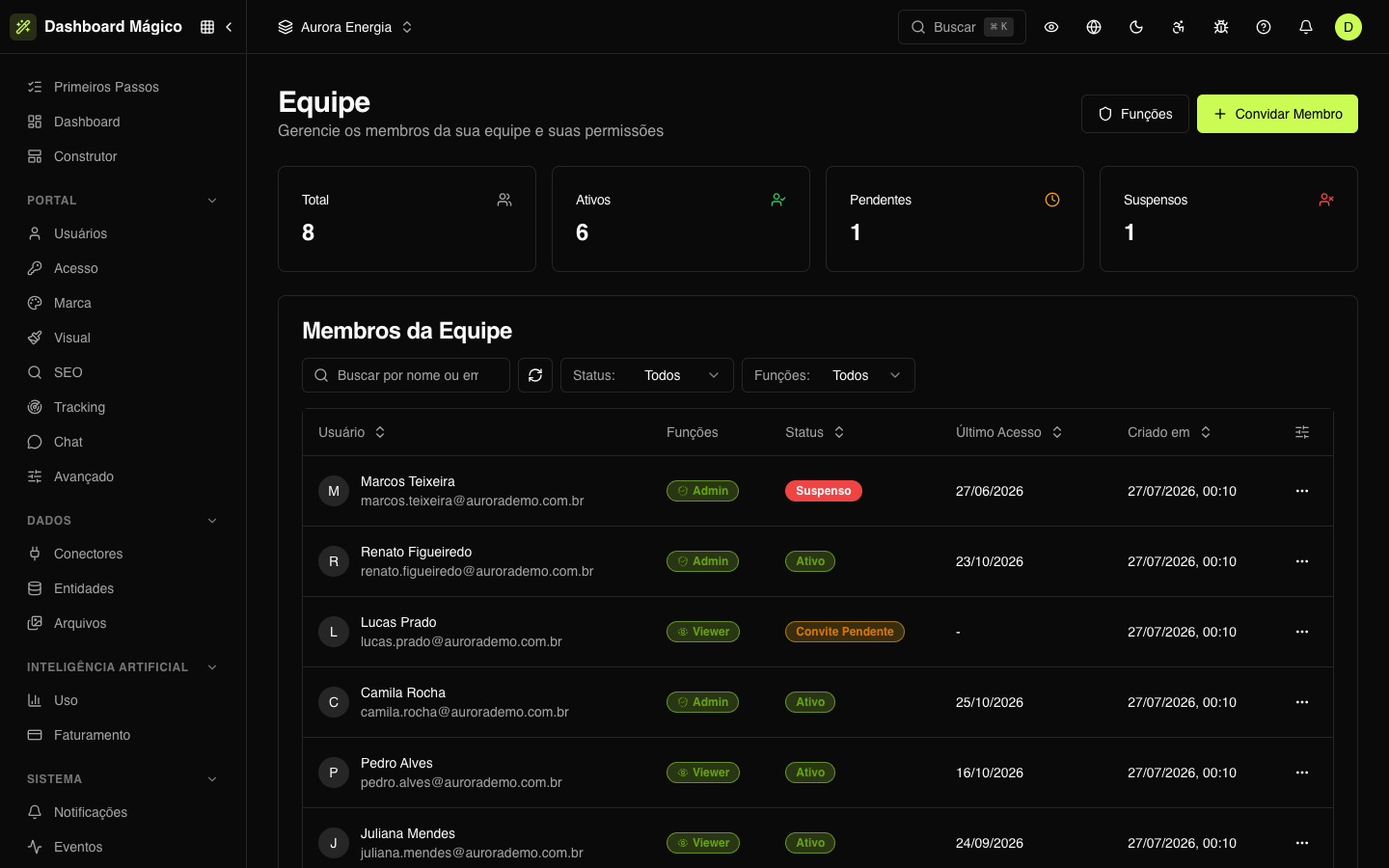
The member list
At the top, four counters: Total, Active, Pending and Suspended. Click one to filter the list.
The list shows each person's name and email, roles, status, last access and creation date. Search by name or email and filter by Status and Roles.
| Status | What it means |
|---|---|
| Pending Invitation | The invitation was sent, and the person hasn't signed in yet. |
| Active | The person signs in normally. |
| Suspended | Access is blocked. The person can't sign in, but the record and history remain. |
Invite a member
- Click Invite Member.
- Enter the Email and, if you want, the Name.
- Check at least one role.
- Check the workspaces the person will be able to open. If the organization has only one workspace, it is granted automatically.
- Click Invite.
The person receives an email with an access link and enters the dashboard with one click. After that, they sign in with their Kobana account or by requesting a new access link by email on the sign-in screen.
Manage a member
Click a member to open their page. There you can:
- see the last access and the total accesses;
- edit the name;
- change the roles — the member must keep at least one;
- choose the workspaces they can open (see below);
- resend the invitation, if they haven't signed in yet — the previous link stops working;
- block access (suspend) or unblock;
- remove the member from the team — access is revoked immediately, and the history is preserved.
The quick actions — resend invitation, block or unblock access and remove — are also in the ⋯ menu on each row of the list.
Changes to roles and permissions can take up to 15 minutes to take effect in a session that is already open.
Workspace access
On the member's page, the Workspaces card lists all the organization's workspaces. Check the ones they can open and click Save access.
| Access | What it means |
|---|---|
| Owner | Can rename, export and delete the workspace (according to the role's permissions). Whoever creates a workspace becomes its owner, and members with the Owner role are owners of all of them. |
| Member | Works in the workspace with the permissions of their roles. |
| Paused | When you uncheck a workspace, access is paused: the person can no longer open it, but nothing is lost. Check it again to restore. |
To change someone's access, you need the Manage workspace access permission and access to the workspace you are granting. A workspace never ends up without an owner: the last owner can't be unchecked. And nobody changes their own access — only another administrator can.
In Aurora, for example, Camila Rocha is the owner of the Aurora Energia and Aurora Imóveis workspaces, and Juliana Mendes's access to Aurora Educação is paused.
See also Workspaces.
Roles
In Roles (/dashboard/members/roles), through the button at the top of the members screen, you see the organization's roles, how many permissions and how many members each one has.
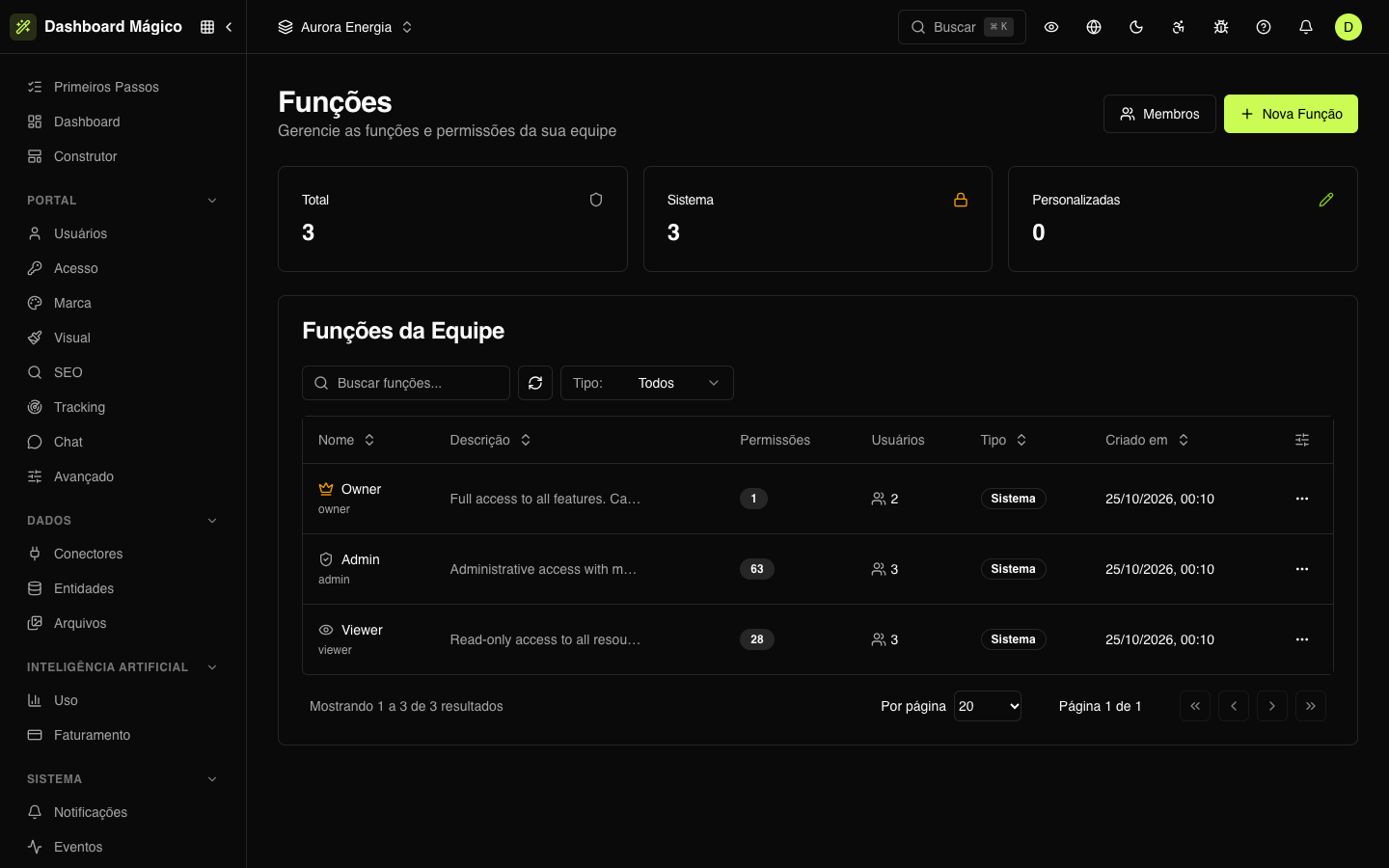
Every organization has three System roles, which can't be changed:
| Role | Access |
|---|---|
| Owner | Everything. |
| Admin | Everything, except deleting workspaces and downloading backups. |
| Viewer | Read-only: sees everything, changes nothing. |
Create a role
- Click New Role.
- Give it a Name, an Identifier (lowercase letters, numbers and
_) and, if you want, a Description. - On the role's page, check the permissions. They are grouped by area: Dashboard, Portal, Portal Users, Connectors, Webhooks, Events, Audit Log, Notifications, Email Templates, Team Members, Roles, Workspaces, API Keys, Customer Usage, Exports, Imports, Settings and Backups.
To start from a ready-made base, use Copy Permissions and choose the source role: its permissions replace the current ones. A custom role can be edited at any time; to delete it, first remove it from all the members who use it.
Invitations, role changes, access changes and removals are recorded in Audit.