Notifications
The platform sends automatic emails to portal users and to your team — invitations, access links, account notices. In System › Notifications (/dashboard/notifications) you follow each delivery, choose the sender and decide which types of notice are turned on.
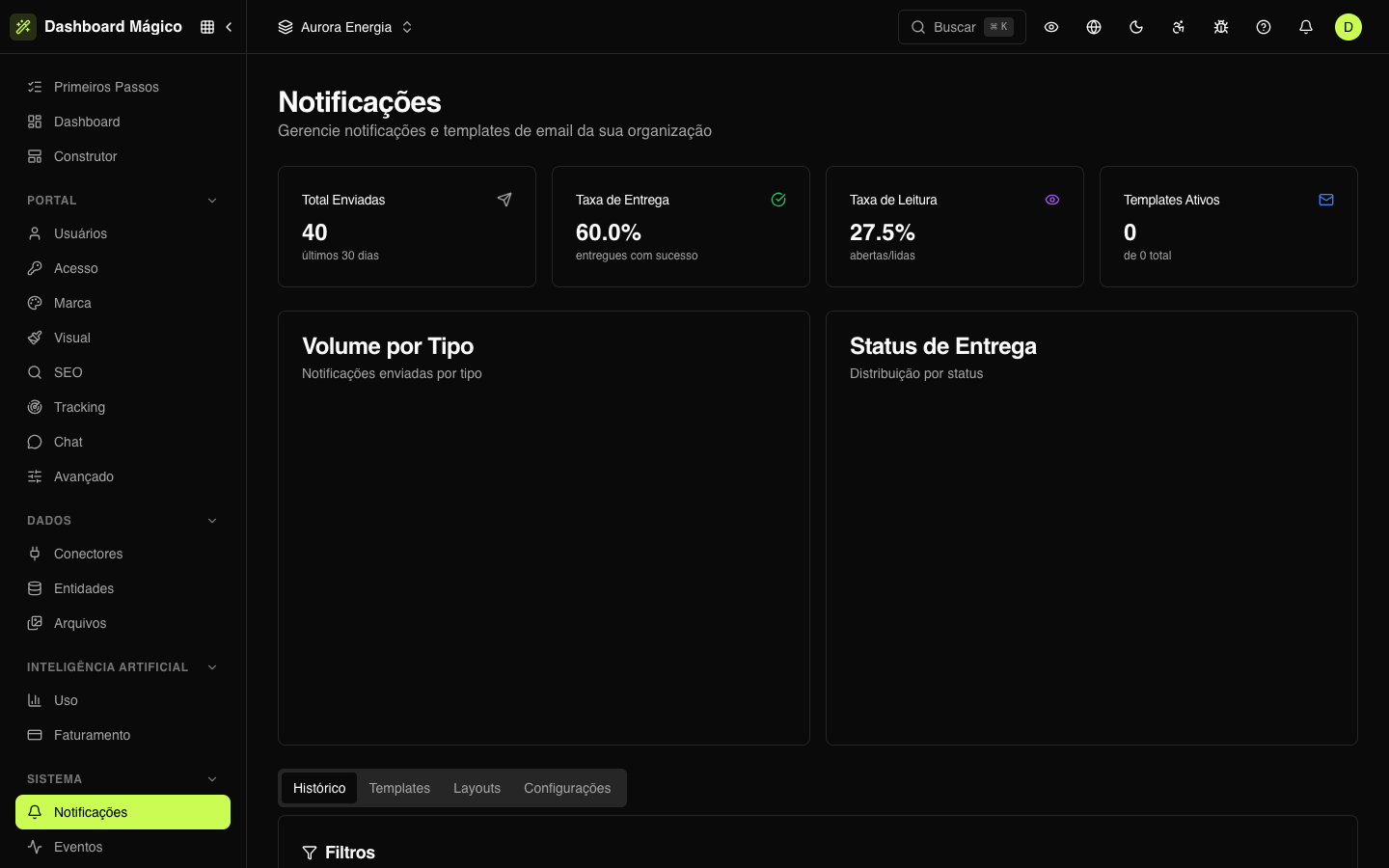
At the top, four numbers summarize the last 30 days: Total Sent, Delivery Rate, Read Rate (opened emails) and Active Templates. Right below, two charts show the volume by type and the distribution by status. The screen has four tabs:
| Tab | What it has |
|---|---|
| History | Every notification sent, with filters. |
| Templates | The subject and content of each type of email. See Email templates. |
| Layouts | The frame (header, footer, branding) that wraps all emails. See Email templates. |
| Settings | The sender, the blind copy and which notification types are turned on. |
History
The list shows the type, channel, recipient, status, attachments and the sent and delivered dates of each notification. Filter by text (email or subject), Type, Channel and Status.
On each row:
- View opens the message: headers, subject, content and attachments.
- Send appears on a Skipped notification: it shows a preview and sends it now.
- Resend appears on a notification that was already sent, delivered, read or failed: it shows a preview and sends it again.
Emails with an access link, a password reset or a verification code appear with the content hidden ([redacted]): the link or code is never stored in the history.
Status
| Status | What it means |
|---|---|
| Pending | Waiting to be sent. |
| Sent | It left the platform. |
| Delivered | The email provider confirmed delivery. |
| Read | The recipient opened the email. |
| Failed | Sending didn't work. Check the recipient and resend. |
| Skipped | Recorded but not sent — the type is Inactive in the settings. |
Settings
The settings in this tab apply to the active workspace: each portal can have its own sender and its own choices.
Email sending
| Field | What it does |
|---|---|
| Sender Name | The name that appears in "From" — for example, "Aurora Energia". |
| Sender Email | The address that sends. If left blank, the platform's default sender applies. |
| Reply-To Email | Where recipients' replies go. |
| Blind Carbon Copy (BCC) | Addresses that receive a blind copy of every email sent. |
The sender email must be verified before it can be used:
- Save the address and click Start verification.
- AWS (the service that sends the emails) sends a confirmation message to that address. Open it and click the link.
- Go back to the screen and click I've approved it, check now. The status becomes Active.
Until the address is approved, emails go out with the platform's default sender. If the link expires, use Resend verification. Changing the sender email requires a new verification.
Emails with an access link, a password reset or a verification code never get a blind copy: the copy would carry a valid login link.
Notification types
For each type, choose how the platform behaves:
| Option | What happens |
|---|---|
| Active | Records and sends. |
| Inactive | Records in the history as Skipped, but doesn't send. Useful for testing. |
| Disabled | Neither records nor sends. |
The types you control here are the notices for portal users: Portal Invitation, Welcome, Account Suspended and Account Activated. Use Apply to all to change all of them at once.
Access emails — login links, password resets, verification codes and team invitations — are always sent and don't appear in this list.
Who receives what
| To whom | Examples |
|---|---|
| Portal users | Portal invitation, access link, email verification, password reset, welcome, suspended or reactivated account notices |
| Your team | Dashboard invitation and access link, notice that an API token is about to expire |
| Addresses you choose | The submission of a portal form with the "Email" action |