Workspaces
A workspace is a separate data space inside your organization, with its own portal, portal users, connectors and entities. In System › Workspaces (/dashboard/workspaces) you see the workspaces you can open, enter each one, create new ones and manage the ones that are yours.
What lives in each workspace and what applies to the whole organization is described in Organization and workspaces.
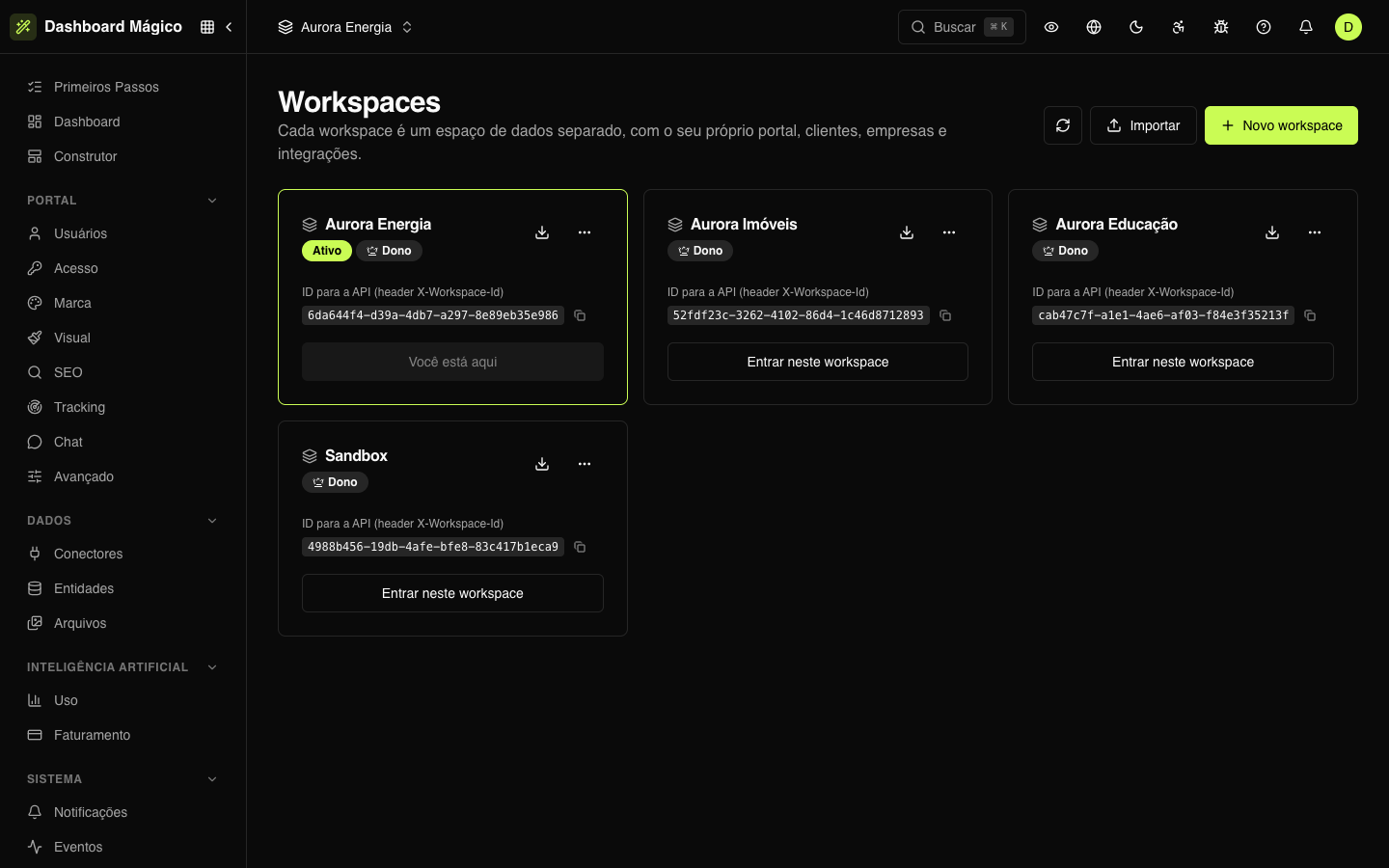
What each card shows
- The workspace name.
- Active — this is the workspace you are using right now.
- Owner — you are the owner of this workspace.
- API ID — the value of the
X-Workspace-Idheader, which tells the API which workspace to act on. Use the button next to it to copy. - Open this workspace — switches to it and opens the dashboard. On the active workspace, the button shows You're here.
The list shows only the workspaces you can open. In Aurora, for example, there are four: Aurora Energia, Aurora Imóveis, Aurora Educação and Sandbox.
Switch workspaces
The name of the active workspace appears at the top of the dashboard, on the left. Click it to pick another one or to go to Manage workspaces.
People with access to more than one workspace choose which one to enter right after signing in. People with access to none see a notice asking them to request access from an administrator.
Create a workspace
- Click New workspace.
- Give it a name — for example, "South Branch".
- Click Create workspace.
You become the owner of the new workspace and can grant access to other members in Members. The workspace starts empty: build its portal, connectors and entities as in any other.
Rename a workspace
In the card's ⋯ menu, choose Rename. The new name appears for all members with access to the workspace.
Copy a workspace (export and import)
You can download a workspace's configuration and create another identical one from it — useful for building a similar portal or taking a configuration to another organization.
To export: on the card, click the download icon (Download settings (JSON)) and then Download JSON. The file contains:
- the Builder: the draft pages, the theme, the SEO and the published version of the portal;
- the access: sign-in, sign-up, invitations, SSO and login providers;
- the portal settings: brand, logos, languages, colors, address and notifications;
- the user mapping: which entity creates the portal users and with which fields;
- the connectors and the entities, with schedules, operations, filters and fields.
Left out are the passwords and credentials (of connectors and login providers), the data (customers, portal users and records — syncs bring them back) and the custom domains. Keep the file somewhere safe: it shows how your portal and your connections are set up.
To import:
- Click Import and upload the
.jsonfile (up to 20 MB). - Give the new workspace a name and click Import workspace.
- Check the list of what's missing, if any: entering the credentials of each connector and reactivating it, the client secret of each login provider, a new address for the portal if the old one is already in use, or the logos, when the file came from another organization.
Delete a workspace
- In the card's ⋯ menu, choose Delete.
- Check what exists in it: portal users, integrations and webhooks.
- Type the workspace name to confirm and click Delete workspace.
When you delete a workspace, its portal goes offline, the connectors stop syncing and the data stops showing for all members. The organization's last workspace cannot be deleted.
Who can do what
| Action | Who can |
|---|---|
| View and enter | Anyone with access to the workspace |
| Create and import | Anyone with the Create workspace permission |
| Rename and export | The workspace owners with the corresponding permission |
| Delete | The workspace owners with the Delete workspace permission — by default, only the Owner role |
The organization's owners (the Owner role) are owners of all workspaces — those created later are added at the next sign-in. Each member's access — owner, member or paused — is granted in Members.
Creating, renaming, deleting, exporting and importing a workspace are recorded in Audit.